> ## Documentation Index
> Fetch the complete documentation index at: https://help.descript.com/llms.txt
> Use this file to discover all available pages before exploring further.
# Commenting in projects
> Add, reply to, and resolve comments in your Descript compositions.
**Project vs. page comments**
Comments created in a Descript project are not the same as comments made on a published share page – project comments are private to those with access to a project, and page comments appear on [content exported using the Descript (web link)](/export-and-share/share-page) destination.
## Leave a comment
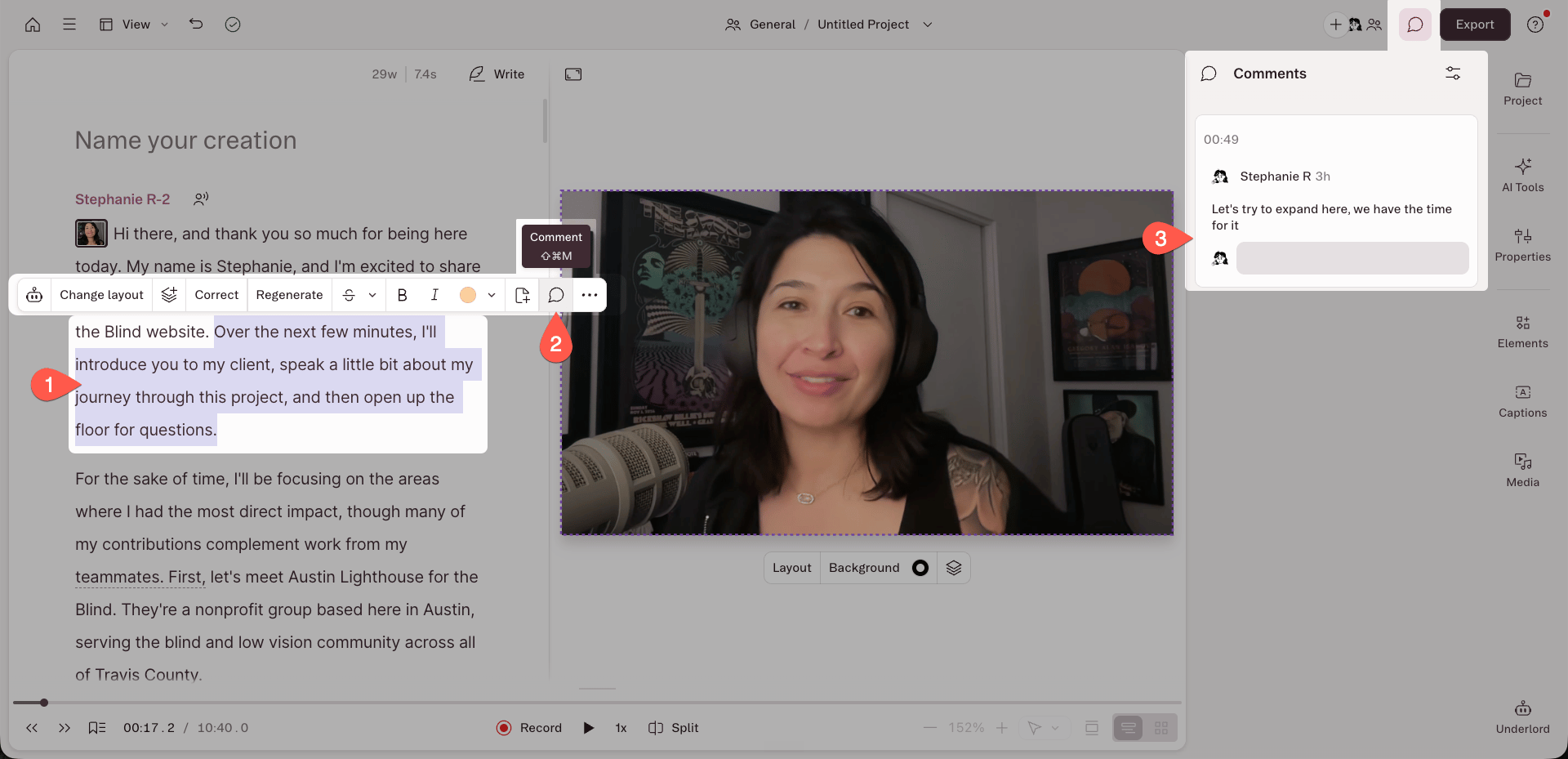
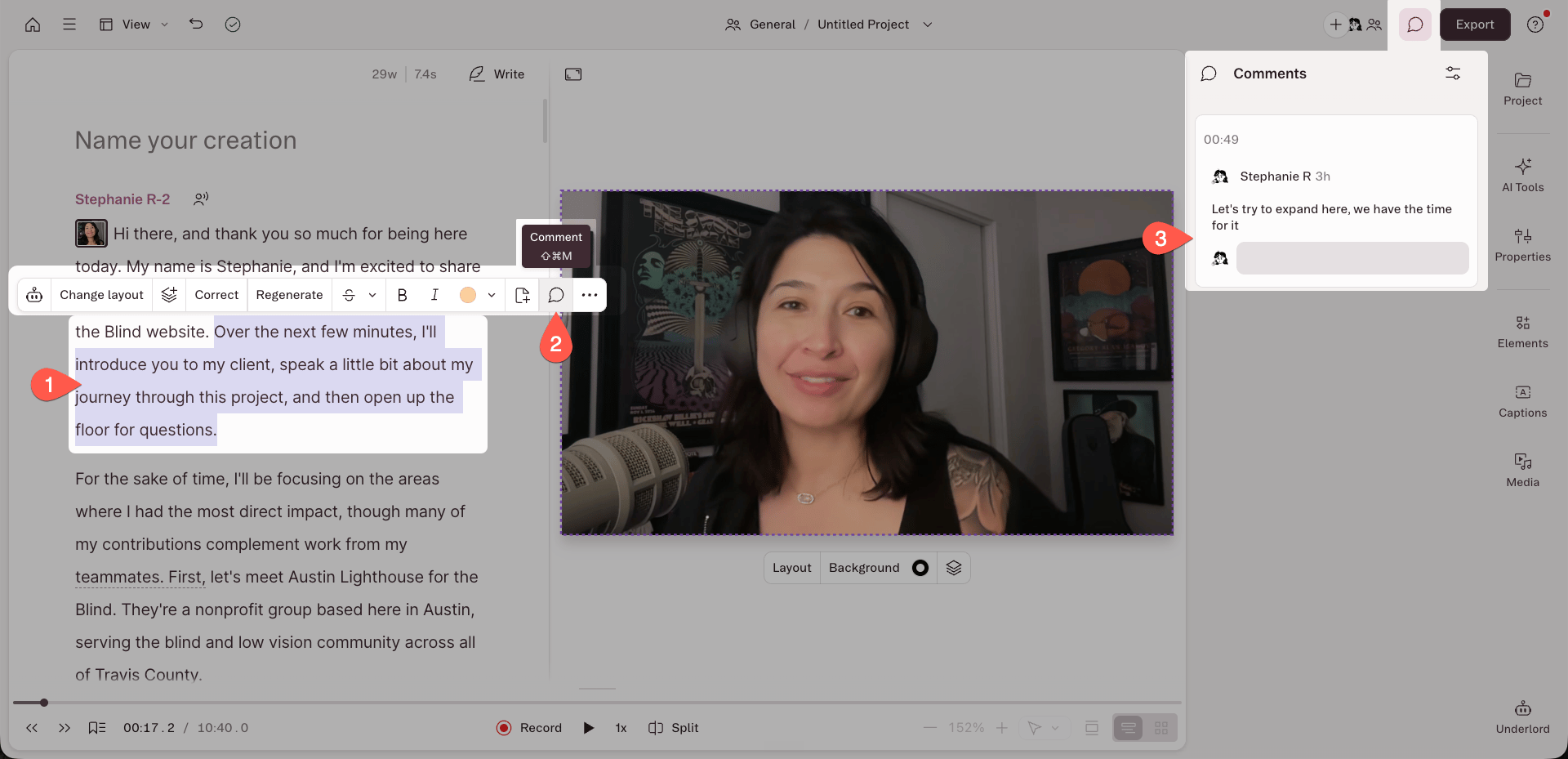
1. Select some words in your transcript, or double-click a single word.
2. Click the **chat bubble** icon in the hover menu.
3. Type your comment in the box that appears in the right-hand panel.
 ## Edit a comment
1. Hover over the comment you want to change.
2. Click the **ellipsis (…)** menu on the comment.
3. Select **Edit**.
4. Make your changes, then click **Save**.
## Mention a collaborator
Type **@** in a comment box to pull up a list of your collaborators — drive members and anyone you've given project access. Select a name to tag them. Tagged collaborators get an email notification with the contents of your comment.
## Resolve a comment
Click the **circle** icon in the top-right corner of a comment box to resolve it. Resolved comments move out of the script and into the archived view.
## View and sort comments
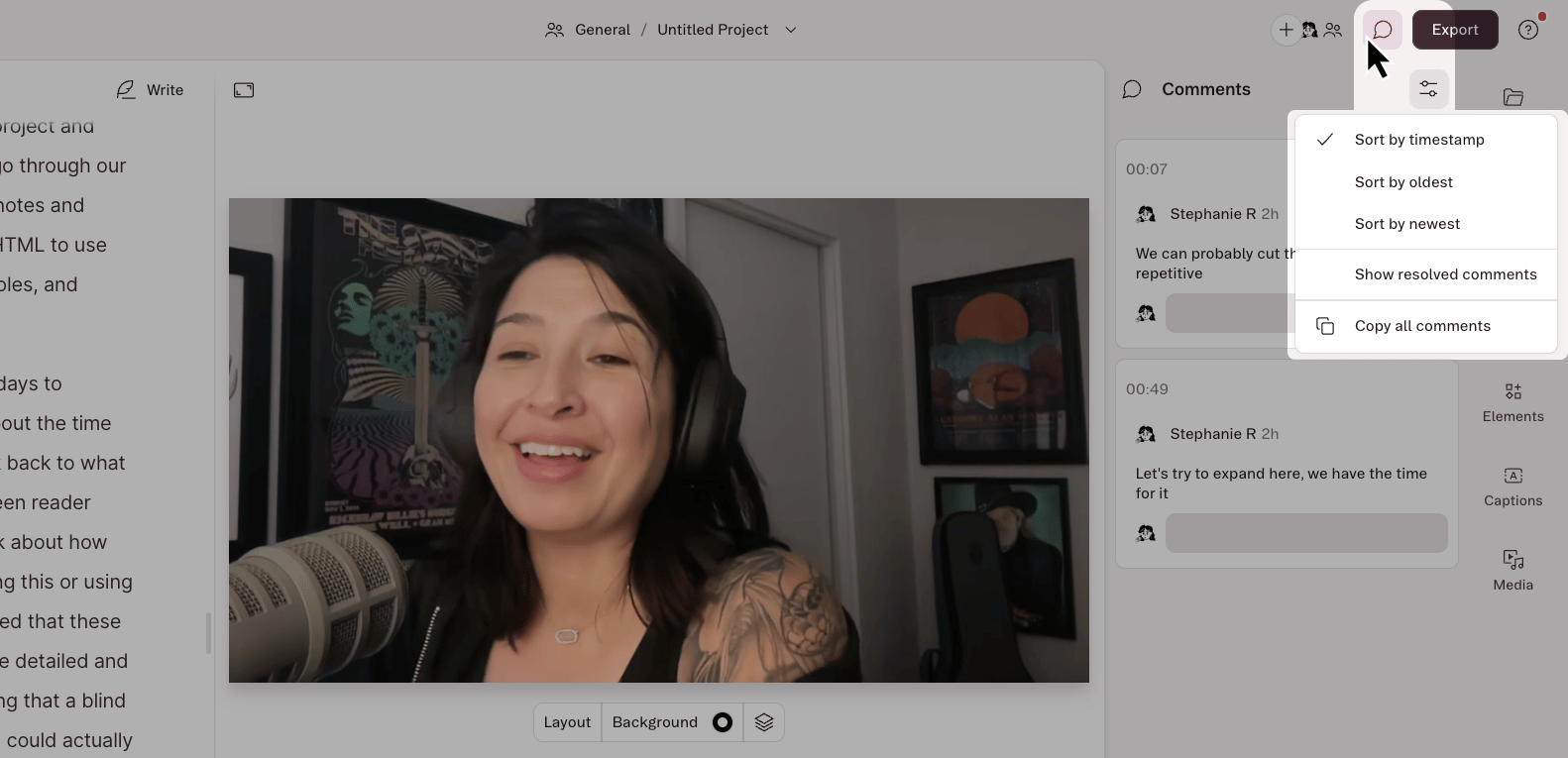
Click the **chat bubble** icon at the top right of the editor to show or hide the comment sidebar. With the sidebar open, click the **properties** icon at the top of the panel and choose a sorting option.
## Edit a comment
1. Hover over the comment you want to change.
2. Click the **ellipsis (…)** menu on the comment.
3. Select **Edit**.
4. Make your changes, then click **Save**.
## Mention a collaborator
Type **@** in a comment box to pull up a list of your collaborators — drive members and anyone you've given project access. Select a name to tag them. Tagged collaborators get an email notification with the contents of your comment.
## Resolve a comment
Click the **circle** icon in the top-right corner of a comment box to resolve it. Resolved comments move out of the script and into the archived view.
## View and sort comments
Click the **chat bubble** icon at the top right of the editor to show or hide the comment sidebar. With the sidebar open, click the **properties** icon at the top of the panel and choose a sorting option.
 ### View resolved comments
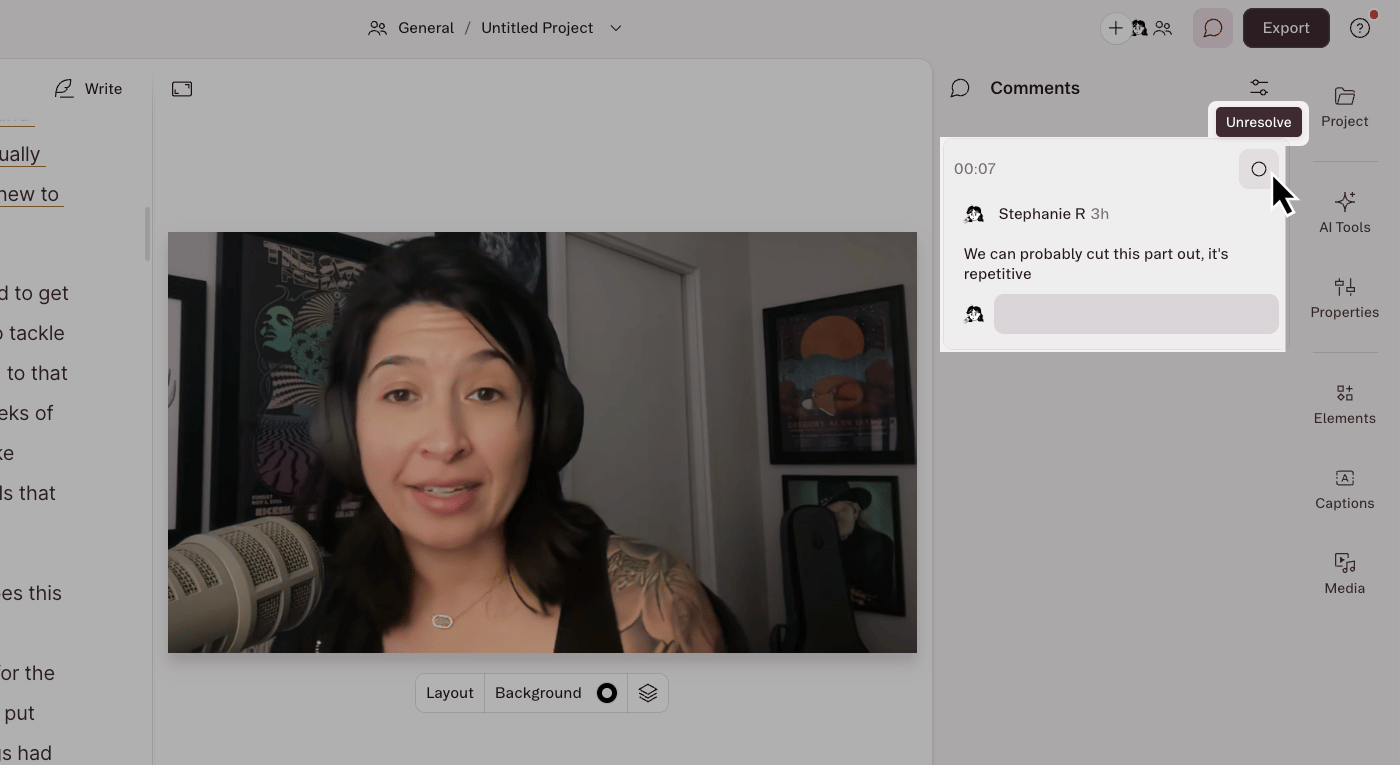
Click the **properties** icon at the top of the panel to switch between resolved and unresolved comments. To bring a resolved comment back into the script, click the **circle** icon in its top-right corner.
### View resolved comments
Click the **properties** icon at the top of the panel to switch between resolved and unresolved comments. To bring a resolved comment back into the script, click the **circle** icon in its top-right corner.
 ## Copying comments
Comments don't carry over when you copy and paste content between compositions, or when you [duplicate a composition](https://help.descript.com/hc/en-us/articles/10612359826061). To save your comments as text, open the comment sidebar and select **Copy all comments**. That copies every comment to your clipboard so you can paste them elsewhere.
## Copying comments
Comments don't carry over when you copy and paste content between compositions, or when you [duplicate a composition](https://help.descript.com/hc/en-us/articles/10612359826061). To save your comments as text, open the comment sidebar and select **Copy all comments**. That copies every comment to your clipboard so you can paste them elsewhere.