> ## Documentation Index
> Fetch the complete documentation index at: https://help.descript.com/llms.txt
> Use this file to discover all available pages before exploring further.
# Brand Studio
> Descript's Brand Studio brings your team's branding tools together in one centralized place.
Brand Studio gives a Drive owner or admin one place to manage the team's layout packs, fonts, colors, and media. With the assets centralized, every composition the team makes comes out on-brand.
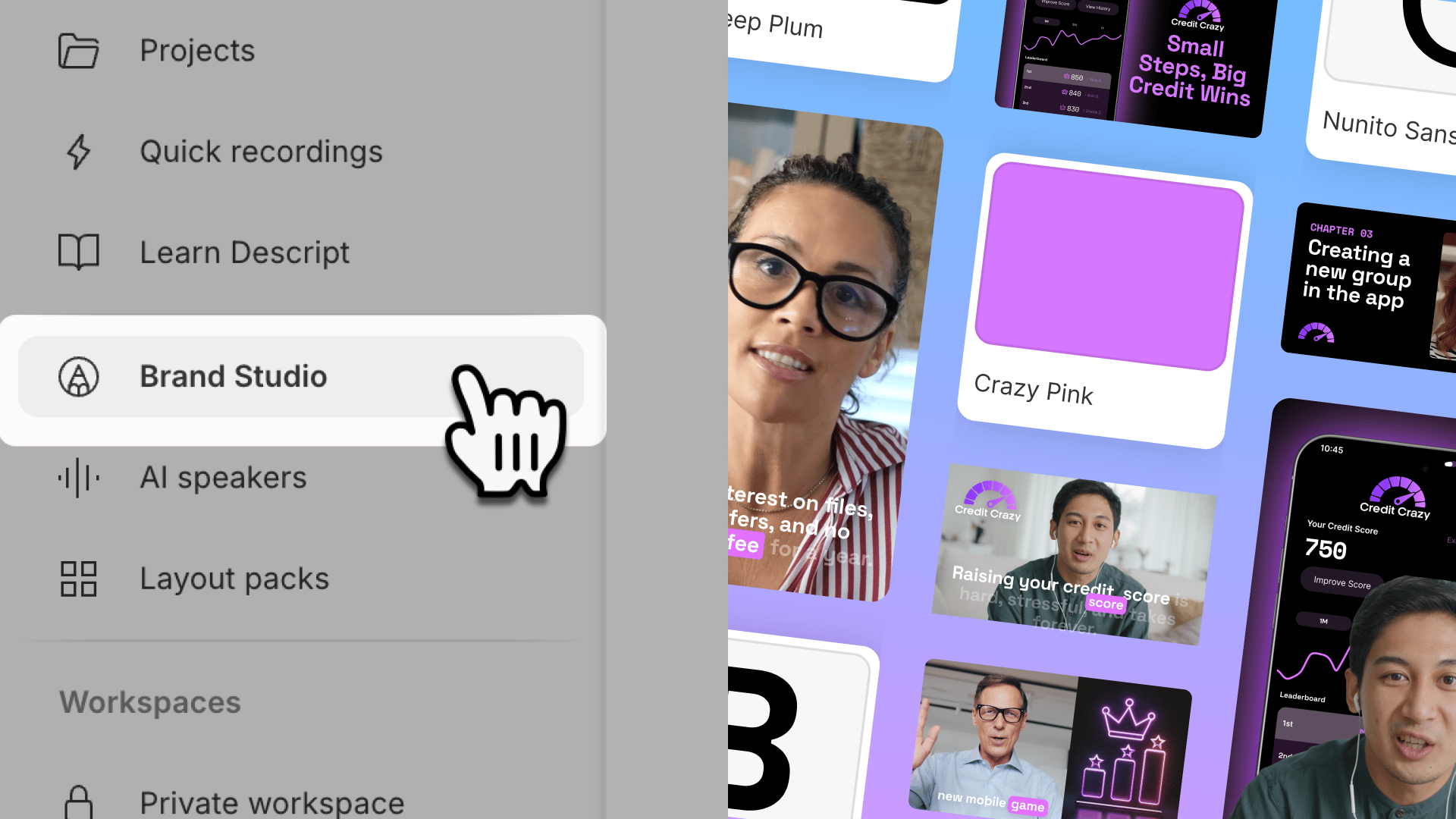 Brand Studio is available on Business and Enterprise plans and lives in the left-hand pane of the Drive view. Each Drive supports one brand kit.
## Who can manage Brand Studio?
Drive owners and admins can add and manage brand assets in Brand Studio. Drive members with editor or viewer roles can view Brand Studio assets in their compositions.
| Role | Permissions |
| ------------- | -------------------------------------------------------------------------------------------- |
| Owner / Admin | Add and manage all Brand Studio assets, set default layout packs, and manage share branding. |
| Editor | View Brand Studio and use assets in projects. |
| Viewer | View Brand Studio only. |
## Set up your kit
Here's what you can add and manage in the Brand Studio tab:
### Assets tab
The Assets tab is where you manage fonts, colors, and the logo for your Descript share pages.
#### Add custom fonts to your Drive
Select the + Add fonts button in the top right corner of the Brand Studio window, then choose how to add your font:
1. **Search for a Google Font:** Type a font name in the search bar, select it, and click Add to Drive. Want to browse a catalog first? Visit fonts.google.com to find the perfect typeface, then enter the name directly into Brand Studio to add it to your kit.
2. **Upload a custom font:** Click Upload a custom font and select .ttf, .otf, or .woff files from your computer
Once uploaded, your Drive members can use these fonts in their Descript compositions. [Learn more about using custom fonts.](/visuals/custom-fonts)
Brand Studio is available on Business and Enterprise plans and lives in the left-hand pane of the Drive view. Each Drive supports one brand kit.
## Who can manage Brand Studio?
Drive owners and admins can add and manage brand assets in Brand Studio. Drive members with editor or viewer roles can view Brand Studio assets in their compositions.
| Role | Permissions |
| ------------- | -------------------------------------------------------------------------------------------- |
| Owner / Admin | Add and manage all Brand Studio assets, set default layout packs, and manage share branding. |
| Editor | View Brand Studio and use assets in projects. |
| Viewer | View Brand Studio only. |
## Set up your kit
Here's what you can add and manage in the Brand Studio tab:
### Assets tab
The Assets tab is where you manage fonts, colors, and the logo for your Descript share pages.
#### Add custom fonts to your Drive
Select the + Add fonts button in the top right corner of the Brand Studio window, then choose how to add your font:
1. **Search for a Google Font:** Type a font name in the search bar, select it, and click Add to Drive. Want to browse a catalog first? Visit fonts.google.com to find the perfect typeface, then enter the name directly into Brand Studio to add it to your kit.
2. **Upload a custom font:** Click Upload a custom font and select .ttf, .otf, or .woff files from your computer
Once uploaded, your Drive members can use these fonts in their Descript compositions. [Learn more about using custom fonts.](/visuals/custom-fonts)
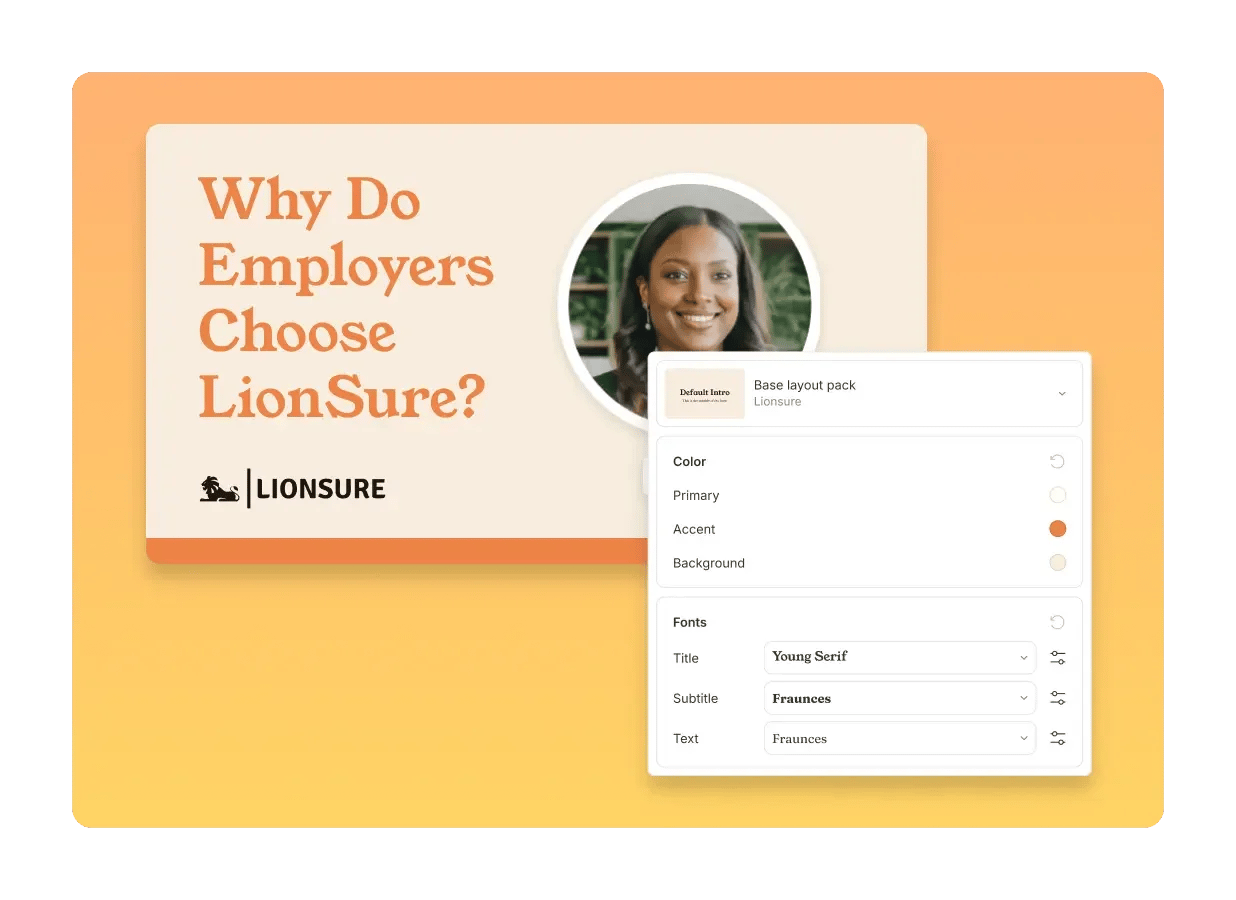 #### Add your brand colors
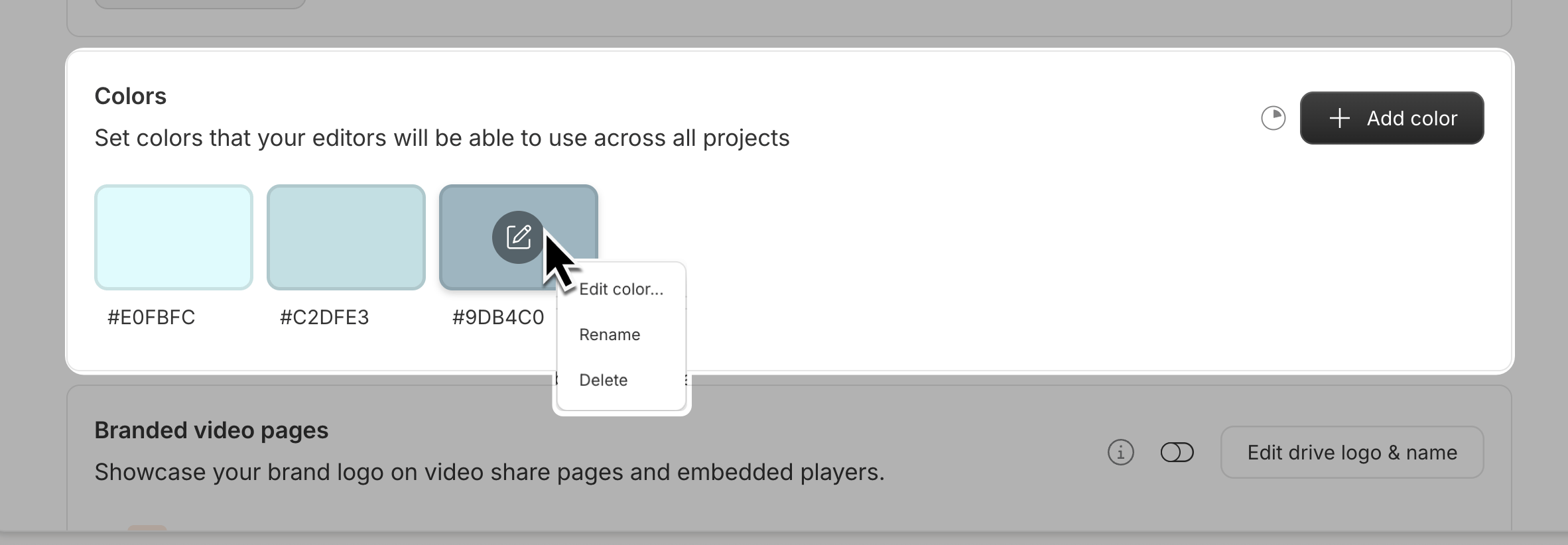
When you define brand colors in Brand Studio, your entire Drive can access them directly from Descript's color picker—no need to look up hex codes or guess which shade to use.
Once you add colors to your Drive, they're available and easily accessible to all members in every project.
#### Add your brand colors
When you define brand colors in Brand Studio, your entire Drive can access them directly from Descript's color picker—no need to look up hex codes or guess which shade to use.
Once you add colors to your Drive, they're available and easily accessible to all members in every project.
 #### Branded share pages
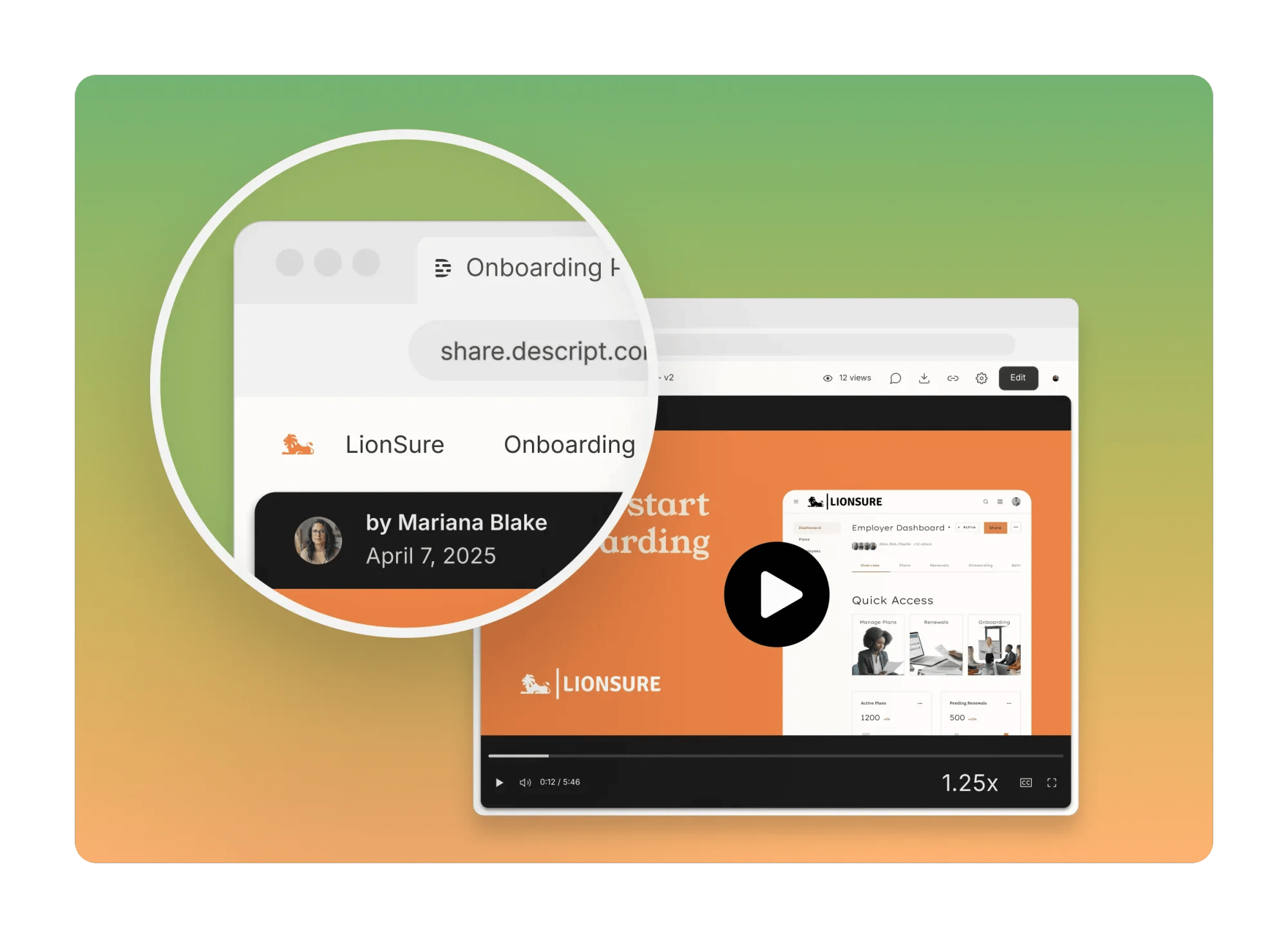
Add your logo and Drive name to your Descript share pages to keep your brand visible when sharing work. [Learn how to add custom branding to your share pages.](/branding/use-custom-branding-on-share-pages)
#### Branded share pages
Add your logo and Drive name to your Descript share pages to keep your brand visible when sharing work. [Learn how to add custom branding to your share pages.](/branding/use-custom-branding-on-share-pages)
 ### Layout packs tab
The Layout packs tab is where you customize and set default layouts for your Drive.
#### Remix a layout pack
Use the Remixer to build a branded layout pack using your Drive's fonts and colors. [Learn how to remix a layout pack.](/templates-and-presets/layouts-remix)
#### Set a default layout pack
Ensure every new project in your Drive starts with your team's preferred layout style. [Learn how to set your default layout pack.](/templates-and-presets/layouts-default)
### Layout packs tab
The Layout packs tab is where you customize and set default layouts for your Drive.
#### Remix a layout pack
Use the Remixer to build a branded layout pack using your Drive's fonts and colors. [Learn how to remix a layout pack.](/templates-and-presets/layouts-remix)
#### Set a default layout pack
Ensure every new project in your Drive starts with your team's preferred layout style. [Learn how to set your default layout pack.](/templates-and-presets/layouts-default)
 ### Media tab
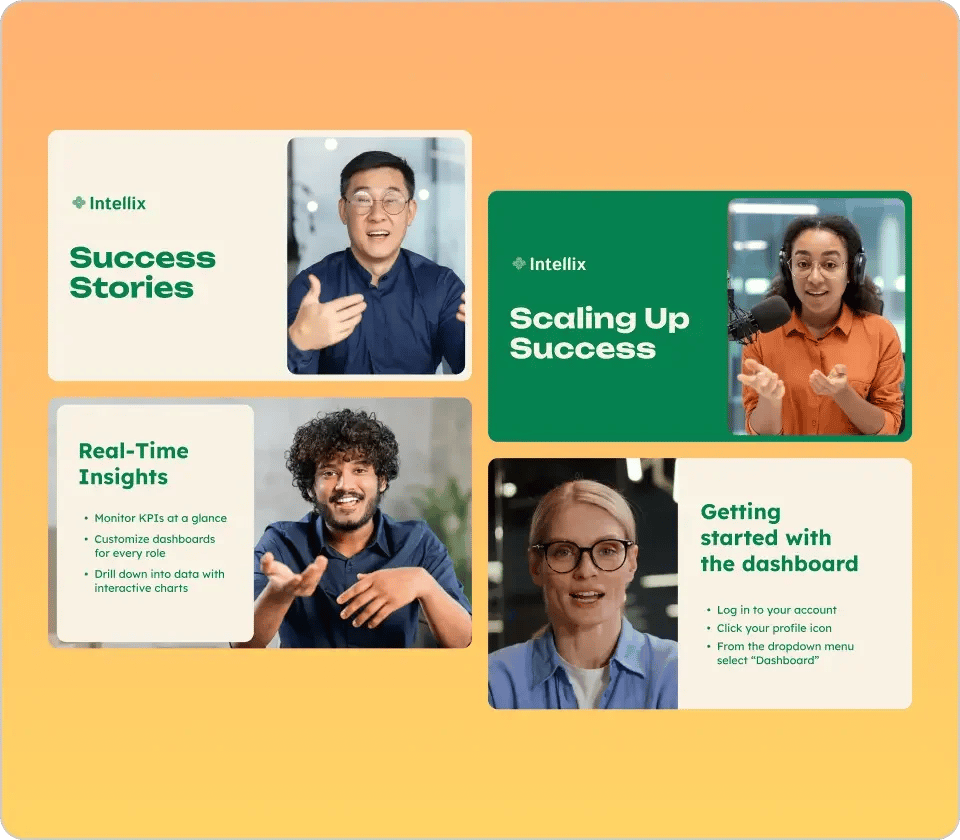
The Media tab is where you upload and manage up to 50 shared brand assets like music, images, logos, and b-roll.
#### Add media to Brand Studio
1. In the Drive View, click Brand Studio in the left sidebar
2. Click the Media tab
3. Click Add media or drag files into the Media tab
4. Upload your brand assets (images, video, audio)
Once uploaded, your Drive members can add these assets to their projects. [Learn how to use Brand Studio media in a project.](/add-and-manage-media/brand-media)
### Glossary tab
The Glossary tab is where you manage transcription accuracy and translation settings.
#### Add terms to your transcription glossary
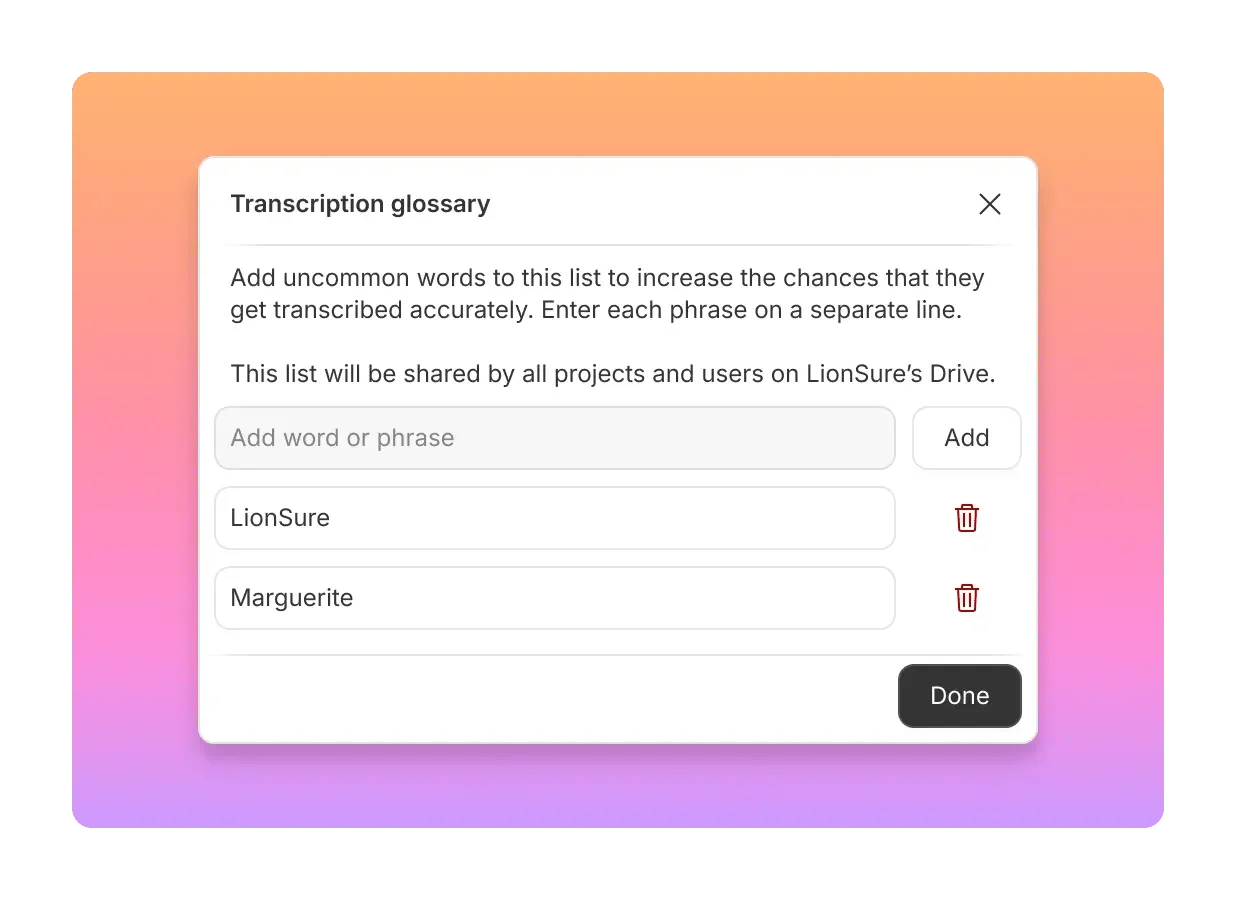
Save your branded terms, product names, and jargon here to help Descript transcribe them accurately across all Drive projects. [Learn more about the transcription glossary.](/script-editing/transcription-glossary)
### Media tab
The Media tab is where you upload and manage up to 50 shared brand assets like music, images, logos, and b-roll.
#### Add media to Brand Studio
1. In the Drive View, click Brand Studio in the left sidebar
2. Click the Media tab
3. Click Add media or drag files into the Media tab
4. Upload your brand assets (images, video, audio)
Once uploaded, your Drive members can add these assets to their projects. [Learn how to use Brand Studio media in a project.](/add-and-manage-media/brand-media)
### Glossary tab
The Glossary tab is where you manage transcription accuracy and translation settings.
#### Add terms to your transcription glossary
Save your branded terms, product names, and jargon here to help Descript transcribe them accurately across all Drive projects. [Learn more about the transcription glossary.](/script-editing/transcription-glossary)
 #### Add a Do Not Translate list
Prevent specific terms—like names, product names, or slogans—from being translated when using Descript's AI-powered translation tools. [Learn how to set up your Do Not Translate list.](/repurpose/do-not-translate)
### Permissions tab
The Permissions tab lets you control who can access specific Brand Studio assets—fonts, colors, layout packs, and media.
Adjusting permissions is only available to Drives on an Enterprise plan. If you're on Enterprise and want to restrict asset access across your team, [learn how to manage Brand Studio permissions](/branding/bs-permissions).
#### Add a Do Not Translate list
Prevent specific terms—like names, product names, or slogans—from being translated when using Descript's AI-powered translation tools. [Learn how to set up your Do Not Translate list.](/repurpose/do-not-translate)
### Permissions tab
The Permissions tab lets you control who can access specific Brand Studio assets—fonts, colors, layout packs, and media.
Adjusting permissions is only available to Drives on an Enterprise plan. If you're on Enterprise and want to restrict asset access across your team, [learn how to manage Brand Studio permissions](/branding/bs-permissions).