> ## Documentation Index
> Fetch the complete documentation index at: https://help.descript.com/llms.txt
> Use this file to discover all available pages before exploring further.
# Manage and Update Your Payment Method
> Add, update, or remove a payment method on a Descript drive.
A paid Descript subscription needs a payment method on file, and only the Drive owner can update it in Drive settings.
**Need to add your tax ID or billing details?**
If you need to add a tax ID, VAT number, or other billing details to your invoice, you can do that separately from your payment method. See [Add billing details and tax ID to your account](/billing-payments-plans/taxid) for more info.
## Supported payment methods
You can pay for Descript using the following options:
* Credit card and [Link by Stripe](https://support.stripe.com/questions/link-faq) payments are accepted for Hobbyist, Creator, Business, and [Educational/Non-profit plans](/billing-payments-plans/nfp-edu).
* Invoice billing is an option available to [Enterprise plans only](/billing-payments-plans/enterprise-plan)
All currencies are accepted. However, not every country is supported by Stripe, our payment processor. Descript bills in USD only, and Stripe automatically converts your payment into USD using your bank’s exchange rate.
## How to add or update your payment method
1. Open [App Settings](/account-and-app-settings/app-settings), keyboard shortcut `Command/Control + , (comma)`
2. Go to the **Profile** tab.
3. In the **Billing details** section, click **Edit** next to **Payment method**.
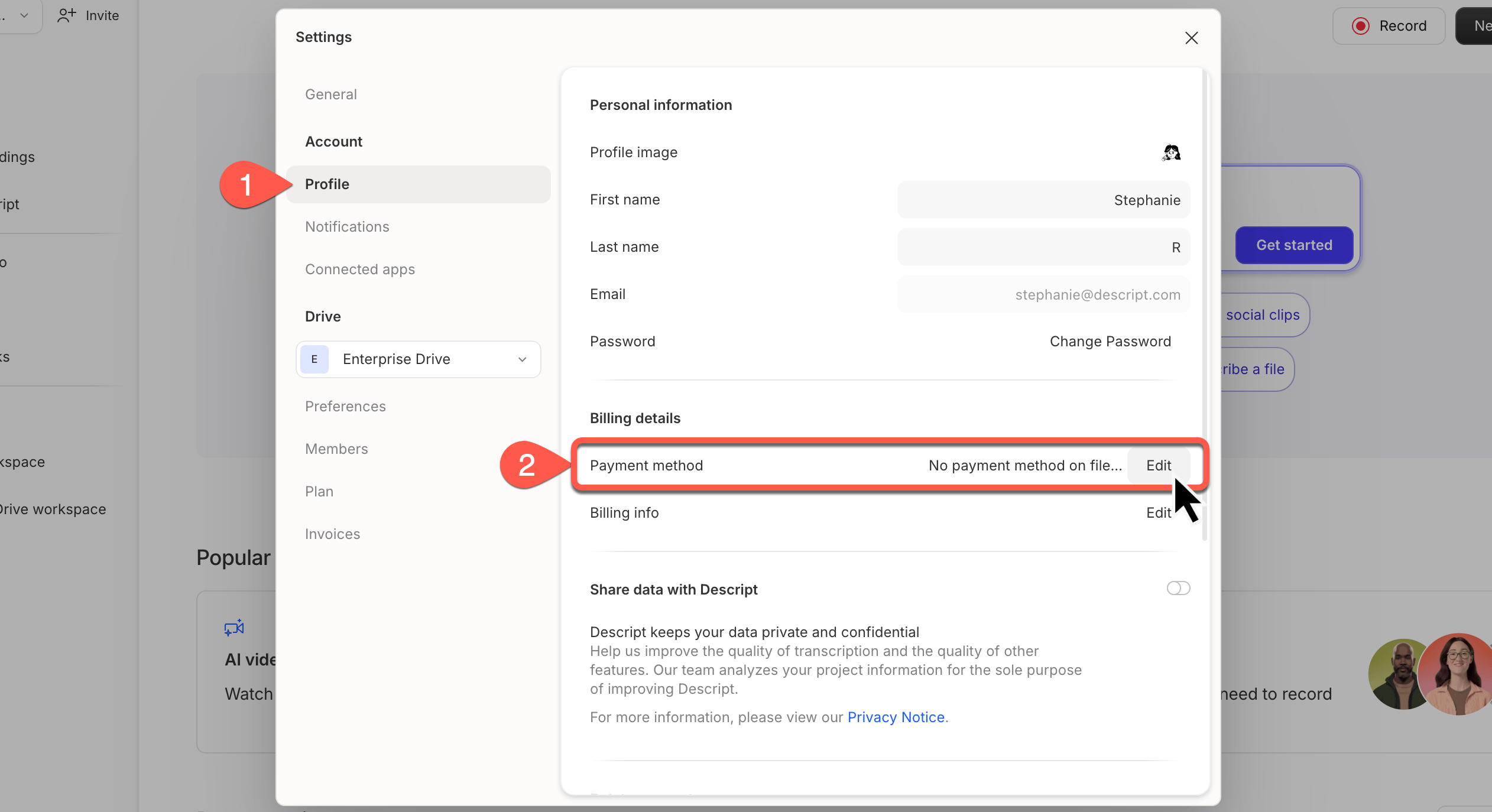 4. You’ll be taken to a new tab where you can select or update your payment method.
5. Once you’ve added the required information, click **Update payment method**.
## Removing your billing and credit card information
Billing details can only be removed from accounts that don’t have an active paid subscription. To remove your payment method, you’ll first need to [downgrade or cancel your subscription](/billing-payments-plans/cancel). Once the billing term has ended, [contact our support team](/connect-with-us/get-help) or reply to an open request to remove billing information.
## Verification and authorization holds
Whenever you add a new card to your Descript account, our billing provider, Stripe, performs an authorization check to verify the card. This is a temporary $0 or $1 hold, not an actual charge, and it will disappear from your statement automatically.
**Why am I seeing a \$1 charge?**
This is a standard authorization hold used by Stripe to confirm that your card is valid. It is not a real charge and will be removed by your bank.
More details on Stripe's authorization process can be found here: [Unexpected \$1 charge on customer's bank statement.](https://support.stripe.com/questions/unexpected-1-charge-on-customers-bank-statement)
### What happens if my card fails authorization?
Rarely, a card-issuing bank may decline the temporary hold if it considers the $0 or $1 amount too low. When this happens, the authorization is returned to Stripe and your card will not be added to your Descript account.
### How to resolve a failed authorization
1. Contact your card issuer and ask them to allow card verification for low-amount holds.
2. After your bank updates its settings, re-add your card in Descript.
3. Once the authorization succeeds, you can proceed with your subscription or purchase.
4. You’ll be taken to a new tab where you can select or update your payment method.
5. Once you’ve added the required information, click **Update payment method**.
## Removing your billing and credit card information
Billing details can only be removed from accounts that don’t have an active paid subscription. To remove your payment method, you’ll first need to [downgrade or cancel your subscription](/billing-payments-plans/cancel). Once the billing term has ended, [contact our support team](/connect-with-us/get-help) or reply to an open request to remove billing information.
## Verification and authorization holds
Whenever you add a new card to your Descript account, our billing provider, Stripe, performs an authorization check to verify the card. This is a temporary $0 or $1 hold, not an actual charge, and it will disappear from your statement automatically.
**Why am I seeing a \$1 charge?**
This is a standard authorization hold used by Stripe to confirm that your card is valid. It is not a real charge and will be removed by your bank.
More details on Stripe's authorization process can be found here: [Unexpected \$1 charge on customer's bank statement.](https://support.stripe.com/questions/unexpected-1-charge-on-customers-bank-statement)
### What happens if my card fails authorization?
Rarely, a card-issuing bank may decline the temporary hold if it considers the $0 or $1 amount too low. When this happens, the authorization is returned to Stripe and your card will not be added to your Descript account.
### How to resolve a failed authorization
1. Contact your card issuer and ask them to allow card verification for low-amount holds.
2. After your bank updates its settings, re-add your card in Descript.
3. Once the authorization succeeds, you can proceed with your subscription or purchase.