> ## Documentation Index
> Fetch the complete documentation index at: https://help.descript.com/llms.txt
> Use this file to discover all available pages before exploring further.
# Add Billing Details and Tax ID to Your Account
> Add a company name, address, and tax ID or VAT to your Descript invoices.
If your finance team needs your company's details on file, add them to your billing info and Descript will print them on every invoice and receipt.
**Billing name, address, tax ID / VAT number**: Add this before an invoice is finalized. It cannot be added to or changed on invoices that have already been generated, and it does not apply retroactively.
1. Open your account settings:
* Go to your [Descript account settings webpage](https://web.descript.com/view/settings/account?active=profile).
* Or, in the app, click your profile icon in the top right corner, then select **Settings**.
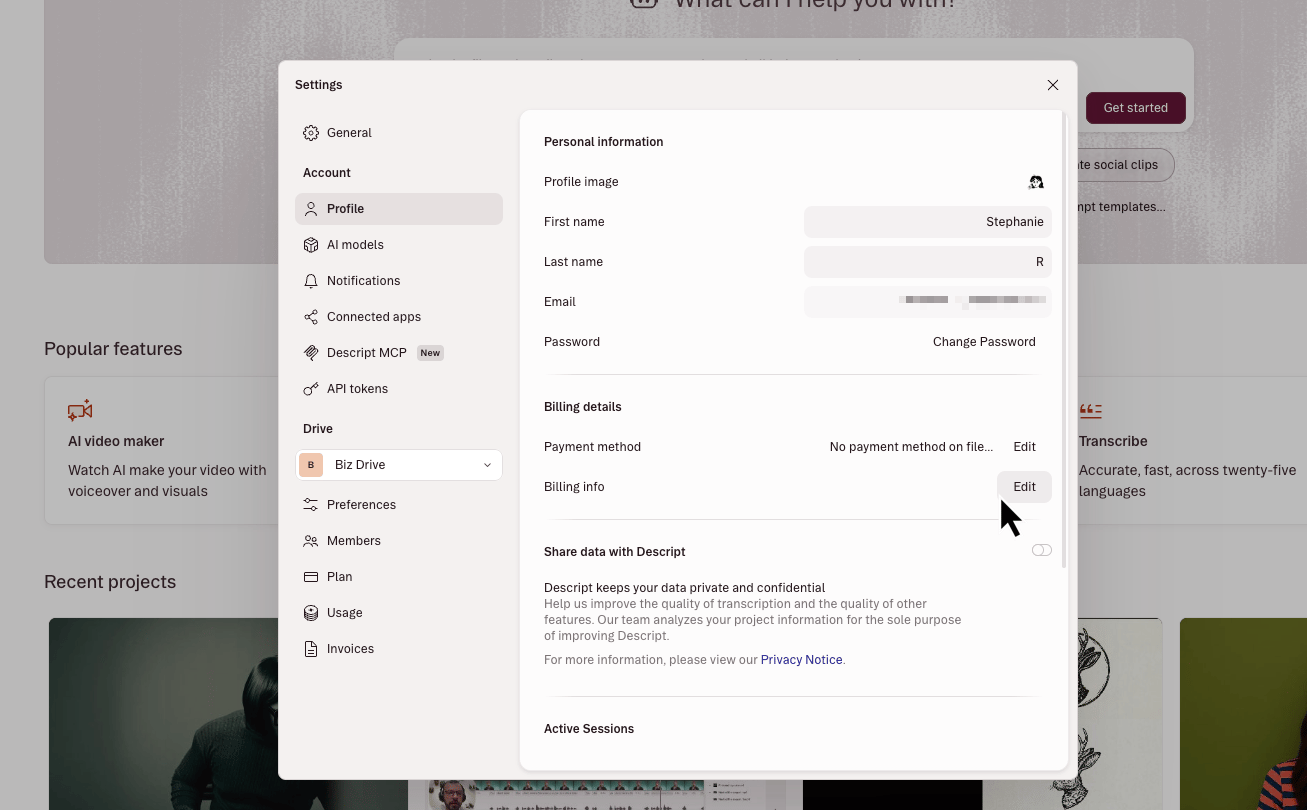
2. Select the **Profile** tab from the left sidebar.
3. Then, click the **Edit** button next to the **Billing info** label.\\
 4. A Stripe billing page will open in your default browser. Add or update your billing details there.\\
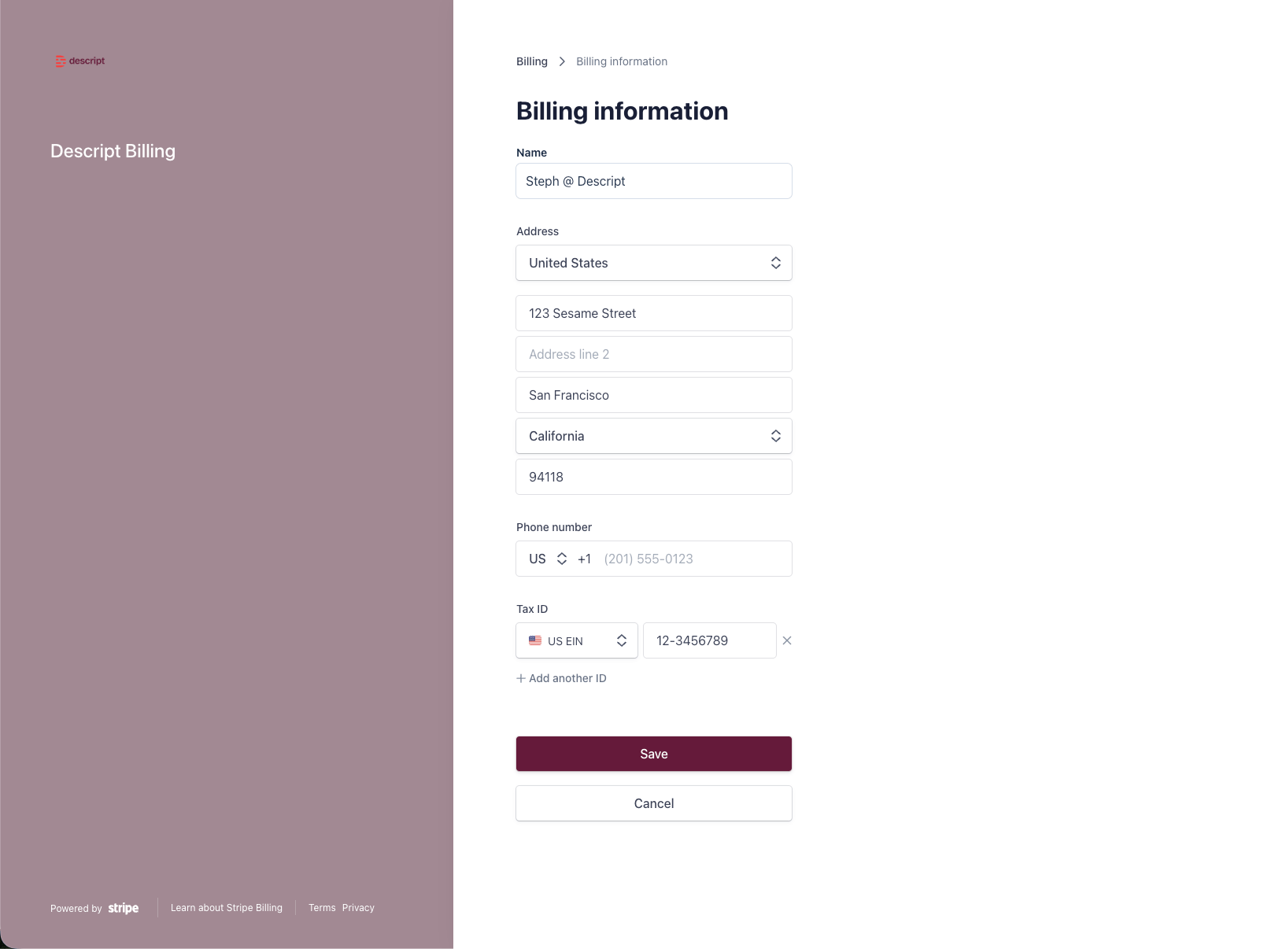 5. When you’re done, click **Save** at the bottom of the page.