> ## Documentation Index
> Fetch the complete documentation index at: https://help.descript.com/llms.txt
> Use this file to discover all available pages before exploring further.
# Invoice History
> Find and download your Descript invoices.
Your subscription payments, including plans and add-ons like extra transcription hours, land in the **Invoices** tab of your account settings. View or download any of them there.
## This article covers
* [Check your invoice history](#check-your-invoice-history)
* [Save or download a receipt](#save-or-download-a-receipt)
* [Can’t find your invoice?](#can’t-find-your-invoice)
**Billing name, address, tax ID / VAT number : Add this before an invoice is finalized. It cannot be added to or changed on invoices that have already been generated, and it does not apply retroactively.**
For step-by-step instructions for adding a these details and VAT ID to your invoices, see our [Add billing details and tax ID to your account](/billing-payments-plans/taxid) guide.
## Check your invoice history
1. Open [App Settings](/account-and-app-settings/app-settings), keyboard shortcut `Command/Control + , (comma)`
2. Select the **Invoices** tab.\\
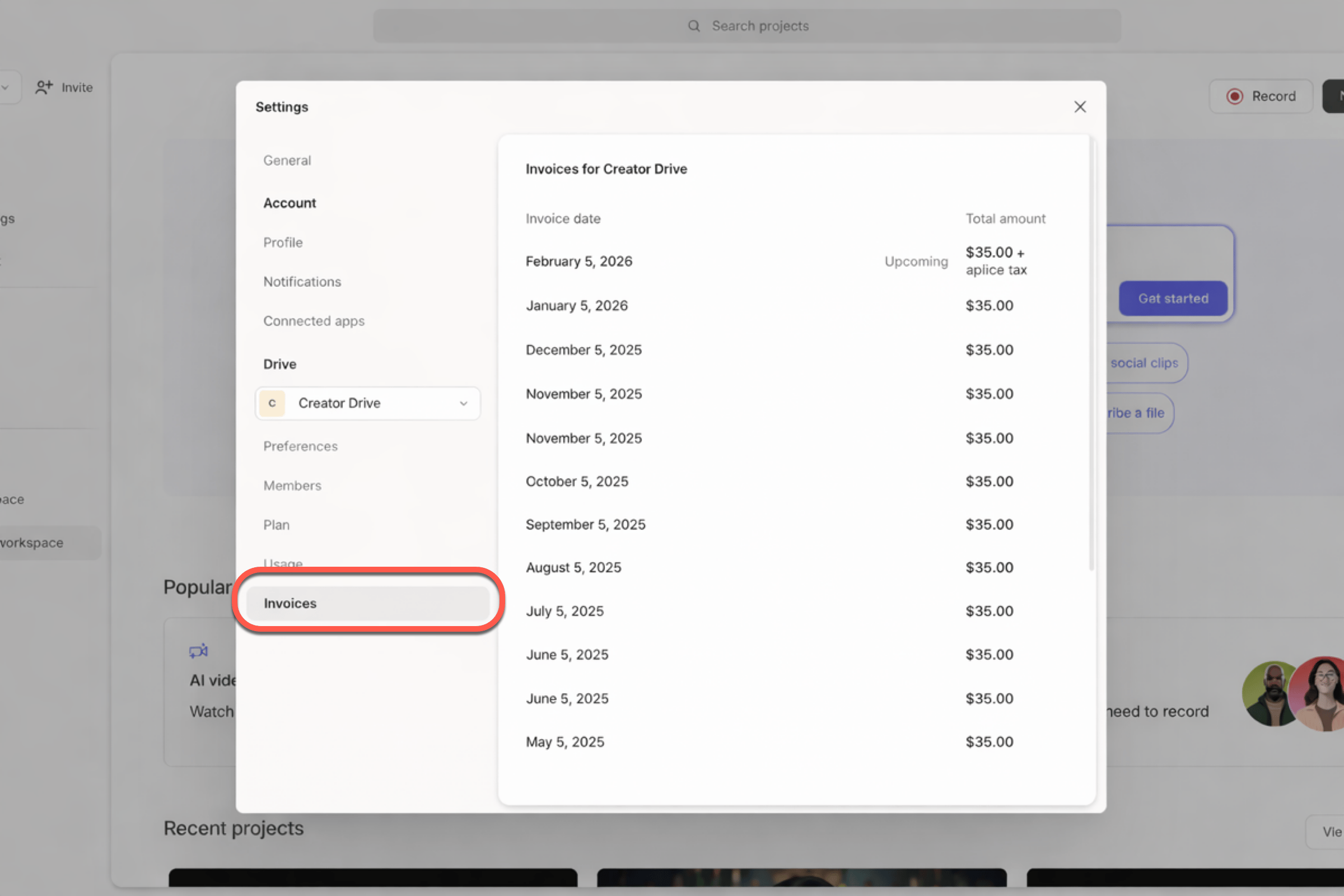 3. Click on any invoice to open it.
**Invoices are not emailed**
At this time, Descript does not send invoices via email. They’re only available through your account on the web or in-app.
## Save or download a receipt
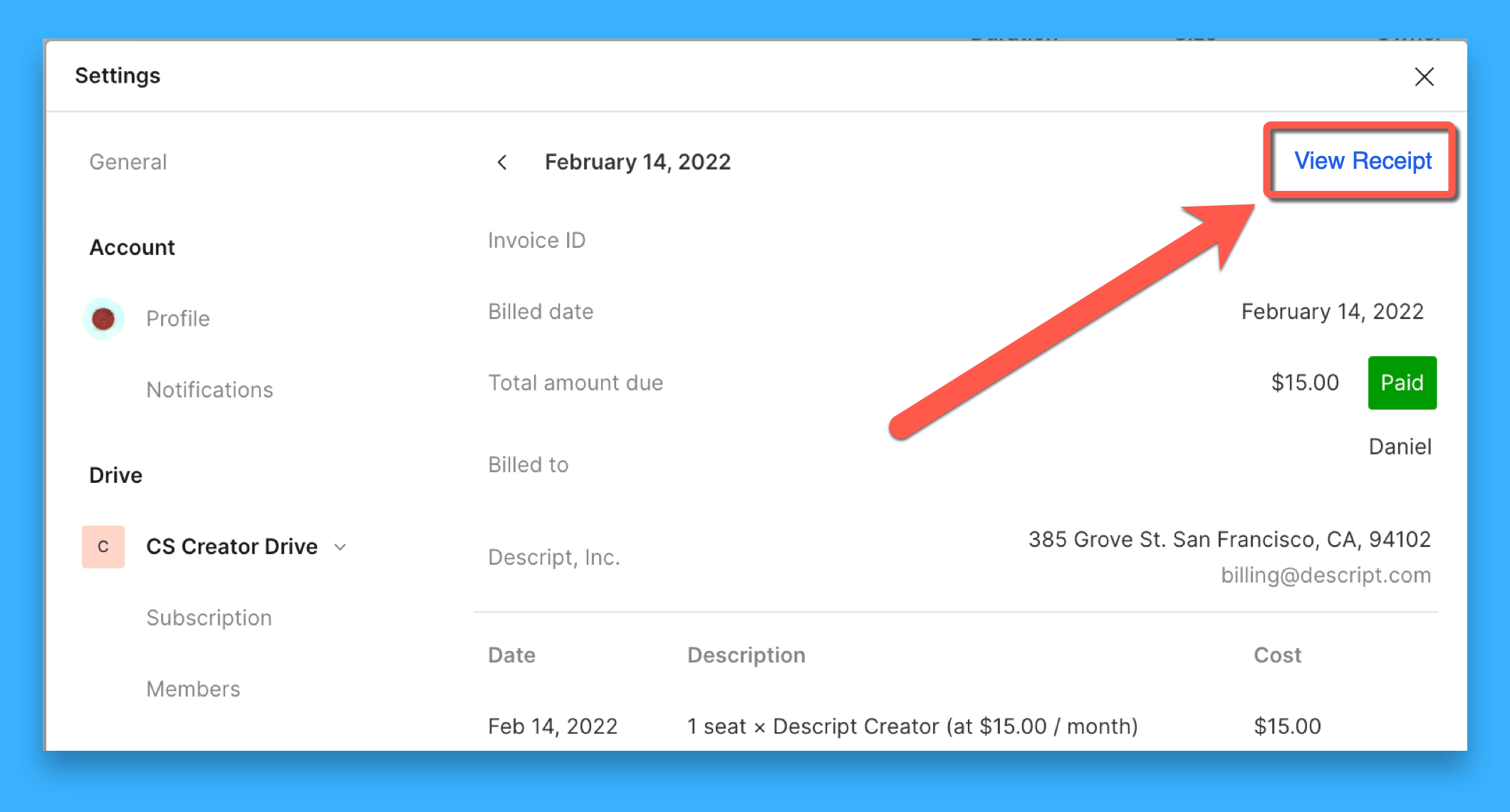
To save or download a PDF copy of your invoice, click **View Receipt** in the top-right corner of the invoice view.
3. Click on any invoice to open it.
**Invoices are not emailed**
At this time, Descript does not send invoices via email. They’re only available through your account on the web or in-app.
## Save or download a receipt
To save or download a PDF copy of your invoice, click **View Receipt** in the top-right corner of the invoice view.
 **Missing the View Receipt button?**
The **View Receipt** option won’t appear for \$0.00 invoices or invoices generated from free promotions or coupon codes.
## Can’t find your invoice?
* Make sure you’re signed in as the **Drive owner**. Only Drive owners can view invoices.
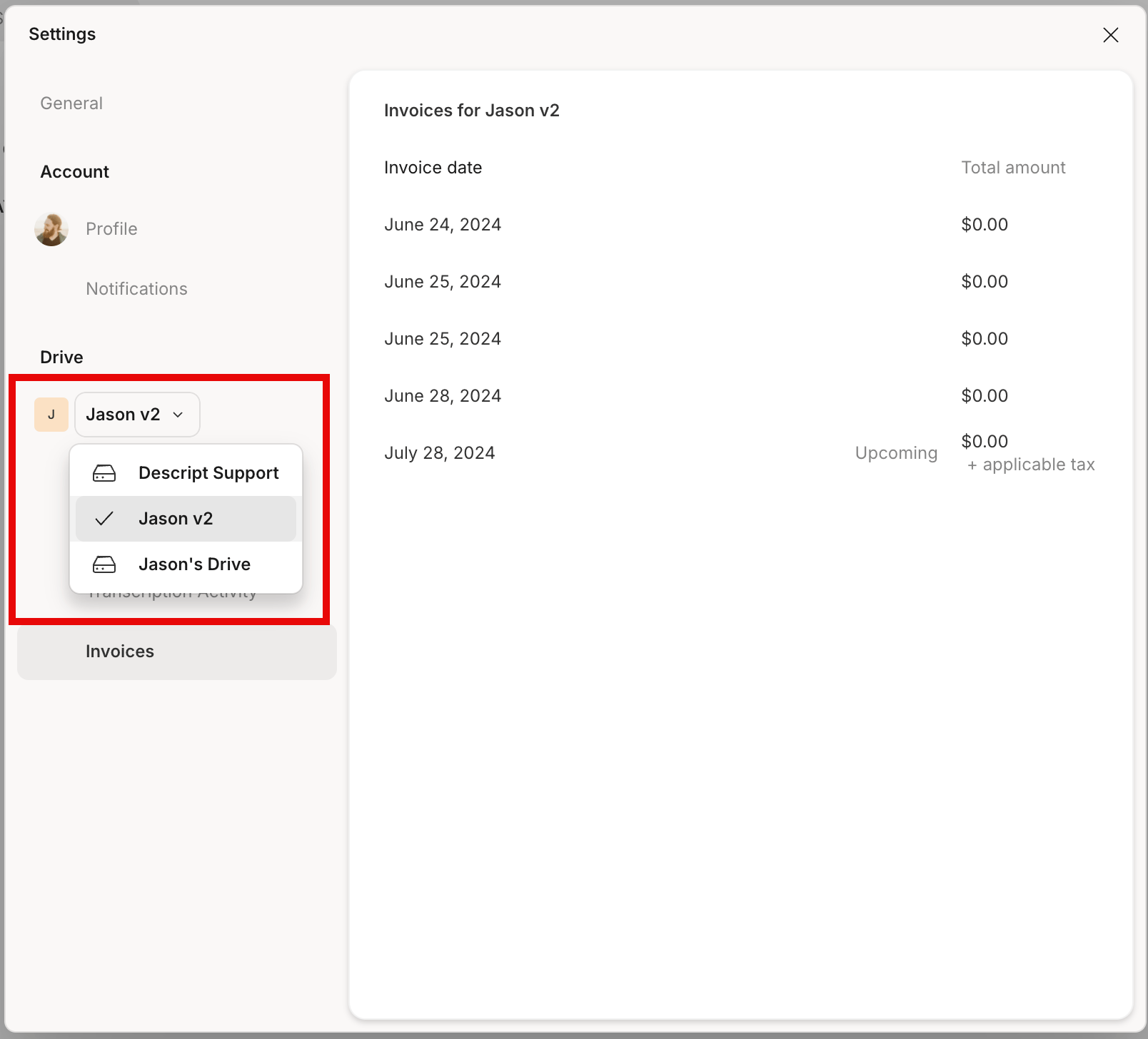
* If you belong to more than one Drive, double-check that you're viewing the correct Drive in your account settings.\\
**Missing the View Receipt button?**
The **View Receipt** option won’t appear for \$0.00 invoices or invoices generated from free promotions or coupon codes.
## Can’t find your invoice?
* Make sure you’re signed in as the **Drive owner**. Only Drive owners can view invoices.
* If you belong to more than one Drive, double-check that you're viewing the correct Drive in your account settings.\\
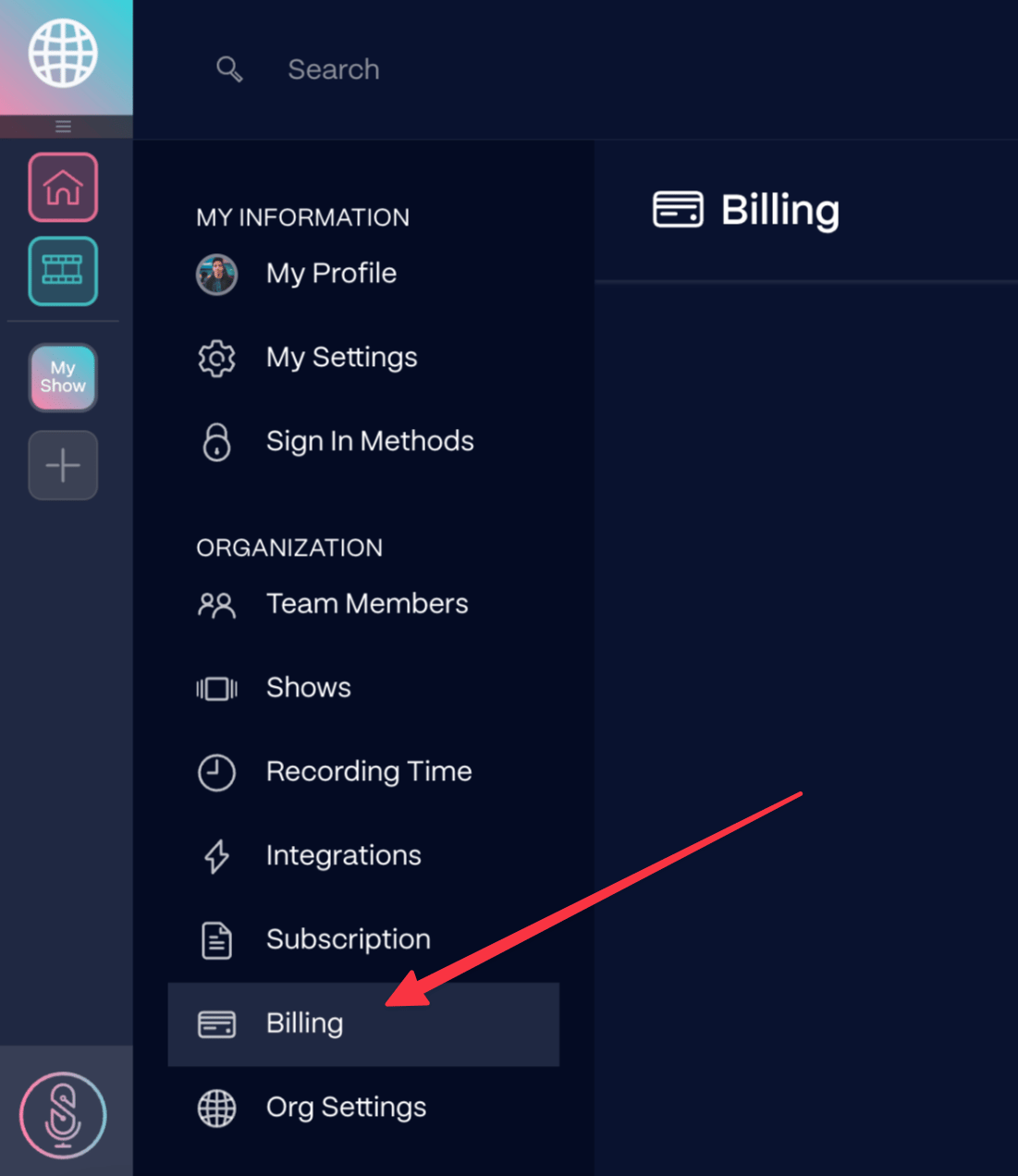
 * If your SquadCast subscription is not connected to Descript, you’ll need to visit **Settings > Billing** in your SquadCast account to retrieve those invoices.\\
 * If you have paused your subscription, you will not be able to access your invoices unless you resume or cancel your subscription.