> ## Documentation Index
> Fetch the complete documentation index at: https://help.descript.com/llms.txt
> Use this file to discover all available pages before exploring further.
# Troubleshooting Editor Performance and Playback Issues in Descript
> Troubleshoot a slow, glitchy, or lagging Descript editor.
A slow or stuttering editor usually traces back to a few fixable causes: system resources, a heavy project, or a setting or two. Work through the checks below to speed it back up.
**Having trouble loading a project?**
If a project is stuck loading, showing a **"This is taking longer than normal"** message, or won’t open at all, try the steps in our dedicated troubleshooting guide: [Project won’t load or open](/working-in-projects/version-history).
If you're experiencing strange or non-reproducible issues:
* Reload the project. In a web browser, click the
**Refresh** button or use the Command/Ctrl +
R shortcut. In the desktop app, use the keyboard shortcut
**`Shift + Cmd/Ctrl + R`** or select
**Window > Reload** from the main application
menu.
* Restart your computer
**Missing visuals?**
* Check if script or media layers are hidden in the Layer list
in the Properties panel. Learn more about
[Layer visibility and order](/visuals/layer-visibility).
* [Switch to a video composition](/working-in-projects/audio)
if needed.
**Missing audio?**
* Check if a layer is solo’d in the Layer list of the Properties
panel.
* If you're a Windows user, verify Exclusive Mode is disabled.
#### **How to disable Exclusive Mode (Windows only)**
Exclusive Mode in Windows sound settings can prevent
multiple apps from using your audio devices at the
same time. Disabling it may resolve audio issues.
1. Right-click the speaker icon in your taskbar
and select **Sound Settings**.
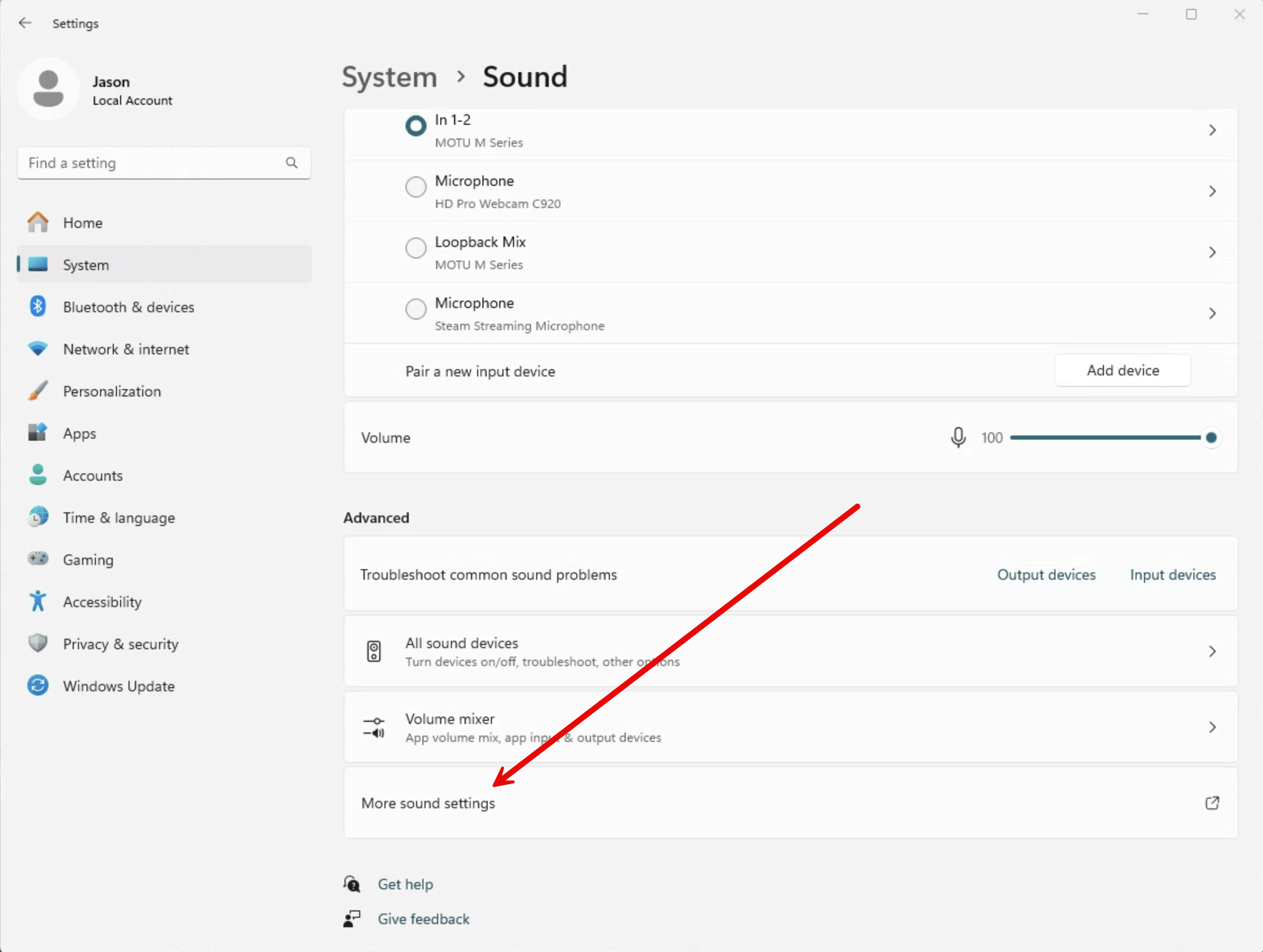
2. Scroll down and select **More sound settings**.\\
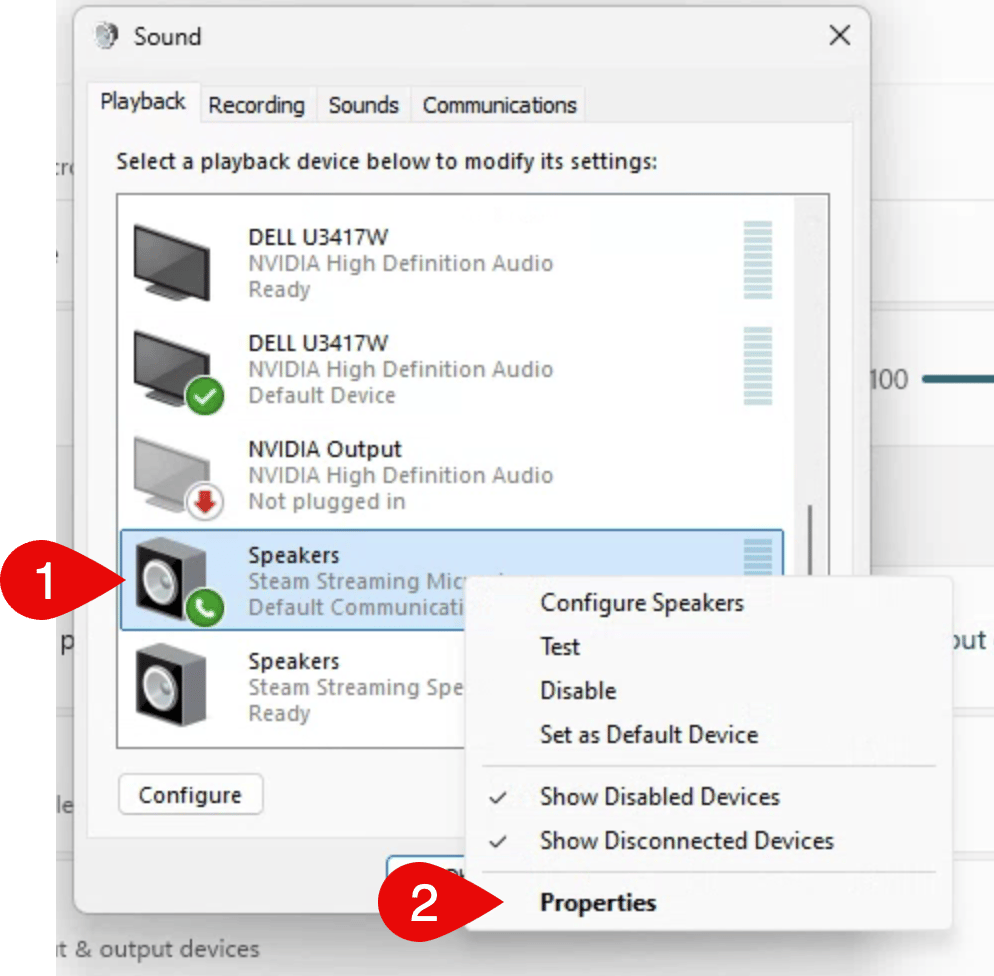
 3. In the new window, under **Playback**,
right-click your output device and select
**Properties**.\\
3. In the new window, under **Playback**,
right-click your output device and select
**Properties**.\\
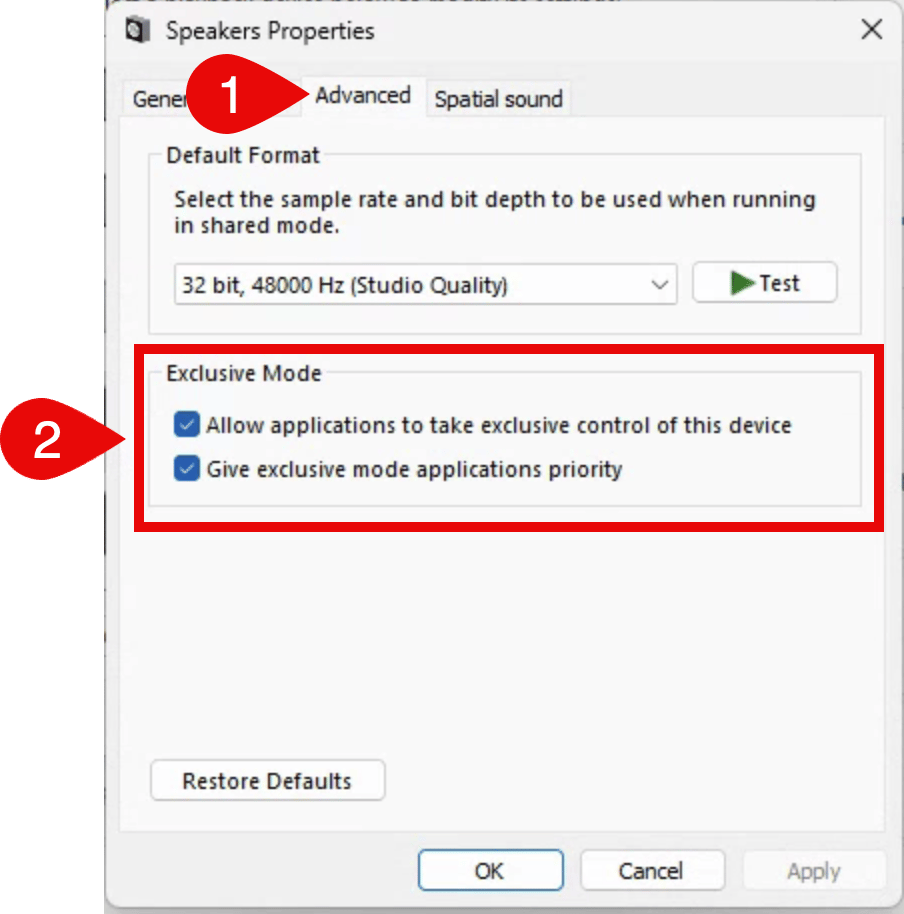
 4. Navigate to the **Advanced** tab.
5. Uncheck the boxes related to **Exclusive Mode**.\\
4. Navigate to the **Advanced** tab.
5. Uncheck the boxes related to **Exclusive Mode**.\\
 6. Click **Apply** and then **OK**
to save your changes.
Exclusive Mode in Windows sound settings can prevent
multiple apps from using your audio devices at the
same time. Disabling it may resolve audio issues.
1. Right-click the speaker icon in your taskbar
and select **Sound Settings**.
2. Scroll down and select **More sound settings**.\\
3. In the new window, under **Playback**,
right-click your output device and select
**Properties**.\\
4. Navigate to the **Advanced** tab.
5. Uncheck the boxes related to **Exclusive Mode**.\\
6. Click **Apply** and then **OK**
to save your changes.
Projects with several GBs of files, long compositions, or lots of
edits can slow things down. If you’re seeing performance issues,
try breaking your work into smaller compositions or separate projects.
There’s no one-size-fits-all rule — your device specs also play a
big role — but if things start lagging as your project grows, this
could be the reason.
[Learn how to copy a composition to a different project](/working-in-projects/duplicate).
Closing high-usage apps like web browsers or video conferencing tools
can help free up memory and improve Descript’s performance. Even
background apps can make a difference — close anything you're not
actively using.
Descript runs best when your device has at least 20GB of free disk
space.
[Free up space on Mac](https://support.apple.com/en-us/HT206996)
|
[Free up space on Windows](https://support.microsoft.com/en-us/windows/free-up-drive-space-in-windows-a18fae02-a0fa-8df9-9838-8970f9939de4)
For the best experience, your device should meet (or exceed!) our
recommended system specs. If you’re running into slowdowns, crashes,
or export issues, double-checking your hardware is a good place to
start.
[View system requirements](/getting-started/descript-system-requirements)
Extensions that interact with text — like Grammarly or other script-reading
tools — can interfere with Descript and affect performance.
[How to disable Grammarly](https://support.grammarly.com/hc/en-us/articles/4406998780813)
|
[Disable Chrome extensions](https://support.google.com/chromebook/answer/2589434?hl=en)
We’ve seen reports that McAfee can interfere with Descript’s performance.
If you’re noticing lag or instability, try disabling McAfee while
you work — or add Descript as an exception to avoid conflicts.
[How to disable McAfee](https://www.mcafee.com/support/?articleId=TS100162\&page=shell\&shell=article-view)
Descript currently supports one GPU at a time. If you're on a machine
with both integrated and discrete GPUs, make sure Descript is using
the high-performance option.
##### **Set default GPU on macOS**
1. Open Activity Monitor and navigate to
**Window > GPU History**.
2. Start
[exporting a composition](/export-and-share/video-gif).
3. See which GPU is being used. If it's not the discrete one
(like AMD), turn off
[Automatic Graphics Switching](https://support.apple.com/en-us/HT202043)
in Energy settings.
Note: Apple Silicon chips have integrated GPUs that should default
correctly.
##### **Set default GPU on Windows**
1. Open Task Manager (Ctrl+Alt+Delete) and go to the Performance
tab.
2. Start
[exporting a composition](/export-and-share/video-gif).
3. Check which GPU is being used. If needed, change it in your
GPU settings.
##### **Switch to the dedicated NVIDIA GPU**
1. Open the NVIDIA Control Panel.
2. Go to **3D Settings > Manage 3D settings**.
3. Under Program Settings, select Descript.
4. Choose **High-performance NVIDIA processor**
as the preferred GPU.
5. Save your changes.
##### **Switch to the dedicated AMD GPU**
1. Open AMD Radeon Settings from your desktop context menu.
2. Go to **System > Switchable Graphics**.
3. Find Descript in the app list and set it to
**High Performance**.
If you’re on Windows and experiencing persistent playback issues
(some symptoms are a blank scene editor, a endlessly spinning
play button, or disappearing visuals)—your system may be having
trouble with hardware-based video decoding.
In most cases, playback will work briefly after restarting Descript,
but the problem returns after a few minutes or when switching
between projects.
Enable **Force software video decoding** in your
Descript [app settings](/account-and-app-settings/app-settings),
then fully quit the app by clicking the Descript D icon in your
menubar and selecting **Quit Descript Completely**.
Reopen Descript to apply the change.
**When toggled on:** Descript bypasses your GPU
and uses your processor (CPU) to decode video. This can reduce
visual bugs and playback stalls, especially on systems with Intel
Arc graphics or other GPU compatibility issues.
Occasionally, files with an unsupported or invalid format may trigger
a playback error. If this happens, try re-encoding the original file
using a tool like VLC or QuickTime. Once re-encoded, you can use
the
[**Replace File**](/add-and-manage-media/replace-file)
feature in your project or re-import the file into a new one.
If you see this message when using Chrome (which is a supported
browser), please navigate to
[chrome://settings/system](chrome://settings/system)
and toggle ON **use graphics acceleration when possible**.
If you’ve tried everything else and you're still running into issues,
a clean reinstall can help:
[Uninstall](/getting-started/uninstalling-descript) |
[Reinstall](/getting-started/install)
#### **Still stuck?**
Most performance issues are resolved with the steps above. If you're still having trouble, [contact our support team.](/connect-with-us/get-help) We'll typically need a link to the associated project (see our [Project Links](/collaboration/project-links) page) and a screen video demonstrating the problem so we can assess next steps. Use Descript's [Screen Recorder](/record/editor-recorder) or your OS's built-in recorder. Here’s how you can find and use the built-in screen recorder for your operating system: [Mac](https://support.apple.com/en-us/102618) | [Windows](https://www.microsoft.com/en-us/windows/learning-center/how-to-record-screen-windows-11).
6. Click **Apply** and then **OK**
to save your changes.
Exclusive Mode in Windows sound settings can prevent
multiple apps from using your audio devices at the
same time. Disabling it may resolve audio issues.
1. Right-click the speaker icon in your taskbar
and select **Sound Settings**.
2. Scroll down and select **More sound settings**.\\
3. In the new window, under **Playback**,
right-click your output device and select
**Properties**.\\
4. Navigate to the **Advanced** tab.
5. Uncheck the boxes related to **Exclusive Mode**.\\
6. Click **Apply** and then **OK**
to save your changes.
Projects with several GBs of files, long compositions, or lots of
edits can slow things down. If you’re seeing performance issues,
try breaking your work into smaller compositions or separate projects.
There’s no one-size-fits-all rule — your device specs also play a
big role — but if things start lagging as your project grows, this
could be the reason.
[Learn how to copy a composition to a different project](/working-in-projects/duplicate).
Closing high-usage apps like web browsers or video conferencing tools
can help free up memory and improve Descript’s performance. Even
background apps can make a difference — close anything you're not
actively using.
Descript runs best when your device has at least 20GB of free disk
space.
[Free up space on Mac](https://support.apple.com/en-us/HT206996)
|
[Free up space on Windows](https://support.microsoft.com/en-us/windows/free-up-drive-space-in-windows-a18fae02-a0fa-8df9-9838-8970f9939de4)
For the best experience, your device should meet (or exceed!) our
recommended system specs. If you’re running into slowdowns, crashes,
or export issues, double-checking your hardware is a good place to
start.
[View system requirements](/getting-started/descript-system-requirements)
Extensions that interact with text — like Grammarly or other script-reading
tools — can interfere with Descript and affect performance.
[How to disable Grammarly](https://support.grammarly.com/hc/en-us/articles/4406998780813)
|
[Disable Chrome extensions](https://support.google.com/chromebook/answer/2589434?hl=en)
We’ve seen reports that McAfee can interfere with Descript’s performance.
If you’re noticing lag or instability, try disabling McAfee while
you work — or add Descript as an exception to avoid conflicts.
[How to disable McAfee](https://www.mcafee.com/support/?articleId=TS100162\&page=shell\&shell=article-view)
Descript currently supports one GPU at a time. If you're on a machine
with both integrated and discrete GPUs, make sure Descript is using
the high-performance option.
##### **Set default GPU on macOS**
1. Open Activity Monitor and navigate to
**Window > GPU History**.
2. Start
[exporting a composition](/export-and-share/video-gif).
3. See which GPU is being used. If it's not the discrete one
(like AMD), turn off
[Automatic Graphics Switching](https://support.apple.com/en-us/HT202043)
in Energy settings.
Note: Apple Silicon chips have integrated GPUs that should default
correctly.
##### **Set default GPU on Windows**
1. Open Task Manager (Ctrl+Alt+Delete) and go to the Performance
tab.
2. Start
[exporting a composition](/export-and-share/video-gif).
3. Check which GPU is being used. If needed, change it in your
GPU settings.
##### **Switch to the dedicated NVIDIA GPU**
1. Open the NVIDIA Control Panel.
2. Go to **3D Settings > Manage 3D settings**.
3. Under Program Settings, select Descript.
4. Choose **High-performance NVIDIA processor**
as the preferred GPU.
5. Save your changes.
##### **Switch to the dedicated AMD GPU**
1. Open AMD Radeon Settings from your desktop context menu.
2. Go to **System > Switchable Graphics**.
3. Find Descript in the app list and set it to
**High Performance**.
If you’re on Windows and experiencing persistent playback issues
(some symptoms are a blank scene editor, a endlessly spinning
play button, or disappearing visuals)—your system may be having
trouble with hardware-based video decoding.
In most cases, playback will work briefly after restarting Descript,
but the problem returns after a few minutes or when switching
between projects.
Enable **Force software video decoding** in your
Descript [app settings](/account-and-app-settings/app-settings),
then fully quit the app by clicking the Descript D icon in your
menubar and selecting **Quit Descript Completely**.
Reopen Descript to apply the change.
**When toggled on:** Descript bypasses your GPU
and uses your processor (CPU) to decode video. This can reduce
visual bugs and playback stalls, especially on systems with Intel
Arc graphics or other GPU compatibility issues.
Occasionally, files with an unsupported or invalid format may trigger
a playback error. If this happens, try re-encoding the original file
using a tool like VLC or QuickTime. Once re-encoded, you can use
the
[**Replace File**](/add-and-manage-media/replace-file)
feature in your project or re-import the file into a new one.
If you see this message when using Chrome (which is a supported
browser), please navigate to
[chrome://settings/system](chrome://settings/system)
and toggle ON **use graphics acceleration when possible**.
If you’ve tried everything else and you're still running into issues,
a clean reinstall can help:
[Uninstall](/getting-started/uninstalling-descript) |
[Reinstall](/getting-started/install)
#### **Still stuck?**
Most performance issues are resolved with the steps above. If you're still having trouble, [contact our support team.](/connect-with-us/get-help) We'll typically need a link to the associated project (see our [Project Links](/collaboration/project-links) page) and a screen video demonstrating the problem so we can assess next steps. Use Descript's [Screen Recorder](/record/editor-recorder) or your OS's built-in recorder. Here’s how you can find and use the built-in screen recorder for your operating system: [Mac](https://support.apple.com/en-us/102618) | [Windows](https://www.microsoft.com/en-us/windows/learning-center/how-to-record-screen-windows-11).