> ## Documentation Index
> Fetch the complete documentation index at: https://help.descript.com/llms.txt
> Use this file to discover all available pages before exploring further.
# Convert recorded audio to AI speech
> Dub your original talk track with an AI speaker.
Descript's **Convert to AI speech** feature turns the original recorded audio in your script into an AI Speaker's voice and leaves your original video in the composition. This feature works on a single video or audio track; multi-track sequences aren't supported.
This workflow is only for script sections that still contain your original recorded audio. If a section is already [AI speech,](/ai-speech/tts) reassign the [speaker label](/script-editing/speakers) to another AI Speaker to change the voice instead.
## Convert recorded audio to AI speech
We recommend converting your script track to AI speech as early as possible in your workflow. Compositions with more edits, b-roll, and layers are more likely to see unexpected behavior when you convert.
1. In the **Script Editor**, click the speaker label for the recorded section you want to change.
2. Choose a new voice to replace the existing audio. Select one of your own custom AI speakers from the list or **Browse stock AI speakers** to choose one of Descript's built-in voices.
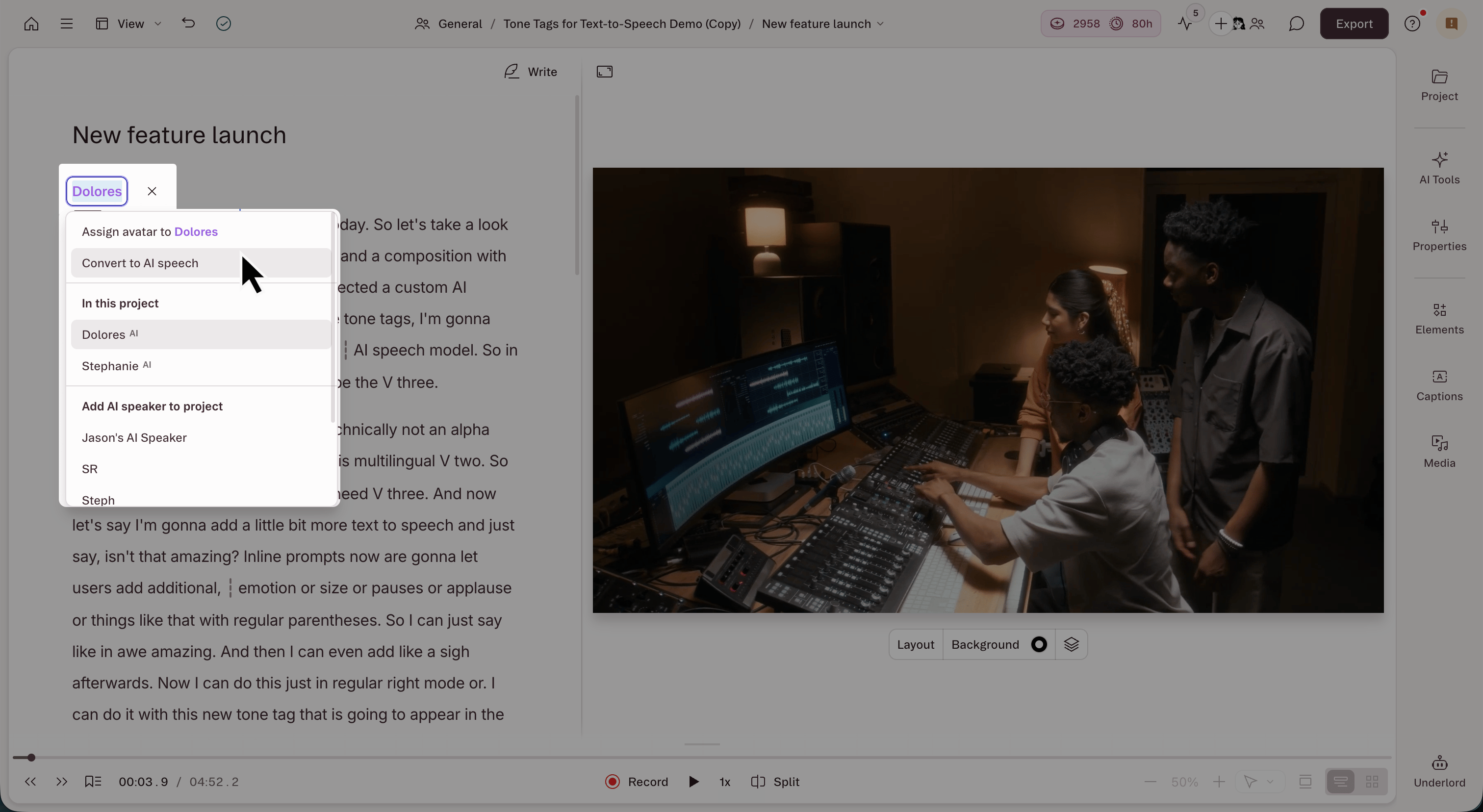
3. Re-select the speaker label, then click **Convert to AI speech** from the menu.
4. If that speaker is labeled elsewhere in your composition, choose whether to convert **just this section** or all places in the **whole composition** where that speaker label appears.
5. Click **Convert to AI speech** to confirm.
Descript generates the new voice and replaces your original script audio with the new voiceover track; your video layer is moved into the layer lane with the original audio muted.
 **The new generated voiceover may not perfectly match the timing of the original content.**
Convert to AI speech doesn't adjust anything to fit your video; it only converts the original audio to AI speech. The new voiceover can run longer or shorter than your original recording, especially in compositions with long gaps or silence.
## Convert a selection to AI speech
To convert a specific range instead of a whole section:
1. In the **Script Editor**, select the script text you want to convert to AI speech.
2. From the hover menu, select the More options button, then choose **Convert to AI speech** from the dropdown.
3. Choose an **AI Speaker**, then confirm.
Descript converts only the selected range and leaves the rest of your script as-is.
## Troubleshooting
* **An avatar layer moved behind your preserved video.** Drag the avatar layer back above the video in the layer lane to restore the original order. Learn more about adjusting layer order.
* **Some converted paragraphs didn't start generating AI speech.** Toggle playback to trigger generation for any leftover sections.
**The new generated voiceover may not perfectly match the timing of the original content.**
Convert to AI speech doesn't adjust anything to fit your video; it only converts the original audio to AI speech. The new voiceover can run longer or shorter than your original recording, especially in compositions with long gaps or silence.
## Convert a selection to AI speech
To convert a specific range instead of a whole section:
1. In the **Script Editor**, select the script text you want to convert to AI speech.
2. From the hover menu, select the More options button, then choose **Convert to AI speech** from the dropdown.
3. Choose an **AI Speaker**, then confirm.
Descript converts only the selected range and leaves the rest of your script as-is.
## Troubleshooting
* **An avatar layer moved behind your preserved video.** Drag the avatar layer back above the video in the layer lane to restore the original order. Learn more about adjusting layer order.
* **Some converted paragraphs didn't start generating AI speech.** Toggle playback to trigger generation for any leftover sections.