> ## Documentation Index
> Fetch the complete documentation index at: https://help.descript.com/llms.txt
> Use this file to discover all available pages before exploring further.
# Create and use Underlord skills
> Save reusable instructions as a skill, then run it in Underlord chat instead of retyping the prompt. Find, create, edit, and delete skills.
**Skills are replacing prompt templates**
Prompt templates are being retired. Templates you already created keep working for now, but Descript won't convert them to skills automatically. To convert a template you created, open the template gallery and click **Save as skill** on its card or on its details page. [See the step-by-step guide.](/templates-and-presets/custom-templates)
**Before getting started**
Skills run inside Underlord. If you're new to Underlord, start with [Underlord (Beta): Your AI co-editor in Descript](/getting-started/underlord-beta-your-ai-co-editor-in-descript).
**Usage note**
Running a skill sends a prompt to Underlord, so it uses [AI Credits](/billing-payments-plans/track-and-understand-your-media-minutes-and-ai-credits) the same way any Underlord request does.
## Find skills
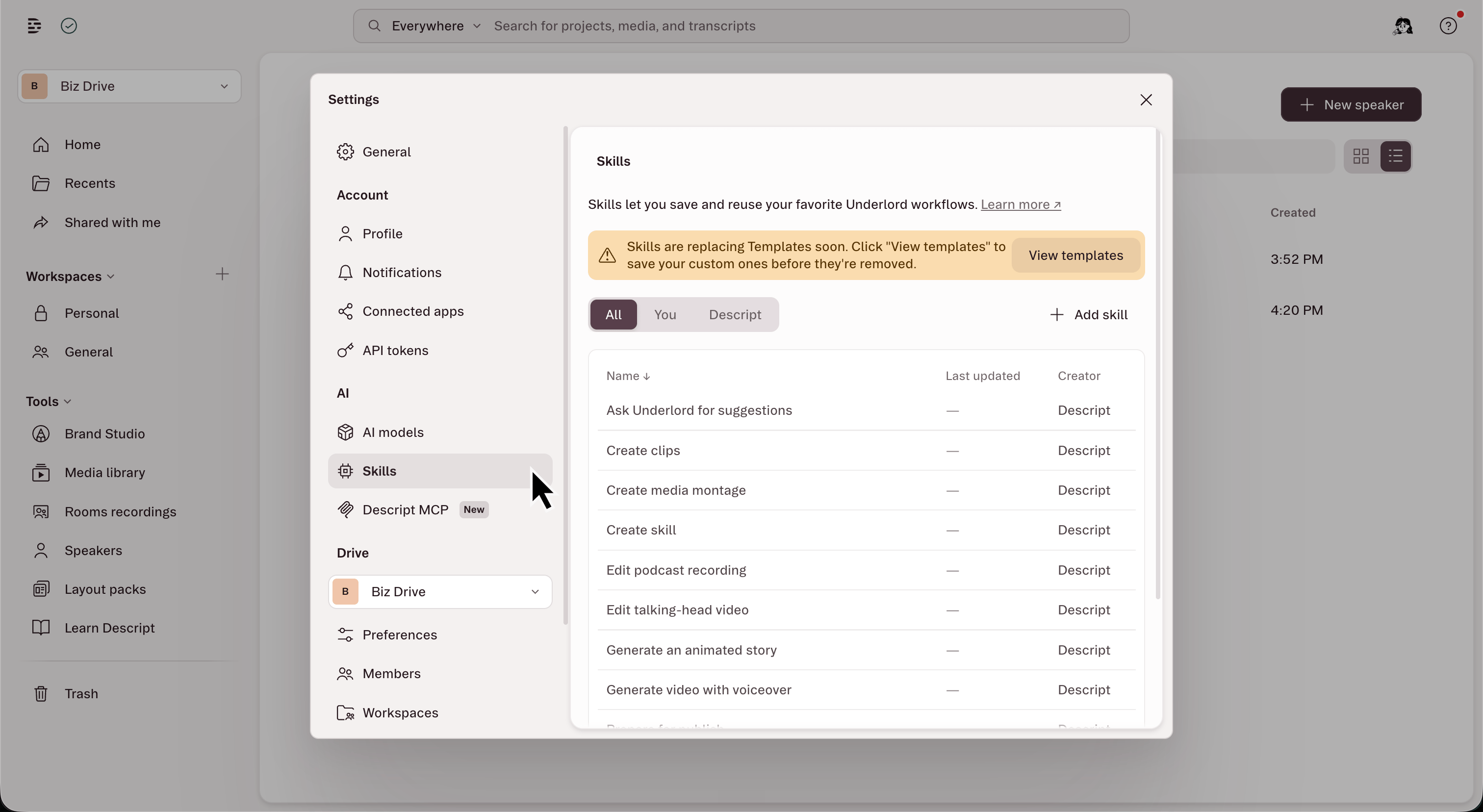
1. Open [**App settings**](/account-and-app-settings/app-settings) (keyboard shortcut Cmd/Ctrl + , )
2. In the left pane, select the **Skills** tab.
3. Click a skill to open its details page, which shows the skill's name, description, and (where available) instructions.
4. To run the skill right away, click **Try skill**. Underlord opens with the skill added to the chat box in your current project, or in a new video project if you don't have one open. Add any details, then send the message.
 ## Use a skill in Underlord chat
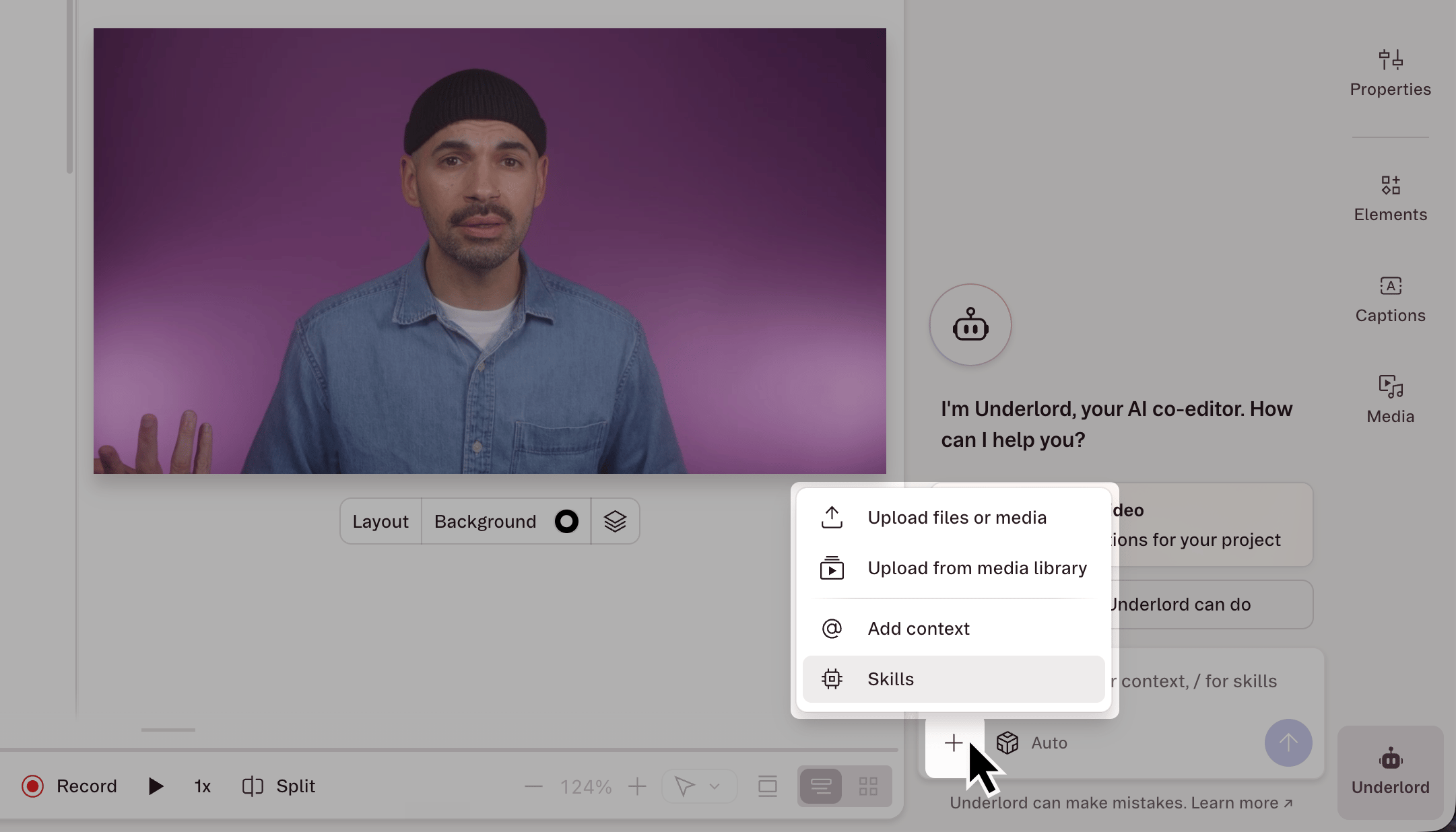
1. In the Underlord chat box in the project sidebar, click **+** and choose **Skills**, or type /.
2. Select a skill from the list.
3. The skill appears as a chip in your message. Send it on its own, or give Underlord additional context.
## Use a skill in Underlord chat
1. In the Underlord chat box in the project sidebar, click **+** and choose **Skills**, or type /.
2. Select a skill from the list.
3. The skill appears as a chip in your message. Send it on its own, or give Underlord additional context.
 ## Create a skill
1. In the **Skills** tab of [App settings](/account-and-app-settings/app-settings), click **+ New skill**.
2. Choose one of these options:
* **Create with Underlord:** opens an Underlord chat in your current project, or in a new video project if none is open. Describe the skill you want, and Underlord builds and saves it.
* **Write skill manually:** opens an editor where you fill in the skill yourself.
3. Enter a name (up to 100 characters). Each name must be unique, including against Descript's built-in skills, and matching ignores capitalization.
4. Add a short description of what the skill does.
5. Write your instructions in [Markdown](https://www.markdownguide.org/). For tips on structure, see [How to write effective prompts for Descript's AI features](/ai-assistant/prompting).
6. Click **Save**.
You can also start from inside a project: open the skills list in Underlord chat, select the **Create skill** skill, and tell Underlord what you want the new skill to do.
Only you see the skills you create. Sharing skills isn't available yet.
## Edit a skill
1. Open [**App settings**](/account-and-app-settings/app-settings)
2. Select the **Skills** tab from the left sidebar.
3. Click your skill in the list
4. Make edits to the name, description, or instructions. Markdown is supported.
5. Click **Save**.
Note, saving overwrites the previous version. Deleting a skill is permanent.
## Delete a skill
To delete a skill, open it, click the **⋯** options menu, select **Delete**, then confirm. Deleting a skill cannot be undone.
## Related topics
- [Move your templates to skills](/templates-and-presets/custom-templates.md)
- [Upload a slide deck (PDF) into Descript](/add-and-manage-media/slides.md)
- [Get started with Descript](/getting-started/get-started-with-descript.md)
- [How to write effective prompts for Descript’s AI features](/ai-assistant/prompting.md)
- [Underlord (Beta): Your AI co-editor in Descript](/getting-started/underlord-beta-your-ai-co-editor-in-descript.md)
## Create a skill
1. In the **Skills** tab of [App settings](/account-and-app-settings/app-settings), click **+ New skill**.
2. Choose one of these options:
* **Create with Underlord:** opens an Underlord chat in your current project, or in a new video project if none is open. Describe the skill you want, and Underlord builds and saves it.
* **Write skill manually:** opens an editor where you fill in the skill yourself.
3. Enter a name (up to 100 characters). Each name must be unique, including against Descript's built-in skills, and matching ignores capitalization.
4. Add a short description of what the skill does.
5. Write your instructions in [Markdown](https://www.markdownguide.org/). For tips on structure, see [How to write effective prompts for Descript's AI features](/ai-assistant/prompting).
6. Click **Save**.
You can also start from inside a project: open the skills list in Underlord chat, select the **Create skill** skill, and tell Underlord what you want the new skill to do.
Only you see the skills you create. Sharing skills isn't available yet.
## Edit a skill
1. Open [**App settings**](/account-and-app-settings/app-settings)
2. Select the **Skills** tab from the left sidebar.
3. Click your skill in the list
4. Make edits to the name, description, or instructions. Markdown is supported.
5. Click **Save**.
Note, saving overwrites the previous version. Deleting a skill is permanent.
## Delete a skill
To delete a skill, open it, click the **⋯** options menu, select **Delete**, then confirm. Deleting a skill cannot be undone.
## Related topics
- [Move your templates to skills](/templates-and-presets/custom-templates.md)
- [Upload a slide deck (PDF) into Descript](/add-and-manage-media/slides.md)
- [Get started with Descript](/getting-started/get-started-with-descript.md)
- [How to write effective prompts for Descript’s AI features](/ai-assistant/prompting.md)
- [Underlord (Beta): Your AI co-editor in Descript](/getting-started/underlord-beta-your-ai-co-editor-in-descript.md)