> ## Documentation Index
> Fetch the complete documentation index at: https://help.descript.com/llms.txt
> Use this file to discover all available pages before exploring further.
# Undo or Rollback Changes Made by Underlord (Beta)
> Undo an Underlord edit that didn't go the way you wanted.
Not happy with a change [Underlord](/getting-started/underlord-beta-your-ai-co-editor-in-descript) made? You can undo it three ways: **Revert** the specific response, use the **Undo** button, or restore an earlier version from [Version History](/working-in-projects/version-history).
## Option 1: Revert a change
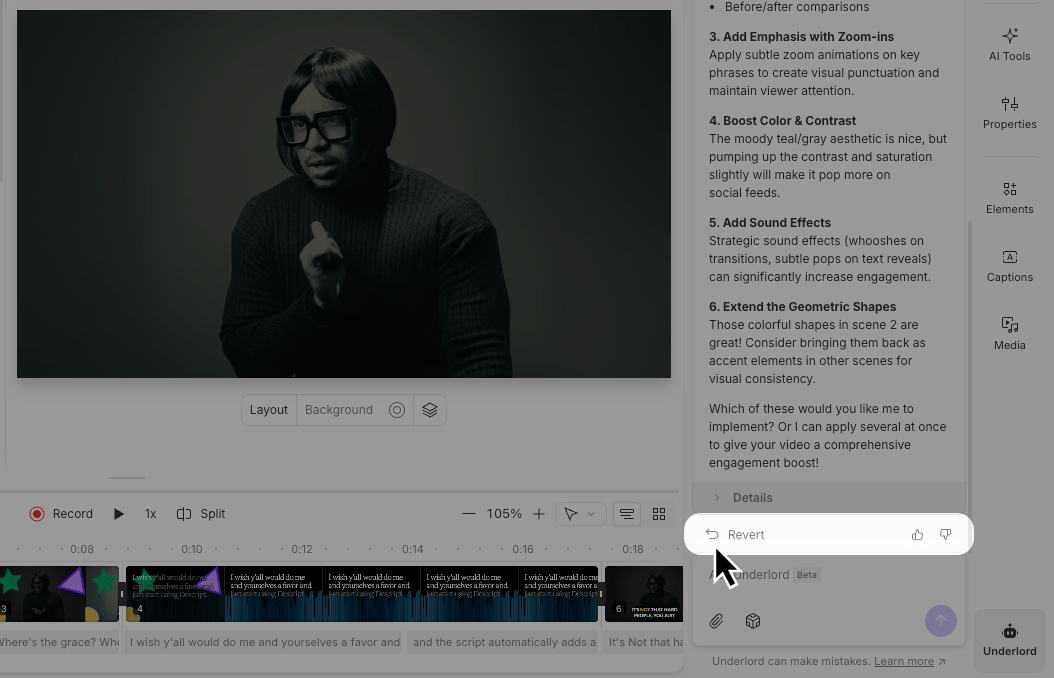
Underlord creates checkpoints before making changes. You’ll see these in the chat just before edits are applied. These checkpoints are available during your current session. If you refresh or close the project, use [Version History](/working-in-projects/version-history) instead.
1. Open the **Underlord** panel on the right side of your project.
2. Scroll through your chat with Underlord and find the response you want to undo.
3. Click the **Revert** button in the action bar below the response.
 ## Option 2: Use the Undo button
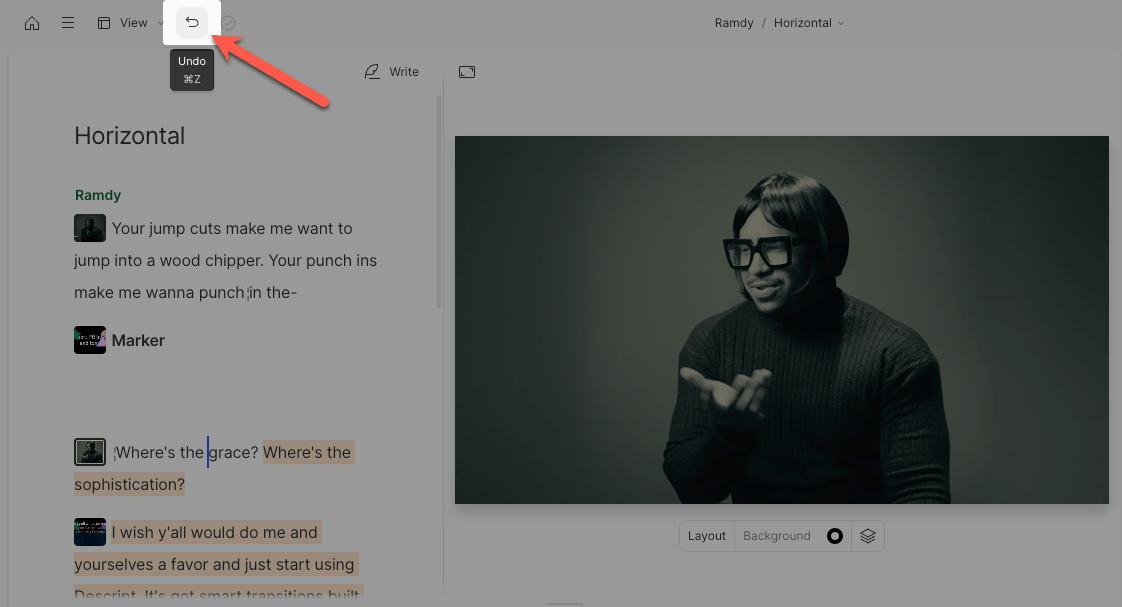
Near the top-left of the Descript editor window is an undo button. Click this or use the command/control + z keyboard shortcut to go back one step.
## Option 2: Use the Undo button
Near the top-left of the Descript editor window is an undo button. Click this or use the command/control + z keyboard shortcut to go back one step.
 ## Option 3: Use Version History
Descript automatically saves your project as you work, so you can always restore a previous version. To learn how, follow the steps in this guide: [View and restore from Version History](/working-in-projects/version-history)
## Option 3: Use Version History
Descript automatically saves your project as you work, so you can always restore a previous version. To learn how, follow the steps in this guide: [View and restore from Version History](/working-in-projects/version-history)