> ## Documentation Index
> Fetch the complete documentation index at: https://help.descript.com/llms.txt
> Use this file to discover all available pages before exploring further.
# Create a First-draft Video with Quick Design
> Quick Design turns a raw script or transcript into a scene-based rough cut—a fast first draft to build on.
Quick design uses AI to turn your script or transcript into a more produced-looking video — breaking content into scenes, applying layouts and styling, and optionally pulling in B-roll. Use it when the goal is a solid starting point you can polish.
**Usage note**
On current plans, this feature uses **AI Credits**. Learn more about [tracking your Media Minutes and AI Credits](/billing-payments-plans/track-and-understand-your-media-minutes-and-ai-credits).
Legacy and Sunset plans track usage differently. See our [Understanding your Legacy and Sunset plan](/billing-payments-plans/legacy-sunset) guide for details.
## How Quick design works
Quick design does three things when it runs:
* **Creates scenes** — Splits your content into logical moments so visuals change over time instead of staying on one continuous shot.
* **Applies layouts and styling** — Chooses scene layouts and applies basic formatting so the project looks intentionally designed.
* **Adds B-roll (optional)** — Pulls from stock and AI-generated media to cover cuts and add visual variety.
It works best on single-speaker videos: explainers, tutorials, and talking-head recordings with simple timelines. The result is a rough cut — expect to swap media, tweak layouts, adjust pacing, and rewrite on-screen text before it's done.
***Important notes:***
* Quick design **requires a project with media** in the Script track. If you haven't set one up yet, [add your script or record your content first](/record/editor-recorder-overview).
* **Quick design** can only be used on single-scene projects. Run it before adding any scenes manually.
## How to use Quick design
1. Open a new or existing project.
2. [Import your media](/getting-started/import-overview).
3. Click the [**AI tools**](/descript-tour/ai-tools-overview) button in the sidebar.
4. Select **Quick design** from the Look good section.
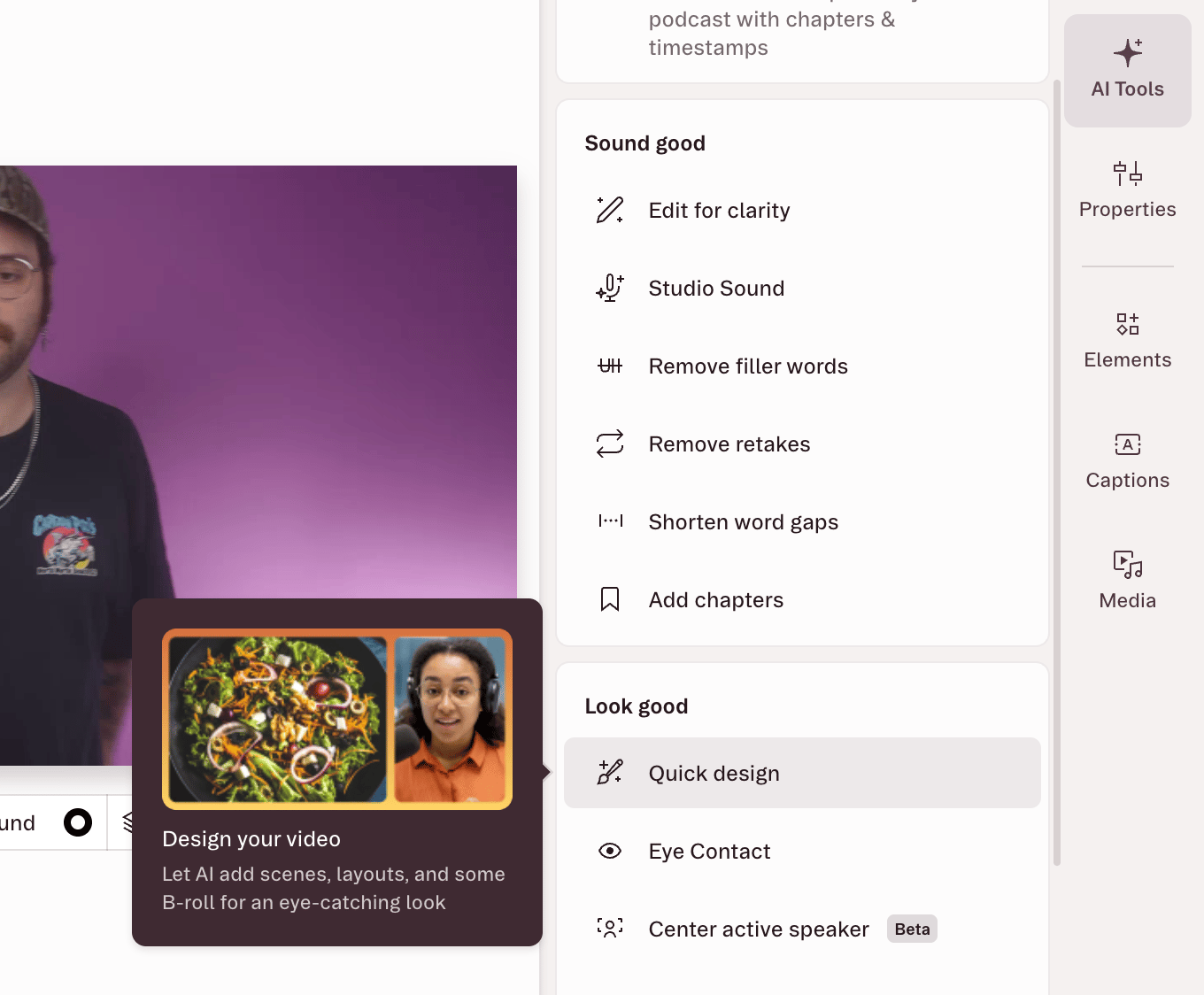 5. Choose whether to include B-roll. If enabled, Quick design will add supporting visuals using stock or AI-generated media.
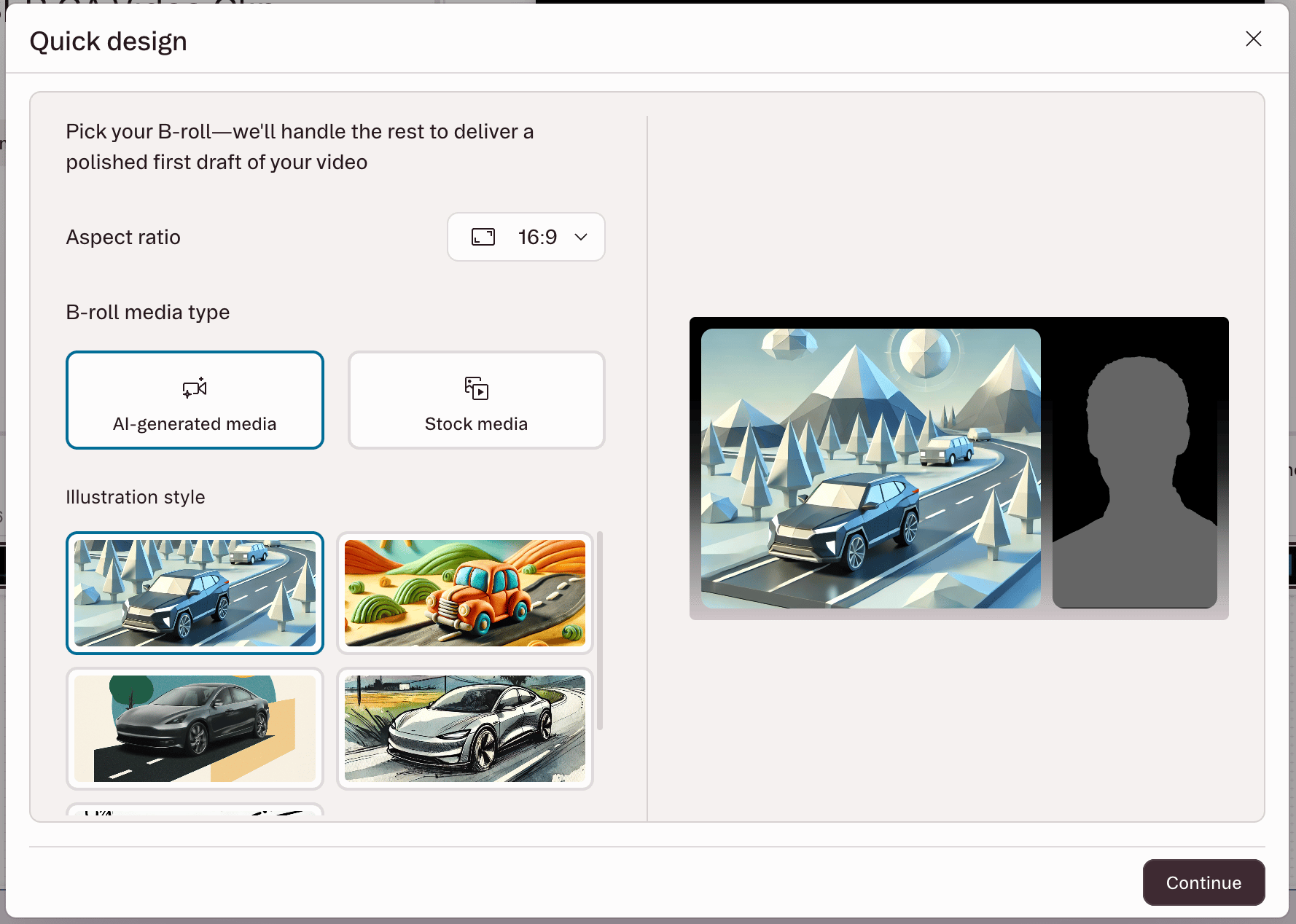 6. Click **Continue** to start processing.
When it finishes, your project will have scenes, layouts, and styling applied. From there, make your adjustments: swap out media, change layouts, tune pacing, and refine any on-screen text.
## Known limitations and tips
**Multi-speaker projects need a cleanup pass.** Quick design may not always pick the right active speaker per scene. After it runs, go through your scenes and manually update the visual source where needed.
**Complex timelines produce less predictable results.** Quick design is optimized for simple, single-track compositions. Multi-track or heavily layered projects may come out less consistent.
**Longer scripts take longer.** Expect processing times to scale up in proportion to total project length.
**It's a starting point.** Quick design gets you most of the way there. Swapping media, adjusting pacing, and refining on-screen text are all normal parts of the workflow after it runs — that's by design. If you’re not sure what do next, try asking [Underlord](/getting-started/underlord-beta-your-ai-co-editor-in-descript).
6. Click **Continue** to start processing.
When it finishes, your project will have scenes, layouts, and styling applied. From there, make your adjustments: swap out media, change layouts, tune pacing, and refine any on-screen text.
## Known limitations and tips
**Multi-speaker projects need a cleanup pass.** Quick design may not always pick the right active speaker per scene. After it runs, go through your scenes and manually update the visual source where needed.
**Complex timelines produce less predictable results.** Quick design is optimized for simple, single-track compositions. Multi-track or heavily layered projects may come out less consistent.
**Longer scripts take longer.** Expect processing times to scale up in proportion to total project length.
**It's a starting point.** Quick design gets you most of the way there. Swapping media, adjusting pacing, and refining on-screen text are all normal parts of the workflow after it runs — that's by design. If you’re not sure what do next, try asking [Underlord](/getting-started/underlord-beta-your-ai-co-editor-in-descript).