> ## Documentation Index
> Fetch the complete documentation index at: https://help.descript.com/llms.txt
> Use this file to discover all available pages before exploring further.
# Import Zoom Recordings into Descript
> Pull in Zoom cloud recordings directly to Descript.
Connect your Zoom account, and Descript pulls your cloud recordings into your project.
View and import recordings from Zoom calls you scheduled, started, or hosted within the past 12 months. To import older recordings, download the file from Zoom, then upload it using the steps outlined in our [Upload a file from your computer](/add-and-manage-media/local) article.
**Looking for an easier way to meet and record?**
Rooms (Descript's conferencing tool and recorder) lets you meet, record, and collaborate in one place. [Learn how to use Rooms](/record/rooms-overview).
## First-time setup
Before you import Zoom recordings, configure your Zoom settings and connect your Zoom account to Descript.
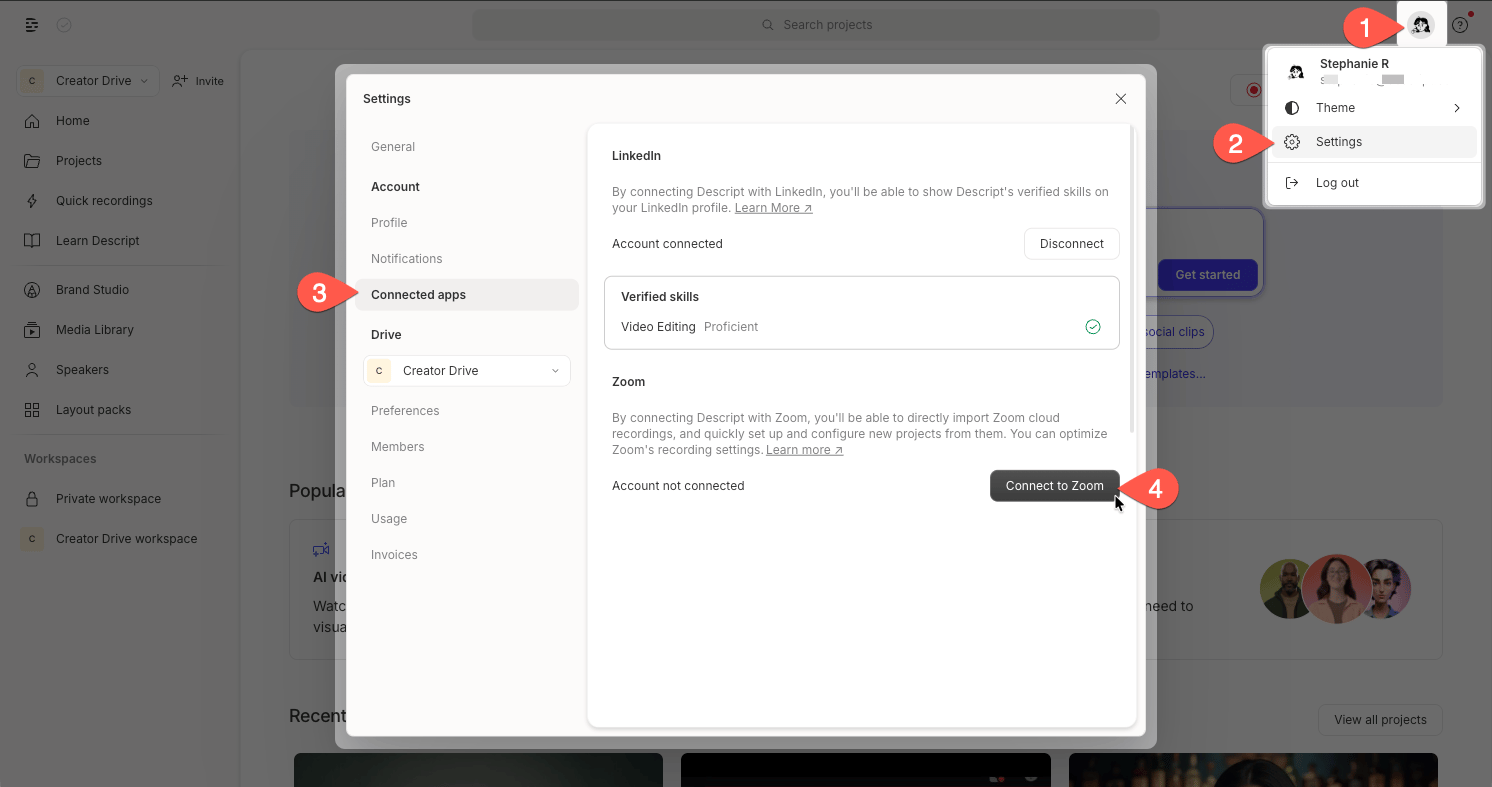
1. Open Descript and click your profile picture or initials in the top right corner of the window.
2. Select **Settings** from the dropdown menu.
3. In the left-hand panel, select the **Connected apps** tab.
4. Click **Connect with Zoom** and follow the prompts to authorize access to your Zoom cloud recordings.
 **IT-managed Zoom accounts**
If your organization restricts Zoom apps, ask your IT team to allow Descript's Zoom integration and whitelist \***.zoom.us**.
##### Permissions
Once connected, Descript can view your Zoom cloud recordings and access the audio and video files from recordings you choose to import. Descript doesn't automatically download recordings.
For the most flexibility when editing in Descript, update these Zoom settings:
1. Log in to your Zoom account on the web and go to **Settings > Recording**. ([Open Zoom Recording settings](https://zoom.us/profile/setting?tab=recording) — you may need to sign in.)
2. Toggle on **Cloud recording**. Descript's Zoom integration can only import cloud recordings, not local recordings saved to your device.
3. Enable **Record a separate audio track for each participant**. When selected, Zoom records individual audio files for each speaker, making it much easier to edit each person's audio track in Descript.
4. Enable **Record active speaker, gallery view, and shared screen separately**. We recommend selecting all three options for the most control over your visuals in Descript.
##### About Zoom video files
Zoom always provides a combined video file with all participants. Your Zoom view settings determine which perspectives appear, but Zoom doesn't provide separate video tracks per participant.
**Will separate audio tracks use more media minutes?**
No. Separate audio tracks don't increase media minute usage. Descript charges media minutes once per meeting, based on the longest file duration.
**Example:** 1-hour Zoom meeting with 5 participants\
**Files imported:** 6 total\
**Media minutes used:** 60 minutes
## Record and import workflow
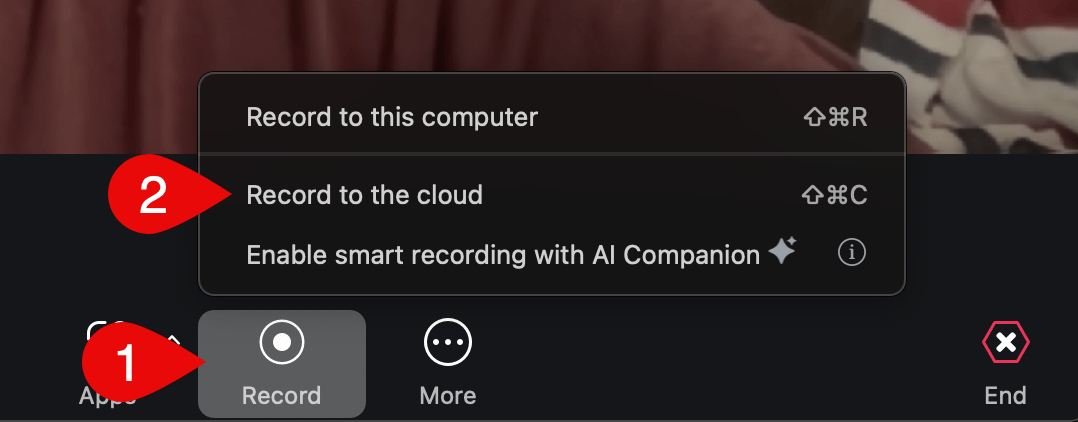
In Zoom, click **Record** and select **Record to the cloud**.
**IT-managed Zoom accounts**
If your organization restricts Zoom apps, ask your IT team to allow Descript's Zoom integration and whitelist \***.zoom.us**.
##### Permissions
Once connected, Descript can view your Zoom cloud recordings and access the audio and video files from recordings you choose to import. Descript doesn't automatically download recordings.
For the most flexibility when editing in Descript, update these Zoom settings:
1. Log in to your Zoom account on the web and go to **Settings > Recording**. ([Open Zoom Recording settings](https://zoom.us/profile/setting?tab=recording) — you may need to sign in.)
2. Toggle on **Cloud recording**. Descript's Zoom integration can only import cloud recordings, not local recordings saved to your device.
3. Enable **Record a separate audio track for each participant**. When selected, Zoom records individual audio files for each speaker, making it much easier to edit each person's audio track in Descript.
4. Enable **Record active speaker, gallery view, and shared screen separately**. We recommend selecting all three options for the most control over your visuals in Descript.
##### About Zoom video files
Zoom always provides a combined video file with all participants. Your Zoom view settings determine which perspectives appear, but Zoom doesn't provide separate video tracks per participant.
**Will separate audio tracks use more media minutes?**
No. Separate audio tracks don't increase media minute usage. Descript charges media minutes once per meeting, based on the longest file duration.
**Example:** 1-hour Zoom meeting with 5 participants\
**Files imported:** 6 total\
**Media minutes used:** 60 minutes
## Record and import workflow
In Zoom, click **Record** and select **Record to the cloud**.
 **Then import your Zoom files into Descript:**
1. Open or [create a project](/getting-started/create-a-new-project).
2. Click **Import from Zoom** in the script area.
3. Select a recording by meeting title.
4. Click **Import**.
Descript automatically adds the files to your script, creates a [sequence](/script-editing/multi-track-sequences-overview), [detects your speakers](/script-editing/speaker-detection), and [transcribes](/script-editing/automatic-transcription) the audio using your selected language in [App Settings](/account-and-app-settings/app-settings).
**Recording still processing?**
If a recording shows **Processing**, Zoom is still preparing the files. Wait for processing to finish before importing.
## Troubleshooting Zoom imports
If your Zoom recording does not import, check the issue that best matches what happened.
If your internet connection drops during import, reconnect and wait for the import to resume. If it does not resume, check that your connection is stable, then try importing the recording again.
Zoom API outages can prevent Descript from listing or importing cloud recordings. Check [Zoom's status page](https://status.zoom.us/) for current outages. If Zoom is experiencing an issue, wait until it is resolved, then try the import again.
If Zoom is disconnected before or during an import, Descript may show an import error. Reconnect your Zoom account in **Settings > Connected Apps**, then try importing the recording again.
## Disconnect Zoom
To unlink your Zoom account:
1. Open **Settings** and select **Connected Apps**.
2. Next to Zoom, select **Log out**.
**Then import your Zoom files into Descript:**
1. Open or [create a project](/getting-started/create-a-new-project).
2. Click **Import from Zoom** in the script area.
3. Select a recording by meeting title.
4. Click **Import**.
Descript automatically adds the files to your script, creates a [sequence](/script-editing/multi-track-sequences-overview), [detects your speakers](/script-editing/speaker-detection), and [transcribes](/script-editing/automatic-transcription) the audio using your selected language in [App Settings](/account-and-app-settings/app-settings).
**Recording still processing?**
If a recording shows **Processing**, Zoom is still preparing the files. Wait for processing to finish before importing.
## Troubleshooting Zoom imports
If your Zoom recording does not import, check the issue that best matches what happened.
If your internet connection drops during import, reconnect and wait for the import to resume. If it does not resume, check that your connection is stable, then try importing the recording again.
Zoom API outages can prevent Descript from listing or importing cloud recordings. Check [Zoom's status page](https://status.zoom.us/) for current outages. If Zoom is experiencing an issue, wait until it is resolved, then try the import again.
If Zoom is disconnected before or during an import, Descript may show an import error. Reconnect your Zoom account in **Settings > Connected Apps**, then try importing the recording again.
## Disconnect Zoom
To unlink your Zoom account:
1. Open **Settings** and select **Connected Apps**.
2. Next to Zoom, select **Log out**.