> ## Documentation Index
> Fetch the complete documentation index at: https://help.descript.com/llms.txt
> Use this file to discover all available pages before exploring further.
# Importing Restream Recordings Directly into Descript (Beta)
> Bring Restream livestream recordings directly into Descript for editing.
Send a Restream livestream recording straight into Descript to edit, without downloading and re-uploading.
**Before using this feature**
* You need to be a Restream user with a recording ready for import.
* Please note that this feature is currently in beta. See the [known issues and limitations](/add-and-manage-media/editInDescript) for further details.
## How to import your Restream recordings
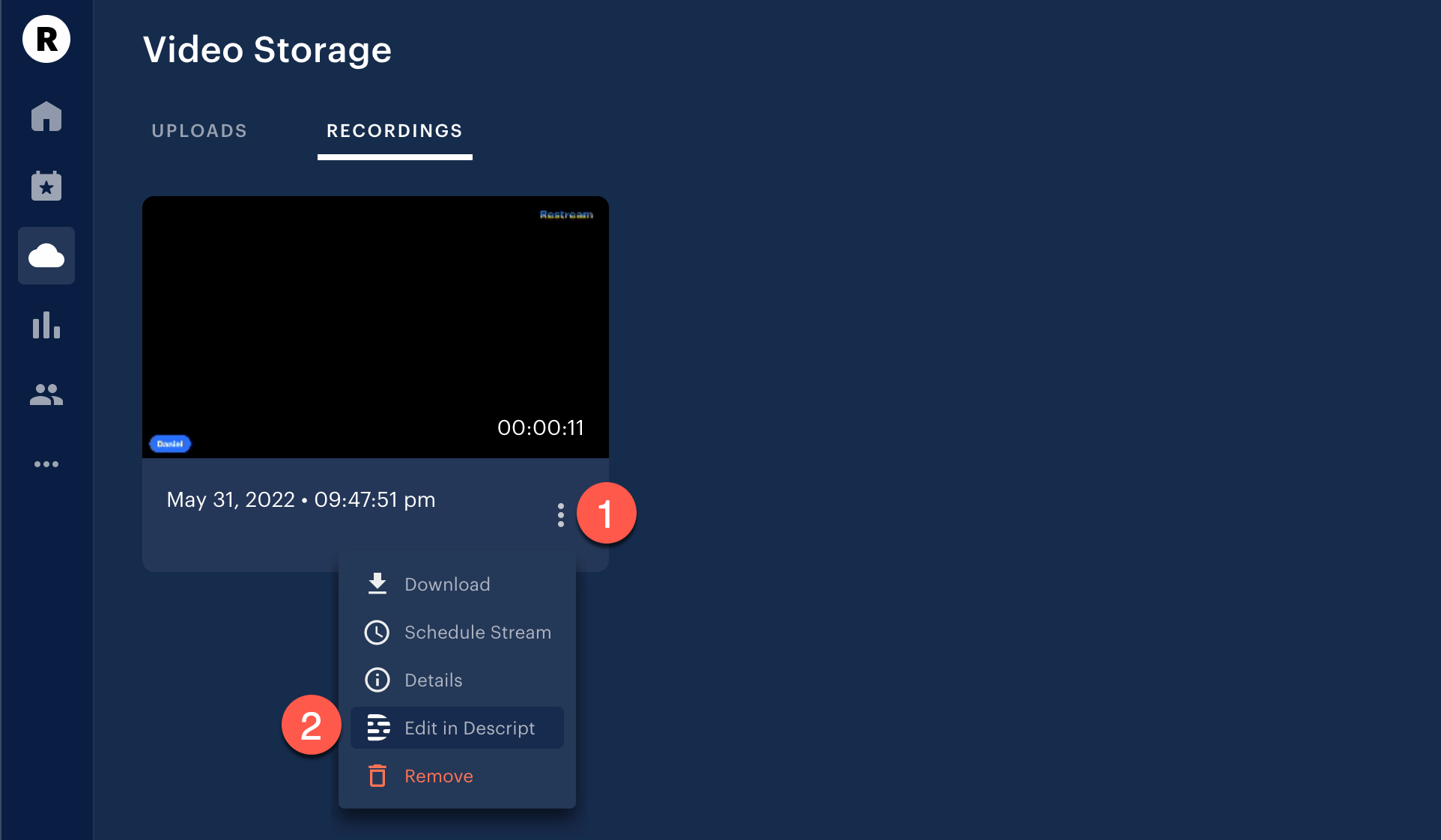
1. Navigate to your [Restream Video Storage](https://app.restream.io/video-storage/recordings) and select the Recordings tab.
2. Click the vertical ellipsis under the recording you wish to export to Descprit and select **Edit in Descript**.
[ ](/images/external/descript-12943838979725-4be608d035.png)
3. Sign in to your Descript account or [sign up for a Descript account](https://auth0.descript.com/login?state=hKFo2SBnZXktWEVvMjBxRlZ6Q1lwdmJIQllucEt4UENQZUtKbKFupWxvZ2luo3RpZNkgVlpOVjJtamVMQW1uRnBoMlRrWVVNeDdWZXAzeTFxU0mjY2lk2SBWRGZ1N3JnNHBkQ0VMV3NyUWpjdzJ0RzYzYThRbHltaQ\&client=VDfu7rg4pdCELWsrQjcw2tG63a8Qlymi\&protocol=oauth2\&audience=https%3A%2F%2Fapi.descript.com\&redirect_uri=https%3A%2F%2Fweb.descript.com%2Fauth0%2Fauthorize-callback\&response_type=code\&scope=offline_access%20openid%20profile\&code_challenge_method=S256\&code_challenge=LgwqqSQ8UjUID-iiTGKfKSFaDJm7UfOIcmT98-aPmRo\&descript_initial_screen=signUp) to continue.
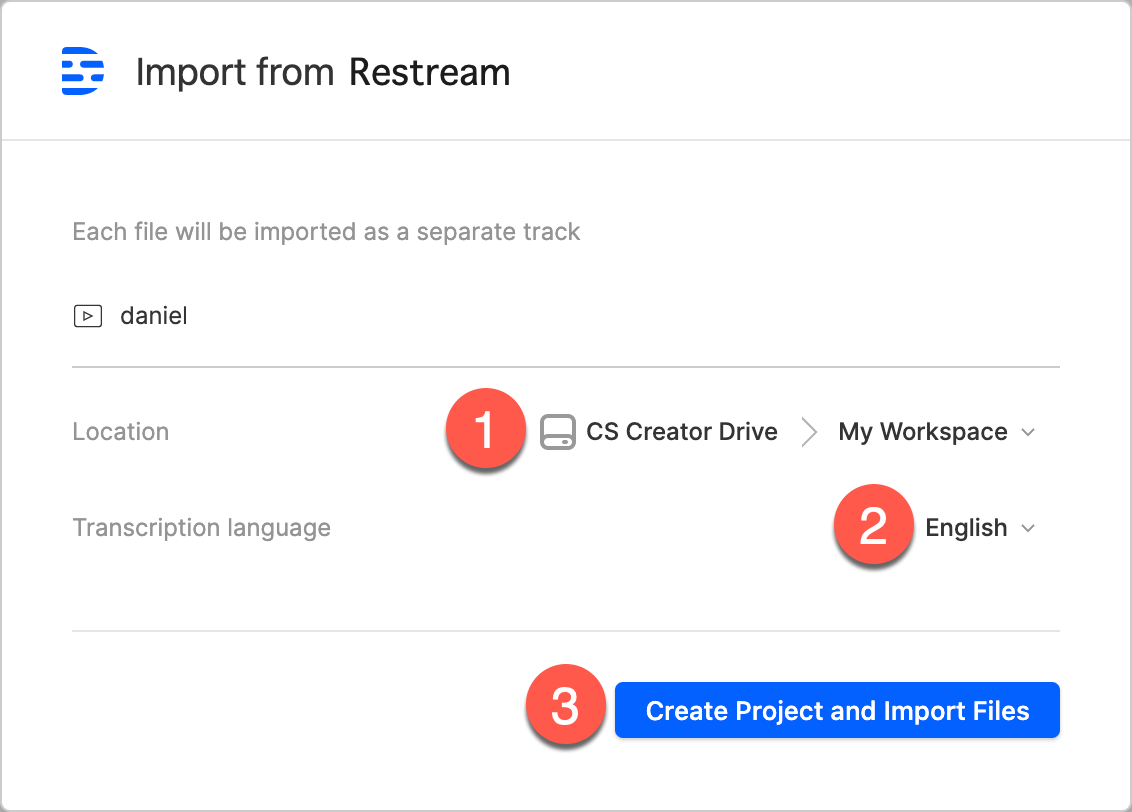
4. Type in your project’s name, set the storage location on your Drive, select the transcription language if desired and click **Create project and import files**. A prompt will appear to open Descript or download the application.
[
](/images/external/descript-12943838979725-4be608d035.png)
3. Sign in to your Descript account or [sign up for a Descript account](https://auth0.descript.com/login?state=hKFo2SBnZXktWEVvMjBxRlZ6Q1lwdmJIQllucEt4UENQZUtKbKFupWxvZ2luo3RpZNkgVlpOVjJtamVMQW1uRnBoMlRrWVVNeDdWZXAzeTFxU0mjY2lk2SBWRGZ1N3JnNHBkQ0VMV3NyUWpjdzJ0RzYzYThRbHltaQ\&client=VDfu7rg4pdCELWsrQjcw2tG63a8Qlymi\&protocol=oauth2\&audience=https%3A%2F%2Fapi.descript.com\&redirect_uri=https%3A%2F%2Fweb.descript.com%2Fauth0%2Fauthorize-callback\&response_type=code\&scope=offline_access%20openid%20profile\&code_challenge_method=S256\&code_challenge=LgwqqSQ8UjUID-iiTGKfKSFaDJm7UfOIcmT98-aPmRo\&descript_initial_screen=signUp) to continue.
4. Type in your project’s name, set the storage location on your Drive, select the transcription language if desired and click **Create project and import files**. A prompt will appear to open Descript or download the application.
[ ](/images/external/descript-12943844968077-5ecfabbaeb.png)
5. Click **Open Descript** or **Download the Descript app** to open your Descript project.
**Re-opening the import link**
Now that you've created the Descript project, if you try re-opening the import web page via the corresponding link, you will be prompted to open your newly created project.
Your Restream files will begin importing, and you can monitor the progress of your project. Once done, you can start editing your Restream recordings in Descript and export them directly to Restream when you are finished.
](/images/external/descript-12943844968077-5ecfabbaeb.png)
5. Click **Open Descript** or **Download the Descript app** to open your Descript project.
**Re-opening the import link**
Now that you've created the Descript project, if you try re-opening the import web page via the corresponding link, you will be prompted to open your newly created project.
Your Restream files will begin importing, and you can monitor the progress of your project. Once done, you can start editing your Restream recordings in Descript and export them directly to Restream when you are finished.