> ## Documentation Index
> Fetch the complete documentation index at: https://help.descript.com/llms.txt
> Use this file to discover all available pages before exploring further.
# Project File Actions
> Take action on any single file in your project from its Project File Actions menu.
The Files section of [the Project panel](/descript-tour/project-panel) lists every file in your project. To act on a specific one, open its **Project File Actions** menu: rename a file, start [transcription](/script-editing/automatic-transcription) or [Speaker detection](/script-editing/speaker-detection), duplicate it, and more.
 ## How to access file actions
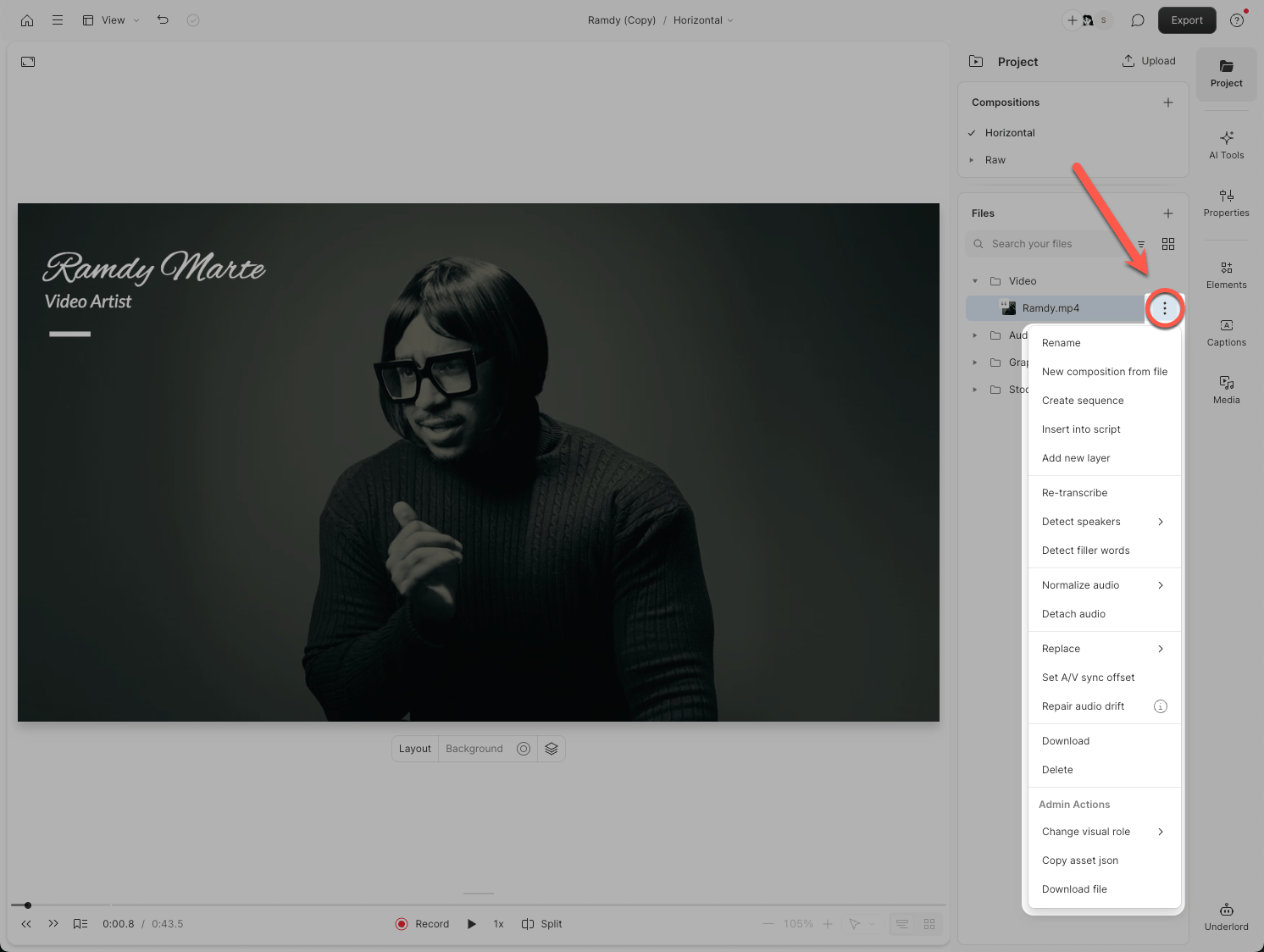
1. Open the **Project** panel from the right-hand sidebar.
2. Navigate to the **Files** section.
3. Click the **ellipsis** button (`...`) next to any file name.
*Note:* Some actions only appear for certain file types.
## Available actions for project files
| Action | Description |
| ---------------------------------------- | ---------------------------------------------------------------------------------------------------------------------------------------------------------------------------------------------------------- |
| **Rename** | Change a file’s name. |
| **New composition from file** | Create a new [composition](/working-in-projects/overview) in your project with the selected file. |
| **Duplicate** | Duplicate the selected [sequence](/script-editing/multi-track-sequences-overview). |
| **Create sequence** | Combine multiple selected files into a sequence. |
| **Insert into script** | Adds your file to the script of the current composition. [Learn more about the script.](/getting-started/add-a-file-to-the-script) |
| **Add new layer** | Adds your file as a new layer in the current composition. [Learn more about layers.](/visuals/working-with-layers-and-clips-overview) |
| **Transcribe file / Re-transcribe file** | Transcribe the file’s audio. [Learn more about transcription.](/script-editing/automatic-transcription) |
| **Detect Speakers** | Run Speaker detection and/or identification, then apply Speaker labels. [Learn about how to detect and label Speakers in your transcript](/script-editing/speaker-detection) |
| **Detect filler words** | Run remove filler words to detect and remove filler words from your composition using AI. [Learn about filler words.](/script-editing/filler-words) |
| **Convert to mono** | Create a new mono audio file from a stereo audio project file; the original file will be preserved. |
| **Separate into mono files** | Create a left and right mono audio file from a stereo audio project file; the original file will be preserved. |
| **Normalize audio** | Adjust the overall gain or volume level of a file. |
| **Detach audio** | Separate audio from video. Creates a [sequence](/script-editing/multi-track-sequences-overview) with separate audio and video tracks. |
| **Replace** | [Replace the file](/add-and-manage-media/replace-file) or [replace the transcript](https://help.descript.com/hc/en-us/articles/10165786610061). |
| **Change visual role** | Set the file's visual role (Talking Head, Screen Recording, Graphics, or Others). Layouts use visual roles to place content in the right position. [Learn more about visual roles.](/visuals/visual-roles) |
| **Set A/V sync offset** | Adjust audio/video synchronization. Fix a consistent delay between audio and video in a single file. [Learn how to adjust A/V sync offset](/add-and-manage-media/av-sync) |
| **Repair audio drift** | Repair improperly encoded files. [Learn more about using the repair audio drift tool.](/add-and-manage-media/repair-audio-drift) |
| **Import transcript** | Import and sync an existing transcript with its corresponding audio. [Learn how to import an existing transcript](/script-editing/import-transcript) |
| **Download** | Download the project file to your computer. |
| **Delete** | Delete the project file or recording from your project. |
## View file metadata
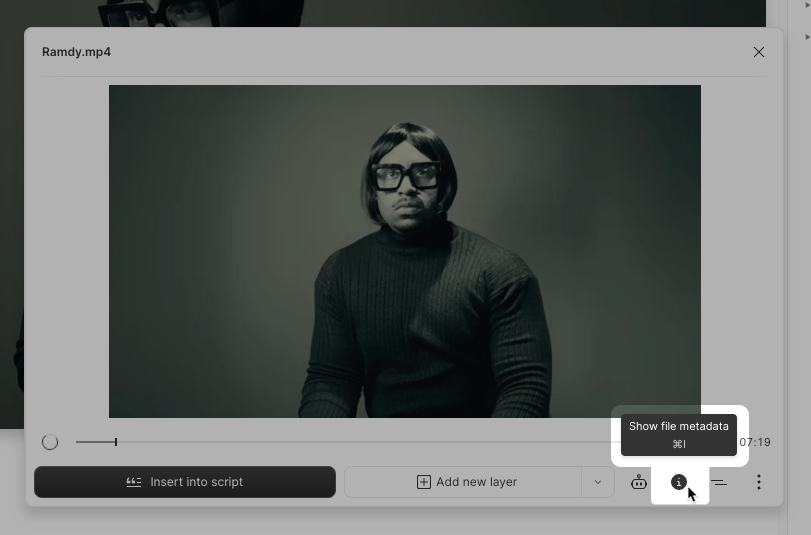
1. Select a project file from the **Files** section.
2. Click the **Show file metadata** button in the bottom-right corner of the pop-out panel.
## How to access file actions
1. Open the **Project** panel from the right-hand sidebar.
2. Navigate to the **Files** section.
3. Click the **ellipsis** button (`...`) next to any file name.
*Note:* Some actions only appear for certain file types.
## Available actions for project files
| Action | Description |
| ---------------------------------------- | ---------------------------------------------------------------------------------------------------------------------------------------------------------------------------------------------------------- |
| **Rename** | Change a file’s name. |
| **New composition from file** | Create a new [composition](/working-in-projects/overview) in your project with the selected file. |
| **Duplicate** | Duplicate the selected [sequence](/script-editing/multi-track-sequences-overview). |
| **Create sequence** | Combine multiple selected files into a sequence. |
| **Insert into script** | Adds your file to the script of the current composition. [Learn more about the script.](/getting-started/add-a-file-to-the-script) |
| **Add new layer** | Adds your file as a new layer in the current composition. [Learn more about layers.](/visuals/working-with-layers-and-clips-overview) |
| **Transcribe file / Re-transcribe file** | Transcribe the file’s audio. [Learn more about transcription.](/script-editing/automatic-transcription) |
| **Detect Speakers** | Run Speaker detection and/or identification, then apply Speaker labels. [Learn about how to detect and label Speakers in your transcript](/script-editing/speaker-detection) |
| **Detect filler words** | Run remove filler words to detect and remove filler words from your composition using AI. [Learn about filler words.](/script-editing/filler-words) |
| **Convert to mono** | Create a new mono audio file from a stereo audio project file; the original file will be preserved. |
| **Separate into mono files** | Create a left and right mono audio file from a stereo audio project file; the original file will be preserved. |
| **Normalize audio** | Adjust the overall gain or volume level of a file. |
| **Detach audio** | Separate audio from video. Creates a [sequence](/script-editing/multi-track-sequences-overview) with separate audio and video tracks. |
| **Replace** | [Replace the file](/add-and-manage-media/replace-file) or [replace the transcript](https://help.descript.com/hc/en-us/articles/10165786610061). |
| **Change visual role** | Set the file's visual role (Talking Head, Screen Recording, Graphics, or Others). Layouts use visual roles to place content in the right position. [Learn more about visual roles.](/visuals/visual-roles) |
| **Set A/V sync offset** | Adjust audio/video synchronization. Fix a consistent delay between audio and video in a single file. [Learn how to adjust A/V sync offset](/add-and-manage-media/av-sync) |
| **Repair audio drift** | Repair improperly encoded files. [Learn more about using the repair audio drift tool.](/add-and-manage-media/repair-audio-drift) |
| **Import transcript** | Import and sync an existing transcript with its corresponding audio. [Learn how to import an existing transcript](/script-editing/import-transcript) |
| **Download** | Download the project file to your computer. |
| **Delete** | Delete the project file or recording from your project. |
## View file metadata
1. Select a project file from the **Files** section.
2. Click the **Show file metadata** button in the bottom-right corner of the pop-out panel.
 ## Actions for AI-generated images and videos
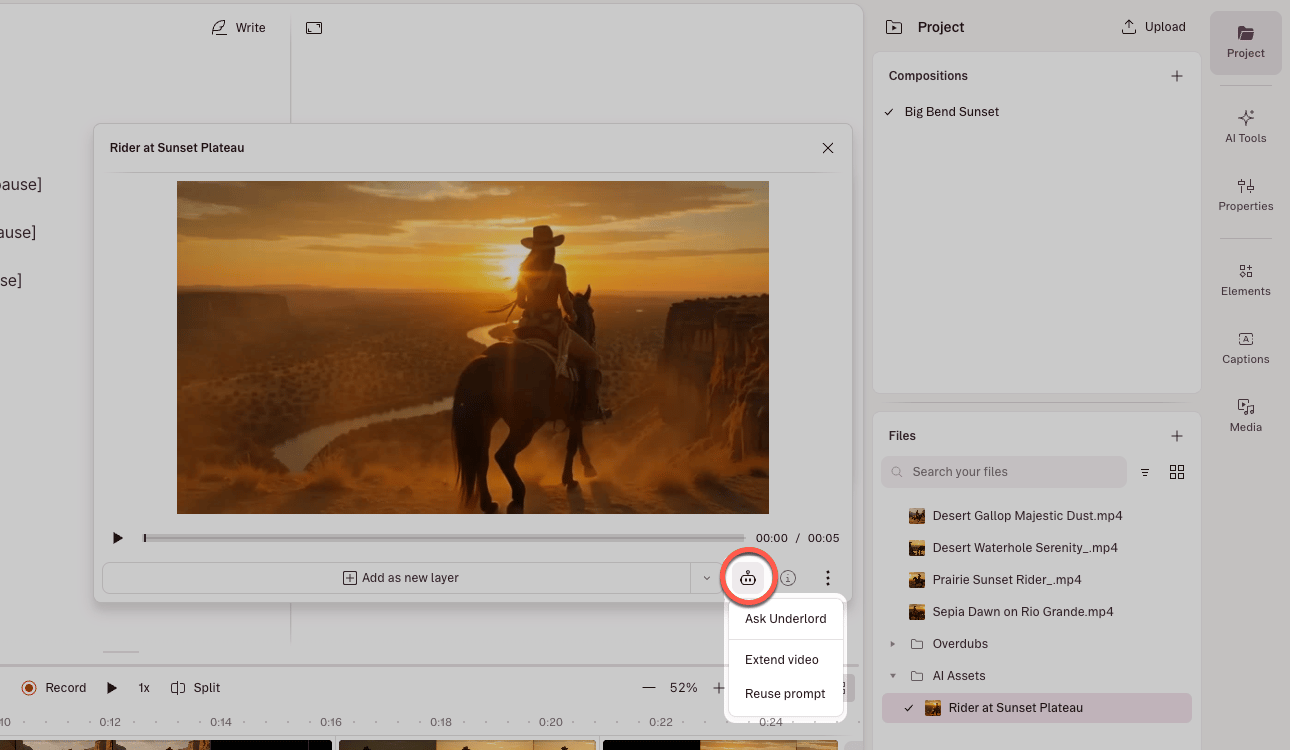
For AI-generated images and videos, additional menu options are available. Click the **Underlord** icon and choose:
* **Edit image** — Opens the [Generate an image](https://help.descript.com/hc/en-us/articles/17045119670029) pane with the image attached to the prompt.
* **Turn into video** — Opens the [Generate a video](/generative-media/generate-media) pane with the image attached to the prompt.
* **Reuse prompt** — Copies the original prompt and parameters, pre-loading them so you can iterate or create similar assets.
## Actions for AI-generated images and videos
For AI-generated images and videos, additional menu options are available. Click the **Underlord** icon and choose:
* **Edit image** — Opens the [Generate an image](https://help.descript.com/hc/en-us/articles/17045119670029) pane with the image attached to the prompt.
* **Turn into video** — Opens the [Generate a video](/generative-media/generate-media) pane with the image attached to the prompt.
* **Reuse prompt** — Copies the original prompt and parameters, pre-loading them so you can iterate or create similar assets.