> ## Documentation Index
> Fetch the complete documentation index at: https://help.descript.com/llms.txt
> Use this file to discover all available pages before exploring further.
# Media Library: Organize and Reuse Content Across Projects
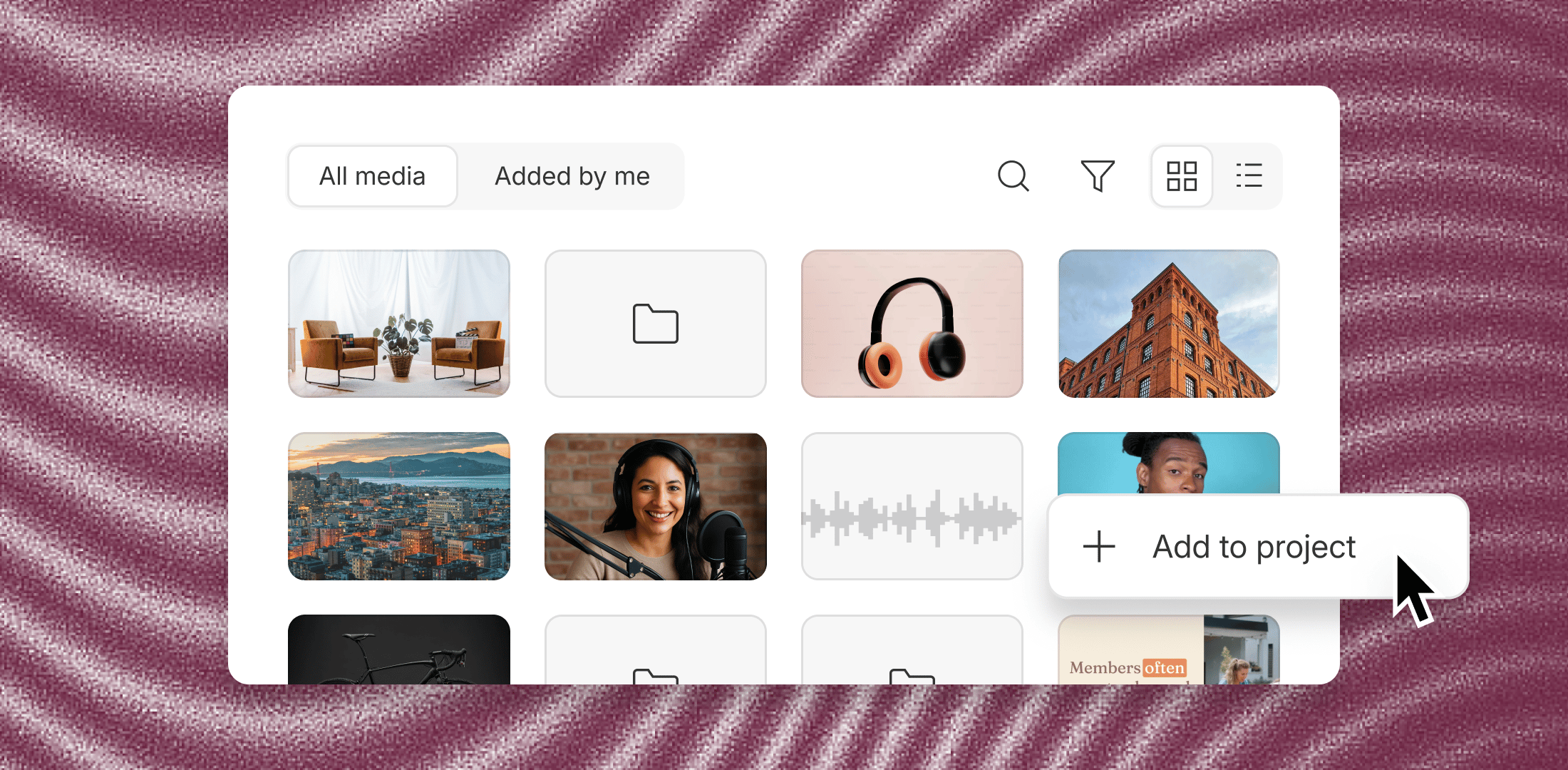
> The Media Library is a shared space for content your entire team can use.
Store media at the Drive level so Editors can upload, organize, and reuse it across every project. Anything kept here is available to everyone on your Drive.
 ## Add and organize media
### Upload files to the Media Library
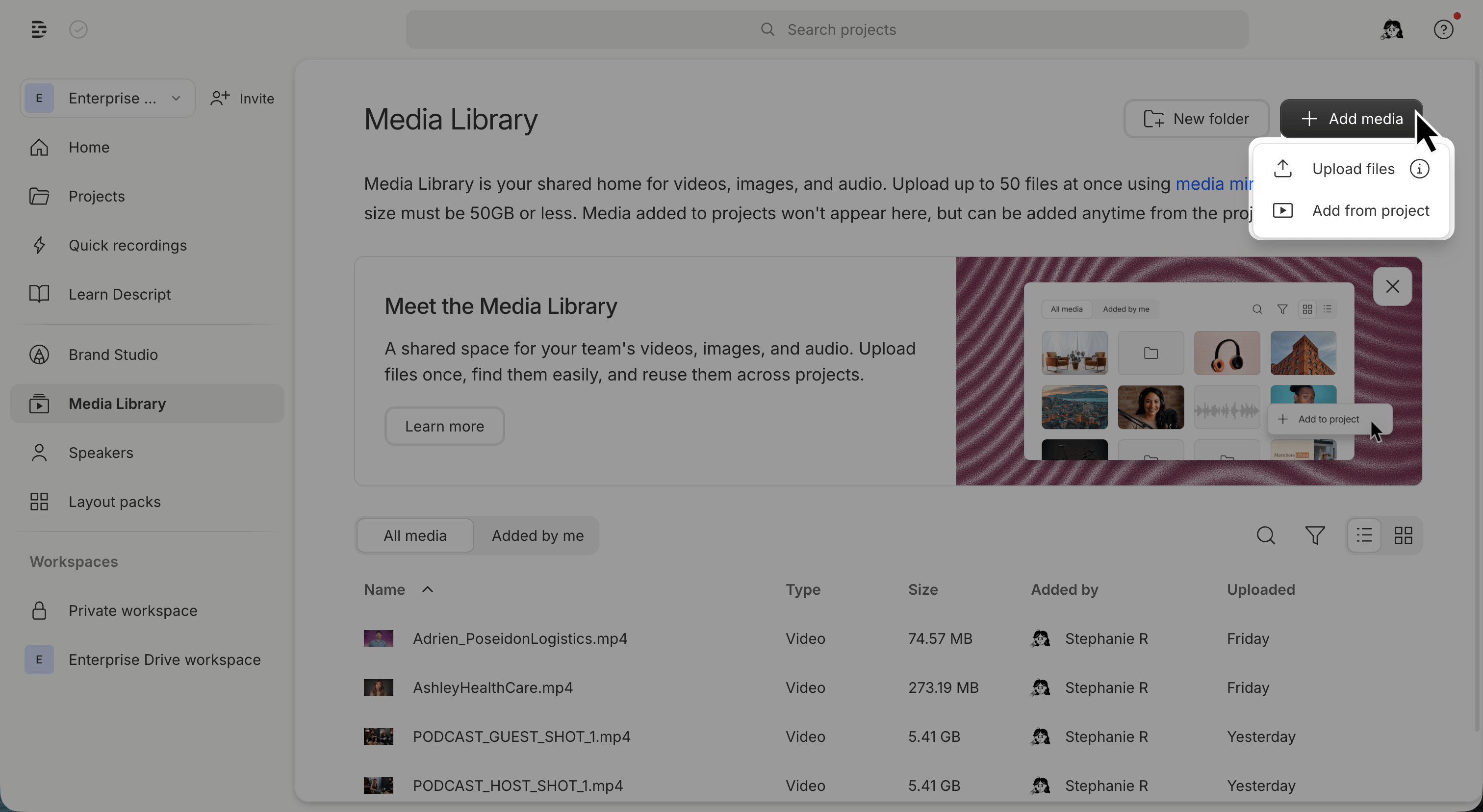
1. Open **Drive view**, then select **Media Library** in the left sidebar. \
[Go directly to Media Library](https://web.descript.com/media-library)
2. Click **Add media** in the top-right corner.
1. Select **Upload files** to import a file, or drag and drop files into the window. See [Supported file types](#).
2. Select **Add from project** to move files from an existing project into Media Library.
## Add and organize media
### Upload files to the Media Library
1. Open **Drive view**, then select **Media Library** in the left sidebar. \
[Go directly to Media Library](https://web.descript.com/media-library)
2. Click **Add media** in the top-right corner.
1. Select **Upload files** to import a file, or drag and drop files into the window. See [Supported file types](#).
2. Select **Add from project** to move files from an existing project into Media Library.
 **How media minutes work**
Media minutes are deducted when you first upload a file—whether you upload it directly to the Media Library or to a project. After that initial upload, you can add the file to as many projects as you want using the Media Library or the import from another project feature without using additional media minutes.
Manually uploading the same file to multiple projects (without using Media Library or importing from another project) will deduct media minutes for each upload.
### Organize with folders
Create folders to group related files:
* Click **New folder**, name it, and press Enter.
* Drag files into folders, or right-click a file and select **Move**.
* Create subfolders inside existing folders.
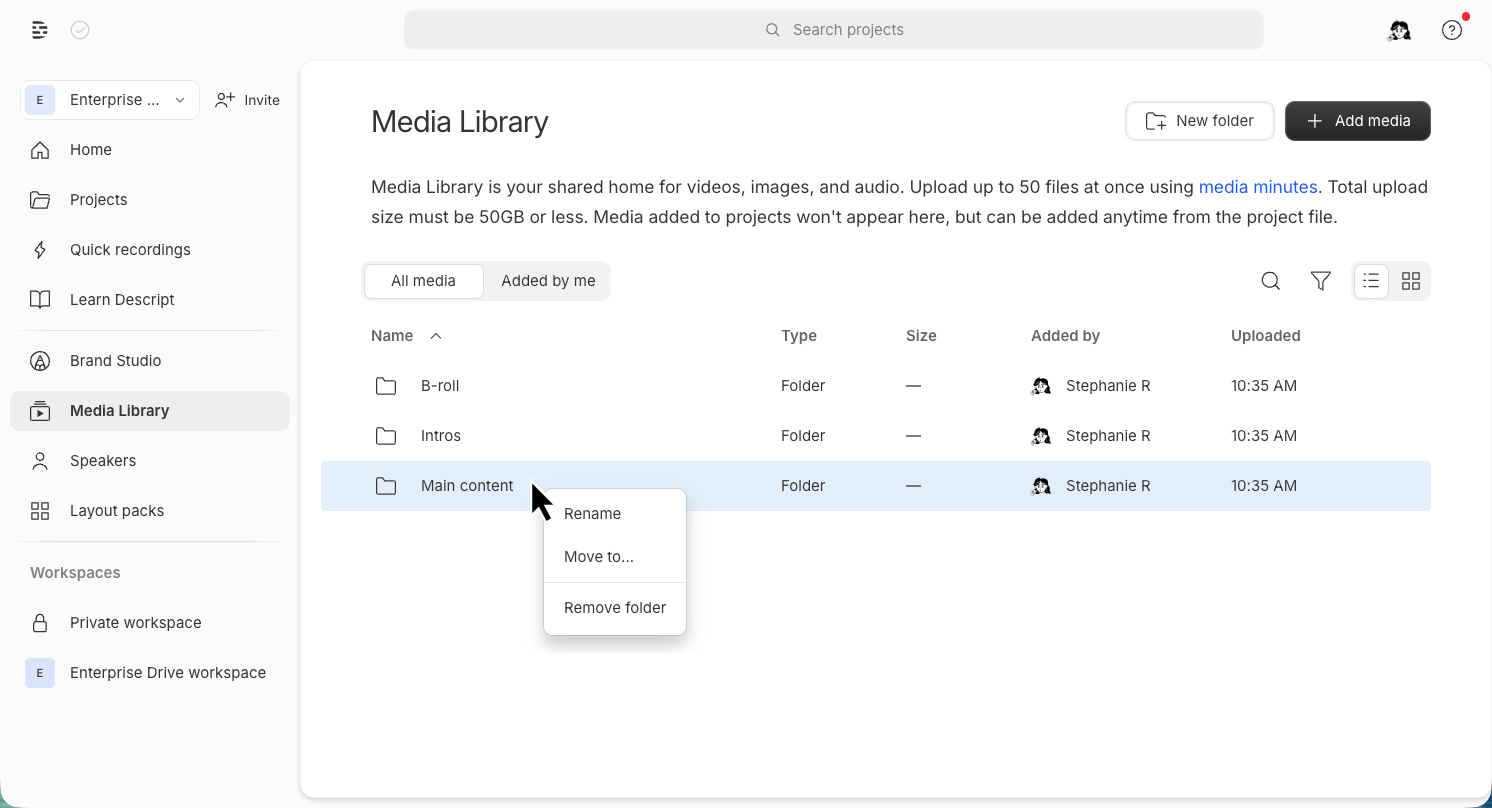
* Right-click a file or folder and select **Rename**. You can also rename, move, or delete the current folder using the options menu in the folder header.
**How media minutes work**
Media minutes are deducted when you first upload a file—whether you upload it directly to the Media Library or to a project. After that initial upload, you can add the file to as many projects as you want using the Media Library or the import from another project feature without using additional media minutes.
Manually uploading the same file to multiple projects (without using Media Library or importing from another project) will deduct media minutes for each upload.
### Organize with folders
Create folders to group related files:
* Click **New folder**, name it, and press Enter.
* Drag files into folders, or right-click a file and select **Move**.
* Create subfolders inside existing folders.
* Right-click a file or folder and select **Rename**. You can also rename, move, or delete the current folder using the options menu in the folder header.
 ### Search
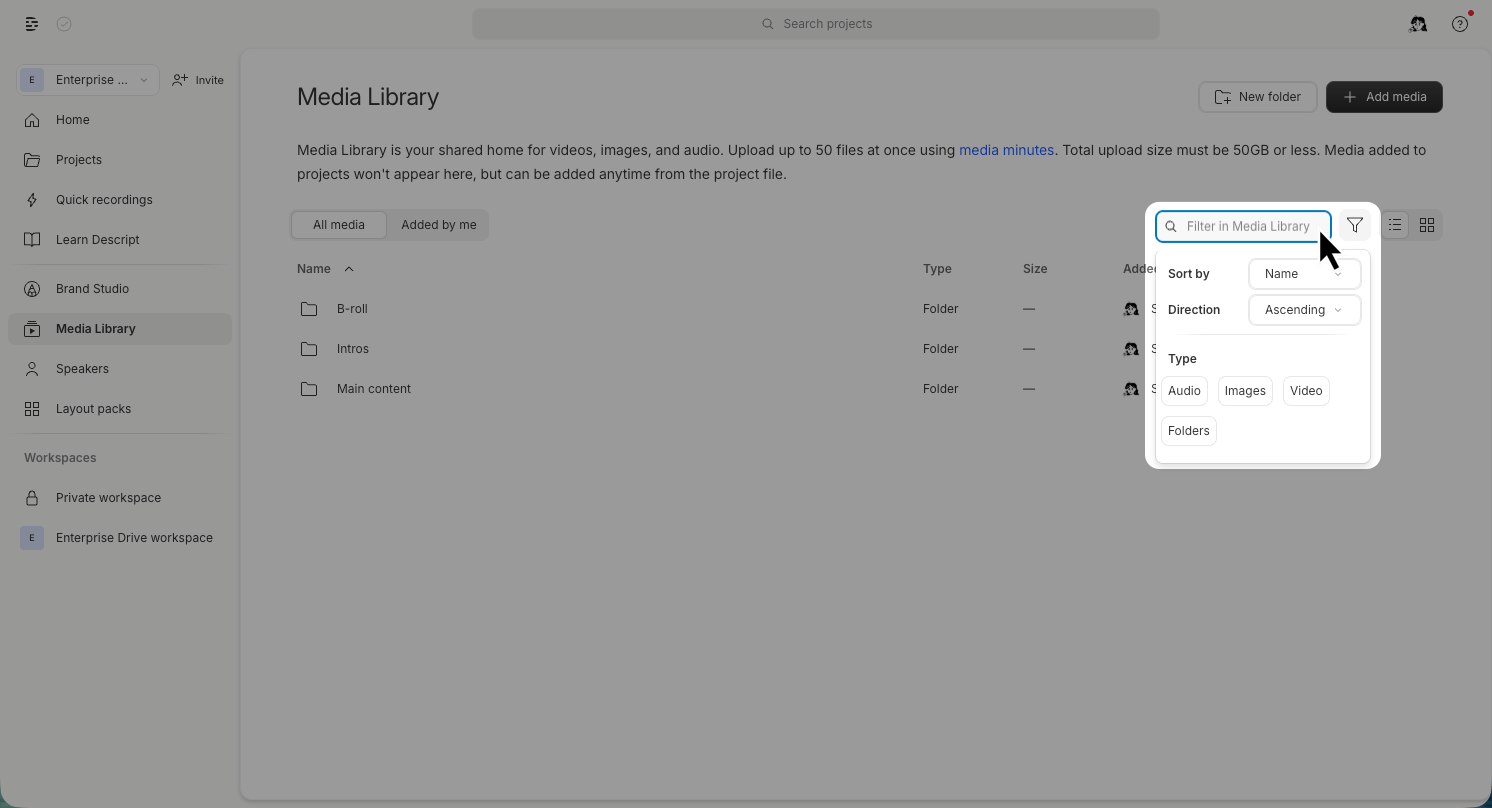
Use the search bar at the top of Media Library to find files by filename. Filter results by media type using the **Audio**, **Video**, or **Image** buttons. Filters apply only to content in the current folder.
Folders always appear in your view, even when filtering, so you can navigate into them.
### Search
Use the search bar at the top of Media Library to find files by filename. Filter results by media type using the **Audio**, **Video**, or **Image** buttons. Filters apply only to content in the current folder.
Folders always appear in your view, even when filtering, so you can navigate into them.
 ### Remove files
Right-click a file or folder and select **Remove from Media Library**. You can also remove the current folder by clicking the **Folder options** button in the header and selecting **Remove folder**.
Removing a file from Media Library does not delete it from projects where it’s already in use.
## Use Media Library files in projects
After you add media to the Media Library, you can reuse it in any project. Open a project and add files from the Media Library by clicking the **Import from Media Library** button in an empty composition. Adding a file to a project from the drive's Media Library will not deduct additional media minutes. Audio and video files will transcribe when added to a project. If a transcript and speaker labels were already generated in the Media Library, they will be included automatically.
[Learn how to add Media Library files to a project →](#)
## Access and permissions
All drive members can view and use files stored in Media Library.
**Editors can:**
* Upload and organize media
* Add media to projects
* Remove files from Media Library
**Viewers can:**
* Browse and preview media
## Media Library vs Brand Studio
**Media Library** is a shared storage space for reusable content. Editors can upload and organize files as needed.
[**Brand Studio**](/branding/brand-studio) centralizes brand control. Admins and brand managers define approved logos, fonts, colors, layouts, and templates.
**When to use each:**
* Use **Media Library** for shared content like intros, B-roll, music beds, and graphics.
* Use **Brand Studio** to manage approved brand assets and enforce design standards.
## Troubleshooting upload errors
### Unsupported file type
Media Library supports audio, video, and image files only. You can’t upload PDFs, fonts, or document files. See [Supported file types](/add-and-manage-media/supported-file-types) for a full list.
### File is too large or file resolution exceeds your plan limit
Each plan has a maximum file size or resolution per upload. Compress or downscale the file or [upgrade your plan](/billing-payments-plans/upgrade) if your file exceeds the limits.
### Out of media minutes
If you’ve used all available media minutes, upload options are disabled. You can still organize and reuse existing files, but you’ll need to wait for your minutes to reset or purchase top ups to upload new media. [Learn more about top ups.](/billing-payments-plans/top-ups)
### Remove files
Right-click a file or folder and select **Remove from Media Library**. You can also remove the current folder by clicking the **Folder options** button in the header and selecting **Remove folder**.
Removing a file from Media Library does not delete it from projects where it’s already in use.
## Use Media Library files in projects
After you add media to the Media Library, you can reuse it in any project. Open a project and add files from the Media Library by clicking the **Import from Media Library** button in an empty composition. Adding a file to a project from the drive's Media Library will not deduct additional media minutes. Audio and video files will transcribe when added to a project. If a transcript and speaker labels were already generated in the Media Library, they will be included automatically.
[Learn how to add Media Library files to a project →](#)
## Access and permissions
All drive members can view and use files stored in Media Library.
**Editors can:**
* Upload and organize media
* Add media to projects
* Remove files from Media Library
**Viewers can:**
* Browse and preview media
## Media Library vs Brand Studio
**Media Library** is a shared storage space for reusable content. Editors can upload and organize files as needed.
[**Brand Studio**](/branding/brand-studio) centralizes brand control. Admins and brand managers define approved logos, fonts, colors, layouts, and templates.
**When to use each:**
* Use **Media Library** for shared content like intros, B-roll, music beds, and graphics.
* Use **Brand Studio** to manage approved brand assets and enforce design standards.
## Troubleshooting upload errors
### Unsupported file type
Media Library supports audio, video, and image files only. You can’t upload PDFs, fonts, or document files. See [Supported file types](/add-and-manage-media/supported-file-types) for a full list.
### File is too large or file resolution exceeds your plan limit
Each plan has a maximum file size or resolution per upload. Compress or downscale the file or [upgrade your plan](/billing-payments-plans/upgrade) if your file exceeds the limits.
### Out of media minutes
If you’ve used all available media minutes, upload options are disabled. You can still organize and reuse existing files, but you’ll need to wait for your minutes to reset or purchase top ups to upload new media. [Learn more about top ups.](/billing-payments-plans/top-ups)