> ## Documentation Index
> Fetch the complete documentation index at: https://help.descript.com/llms.txt
> Use this file to discover all available pages before exploring further.
# Flatten Tracks
> Merge all edited clips into one new file to simplify a heavy composition.
When a composition gets heavy with edits and starts to lag, flattening merges all your clips into one clean file.
## Using flatten tracks
**Consider duplicating the composition first**
Flatten tracks creates a brand new file in your composition overwriting your existing edits. Typically we recommend [duplicating the composition](/working-in-projects/duplicate) before flattening in the event that you may want to later make revisions to your edits.
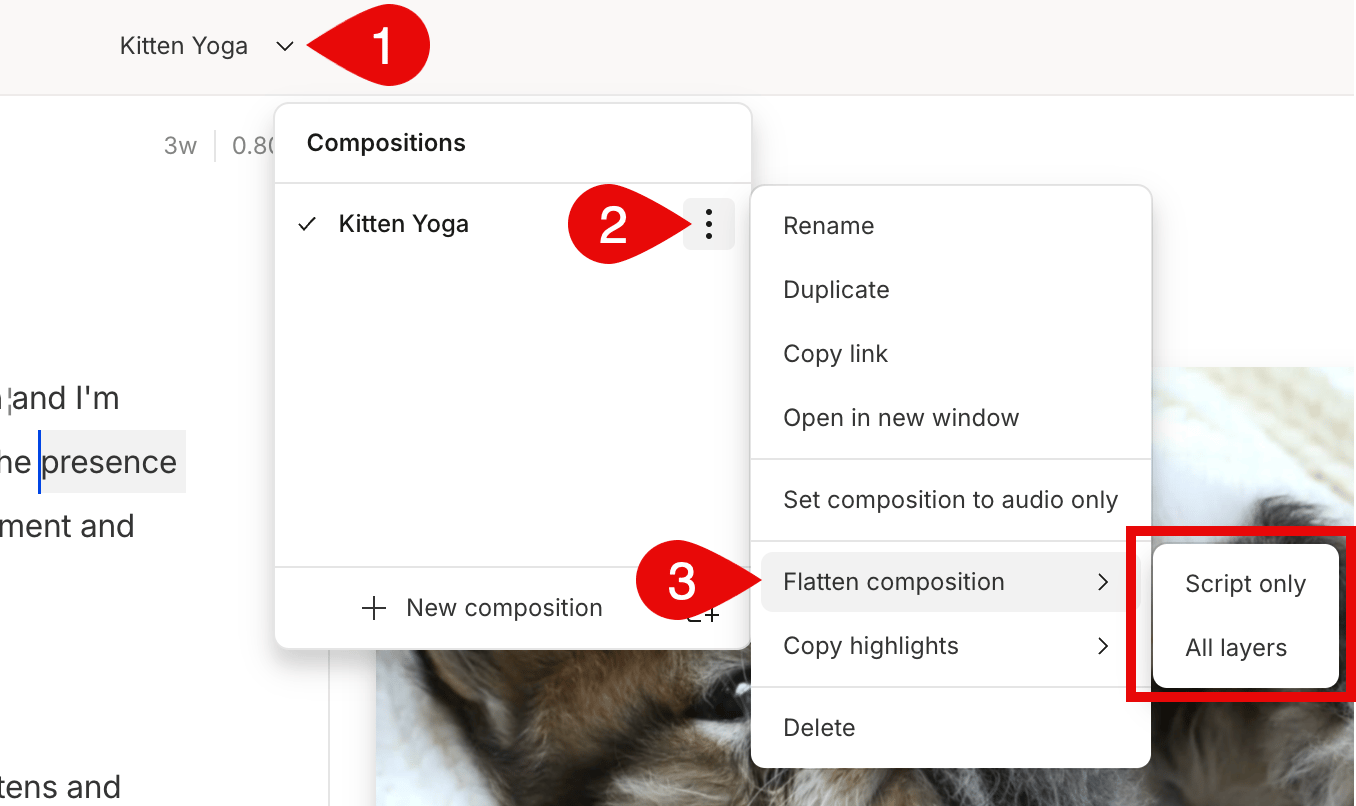
1. Select the down arrow next to the project name in the top bar of the editor.
2. Click on the  next to your composition's name in the dropdown menu.
3. Hover over **Flatten tracks** and choose between the two options:
* **Script track only** — only merge the clips in the script track.
* **All tracks** — condense all media in the composition into a single script track.
next to your composition's name in the dropdown menu.
3. Hover over **Flatten tracks** and choose between the two options:
* **Script track only** — only merge the clips in the script track.
* **All tracks** — condense all media in the composition into a single script track.