> ## Documentation Index
> Fetch the complete documentation index at: https://help.descript.com/llms.txt
> Use this file to discover all available pages before exploring further.
# The Descript Bot on Slack
> Get alerts in Slack for project comments and share page views by installing the Descript bot in your workspace.
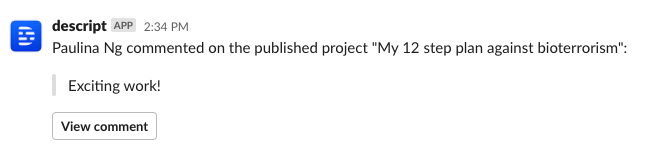
With the Descript bot in Slack, you can receive notifications for:
* Comments on projects
* Comments on share pages
* The first time a share page is viewed
 ## Installing in your Workspace
Installing the Descript bot in your workplace is as easy as clicking the button below:
[
## Installing in your Workspace
Installing the Descript bot in your workplace is as easy as clicking the button below:
[ ](https://api.descript.com/slack/install)
### Connect your Descript account to Slack
After the Descript integration is installed on your workspace, users in the workspace can add the Descript app.
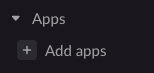
1. Click the **+ Add apps** button in the lower-left corner of the Slack sidebar.
](https://api.descript.com/slack/install)
### Connect your Descript account to Slack
After the Descript integration is installed on your workspace, users in the workspace can add the Descript app.
1. Click the **+ Add apps** button in the lower-left corner of the Slack sidebar.
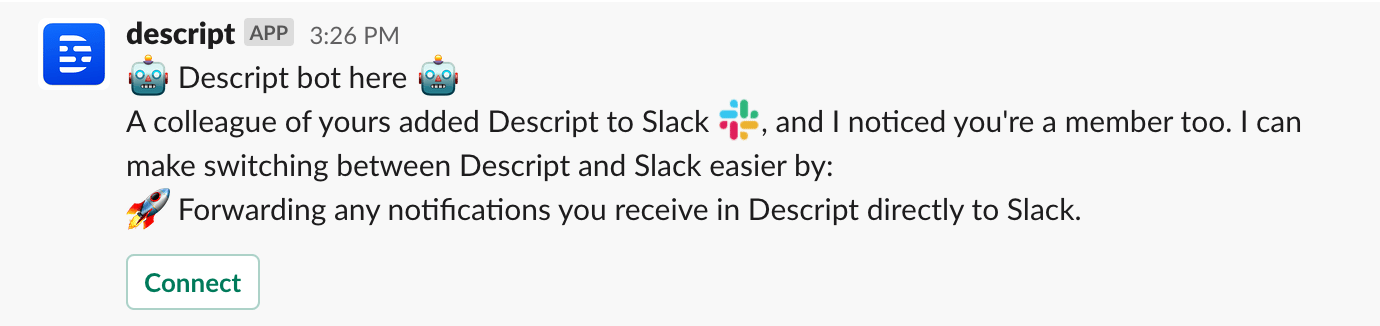
 2. The Descript bot will then prompt you to connect your Descript account. Click **Connect**; this will open a browser page, and you’ll be prompted to log in to [web.descript.com](http://web.descript.com).
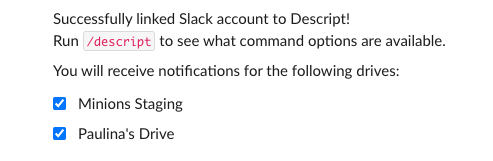
 3. Once connected, you’ll be redirected back to Slack, where you can configure which drive(s) to receive notifications for. By default, all drives will be selected, so if you wish to remove any, simply uncheck the box.
 ## Re-configuring which drives provide notifications in my workspace
To access the configuration options, use the chat command /descript notifications
## Descript bot limitations
The Descript bot is currently only available for Descript accounts with 10 drives or less. If installed, users with more than 10 drives will not be able to interact with the Descript bot.
### What is your privacy policy?
You can read more about our privacy policy here: [descript.com/privacy](http://descript.com/privacy)
## Re-configuring which drives provide notifications in my workspace
To access the configuration options, use the chat command /descript notifications
## Descript bot limitations
The Descript bot is currently only available for Descript accounts with 10 drives or less. If installed, users with more than 10 drives will not be able to interact with the Descript bot.
### What is your privacy policy?
You can read more about our privacy policy here: [descript.com/privacy](http://descript.com/privacy)