> ## Documentation Index
> Fetch the complete documentation index at: https://help.descript.com/llms.txt
> Use this file to discover all available pages before exploring further.
# Customize Your Profile Image and Name
> Update your display name and profile image shown on share pages.
Change your display name or add a profile image.
1. Open [App Settings](/account-and-app-settings/app-settings), keyboard shortcut `Command/Control + , (comma)`
2. Select the **Profile** tab.
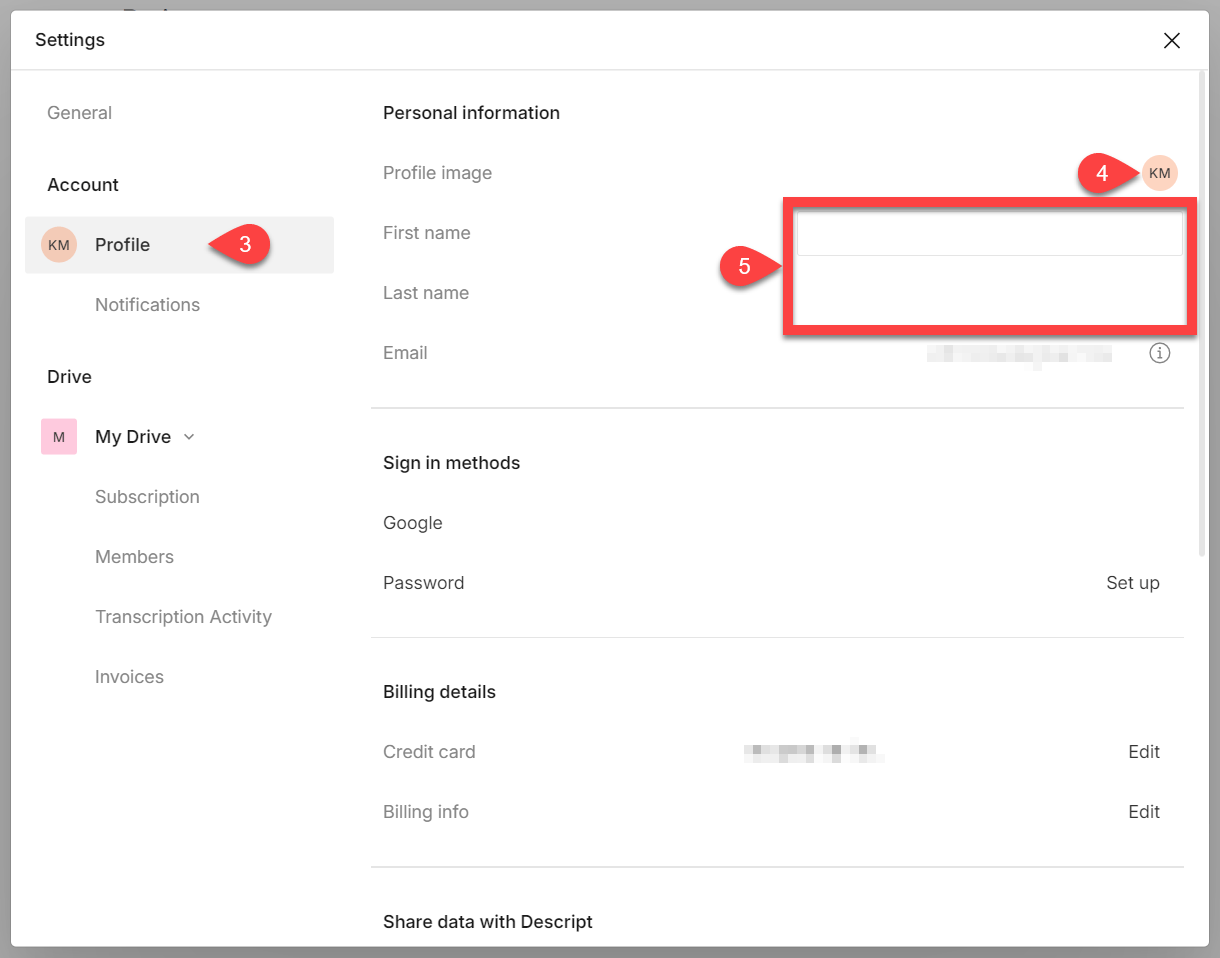
3. Next to the **Profile image**line item, click your current profile picture on the right. Then select the image from your computer that you would like to use, and click **Open**.
4. Next to the **First name**and **Last name**line items, click the text boxes and enter in the name you would like to use for your profile.
[ ](/images/external/descript-25004822866573-525396c405.png)
**Profile image is used for Custom branding**
Changing your profile image will also change the branding image that shows up on share pages that are exported from your drive if you have Custom branding enabled. [Click here to learn more about Custom branding](/branding/use-custom-branding-on-share-pages).
](/images/external/descript-25004822866573-525396c405.png)
**Profile image is used for Custom branding**
Changing your profile image will also change the branding image that shows up on share pages that are exported from your drive if you have Custom branding enabled. [Click here to learn more about Custom branding](/branding/use-custom-branding-on-share-pages).