> ## Documentation Index
> Fetch the complete documentation index at: https://help.descript.com/llms.txt
> Use this file to discover all available pages before exploring further.
# Manage Email Notifications
> Manage which Descript emails you get, toggle product updates, or unsubscribe.
Turn Descript's product updates and announcements on or off, or unsubscribe entirely, from your account settings or the link at the bottom of any email.
Descript emails fall into two categories: **marketing** and **transactional**. You can manage your preferences for both types of emails directly from your account or by using links in the email messages.
* **Marketing emails** share updates about new features, product improvements, and special offers.
* **Transactional emails** relate to your account activity—things like password resets, billing confirmations, and project comments or mentions.
## How to manage transactional notifications
1. [Sign in to your Descript account](https://web.descript.com/) using the desktop app or web app.
2. Click your profile icon in the top-right corner of the [Drive view](/descript-tour/drive-view).
3. Select  **Settings**.
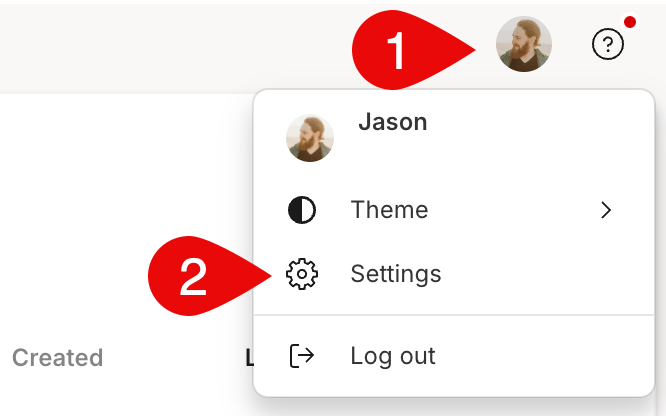 4. Click the **Notifications** tab.
5. Toggle the switches to turn specific notifications on or off.
**Manage notifications without signing in**
You can also update your preferences without logging in. Click **Manage product notifications** at the bottom of any Descript email to access your settings.
## How to unsubscribe from Descript marketing emails
You can update your marketing email preferences directly from the footer of any Descript marketing email:
* Click **Manage your email preferences here** to adjust which emails you receive.
* Click **Unsubscribe** to stop receiving all marketing emails from Descript.
**Subscribe or re-subscribe to marketing emails**
When you create a Descript account, we’ll automatically subscribe you to marketing emails. You can re-subscribe anytime from the [Descript blog homepage](https://www.descript.com/blog).
4. Click the **Notifications** tab.
5. Toggle the switches to turn specific notifications on or off.
**Manage notifications without signing in**
You can also update your preferences without logging in. Click **Manage product notifications** at the bottom of any Descript email to access your settings.
## How to unsubscribe from Descript marketing emails
You can update your marketing email preferences directly from the footer of any Descript marketing email:
* Click **Manage your email preferences here** to adjust which emails you receive.
* Click **Unsubscribe** to stop receiving all marketing emails from Descript.
**Subscribe or re-subscribe to marketing emails**
When you create a Descript account, we’ll automatically subscribe you to marketing emails. You can re-subscribe anytime from the [Descript blog homepage](https://www.descript.com/blog).