> ## Documentation Index
> Fetch the complete documentation index at: https://help.descript.com/llms.txt
> Use this file to discover all available pages before exploring further.
# App Settings
> Adjust app settings like appearance, transcription defaults, and drive preferences.
Manage your account, drive, and editor preferences from the Settings menu. Settings are organized into three groups: **General** (applies across all drives), **Account** (profile, AI models, connected apps), and **Drive** (settings for the selected drive).
## Open the app settings menu
Press `Cmd/Ctrl + ,` from anywhere in Descript to open Settings. This works from the [drive view](/descript-tour/drive-view) or an open project.
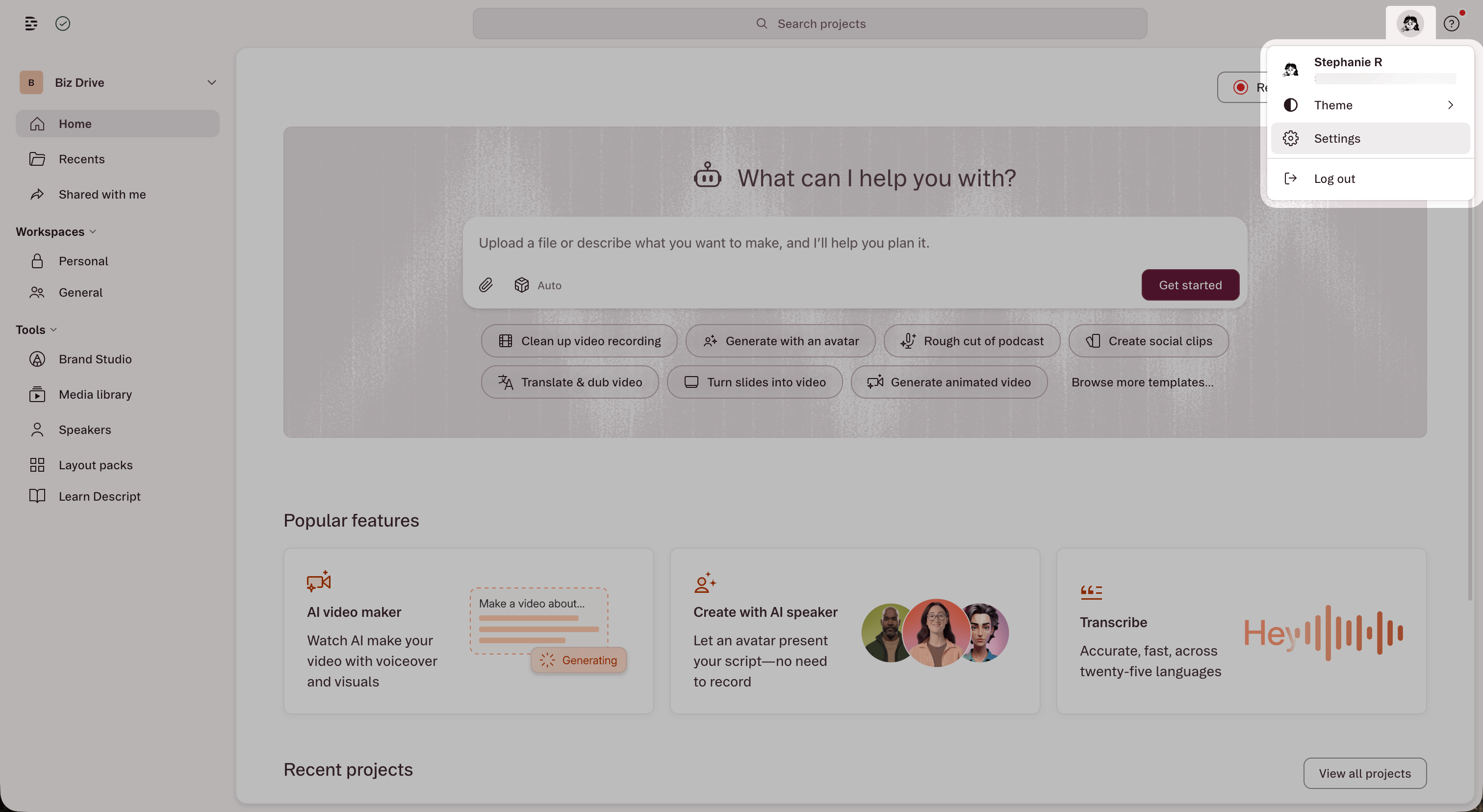
* **From the drive view header:** Click your profile icon in the top-right corner and select **Settings**.
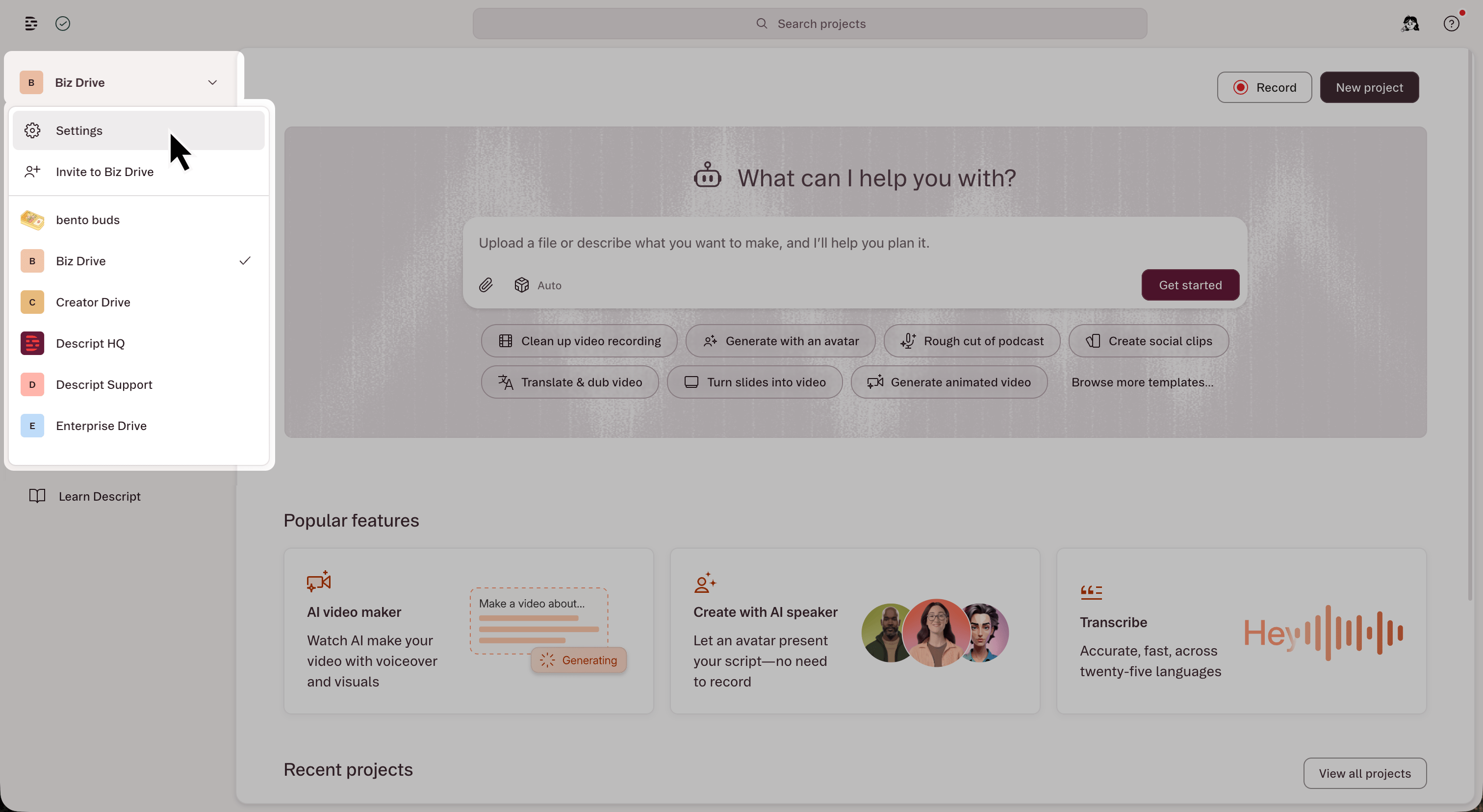
 * **From the drive view:** Click the drive selector in the top-left corner and choose **Settings**.
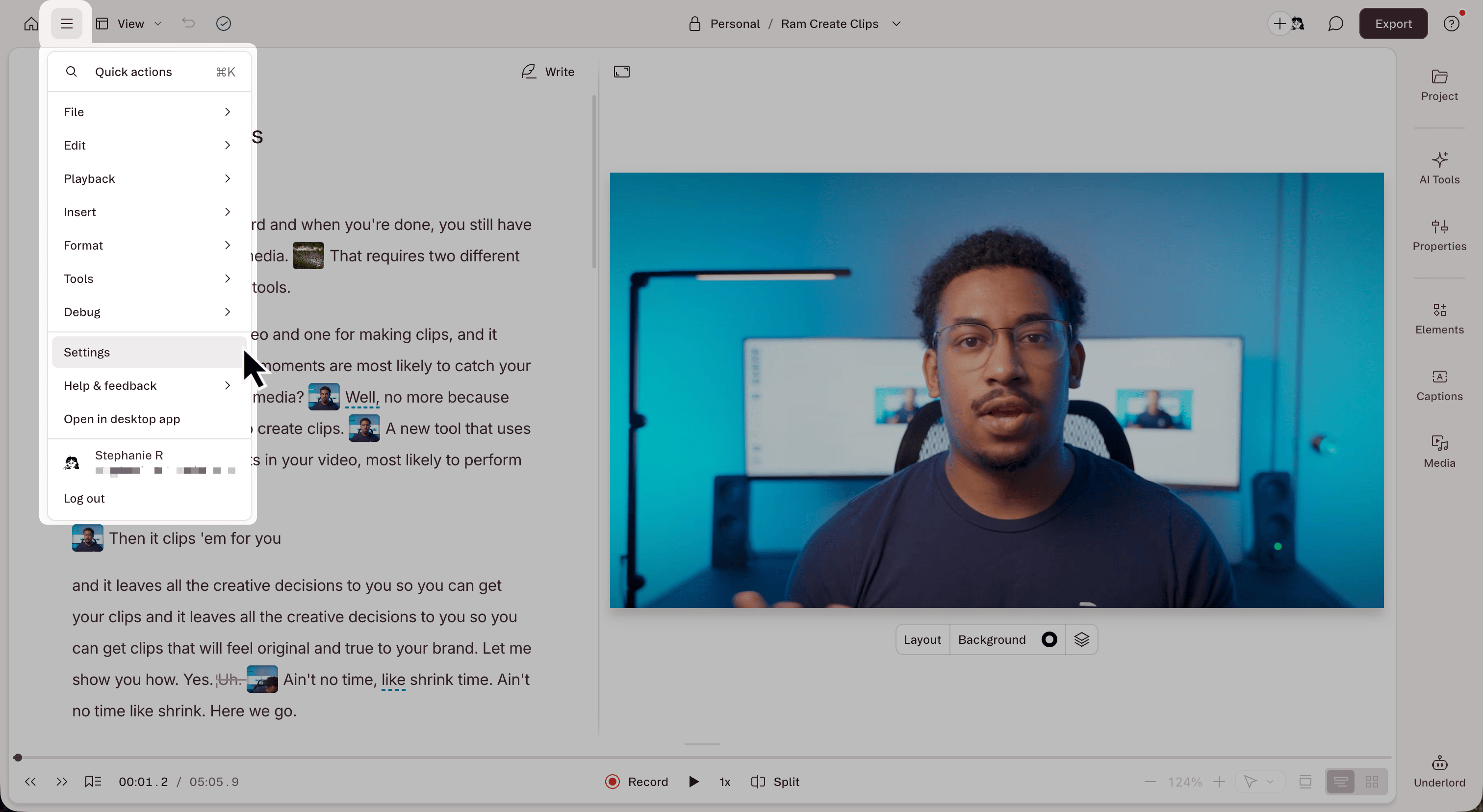
 * **From an open project:** Click the menu icon in the top-left corner of the editor and select **Settings**.
 If you belong to multiple drives, select the correct drive from the dropdown at the top of the Drive section before making changes.
## General
| Setting | Description |
| ---------------------- | --------------------------------------------------------------------------------------------------------------- |
| **Default project** | Choose whether new projects default to video or audio-only compositions. |
| **Default AI speaker** | Set the default [speaker label](/script-editing/speakers) for new [Write mode](/ai-speech/write-mode) projects. |
| **Appearance** | Select Light, Dark, or match your system settings. |
### Transcription settings
| Setting | Description |
| -------------------------------------------------------------------- | -------------------------------------------------------------------------------------------------------------------------------------------------------------------- |
| **Default transcription language** | Set to Auto by default. Choose from [any supported language](/script-editing/supported-transcription-languages) for automatic transcription. |
| **Always ask before transcribing** | Prompts you to confirm the language before transcription begins. Useful if you work in multiple languages or don't want a file transcribed immediately after import. |
| **Automatically detect speakers** | When enabled, Descript asks for confirmation before running speaker detection. [Learn more about detecting speakers](/script-editing/speaker-detection). |
| **Automatically add frequent corrections to transcription glossary** | Automatically adds a word or phrase to your [transcription glossary](/script-editing/transcription-glossary) after you manually correct it three or more times. |
| **Notify of transcription glossary updates** | Displays a notification whenever an entry in your transcription glossary is added or changed. |
### Advanced settings
| Setting | Description |
| --------------------------------- | ------------------------------------------------------------------------------------------------------------------------------------------------------------------------------------------------------------------ |
| **Automatic volume levels** | Applies -16 dB loudness normalization by default. Override this per project. |
| **Show volume in decibels** | Display volume levels in decibels (dB) instead of percentages. |
| **Use room tone on gap clips** | Adds [room tone](/effects-animations-transitions/room-tone) to gap clips. Override this per project. |
| **Apply Smart transitions** | Automatically adds [Smart transitions](/effects-animations-transitions/smart-transitions) between scenes. |
| **Show wordless media in script** | Display waveforms for non-speech media in the script. |
| **Force software video decoding** | Disable GPU-based video decoding and use your CPU instead. Helpful if you see blank previews, editor freezing, or playback stalls. |
| **Default translation style** | Select between Auto, Match Timing, or Direct Translation styles. [Learn more about translation styles](/repurpose/overview). |
| **Always show usage info** | Toggle whether to always display [AI credit & media minute usage](/billing-payments-plans/track-and-understand-your-media-minutes-and-ai-credits) info in the app. This setting does not affect Enterprise drives. |
### Labs
Enable early-stage features to test and share feedback.
## Account
### AI models
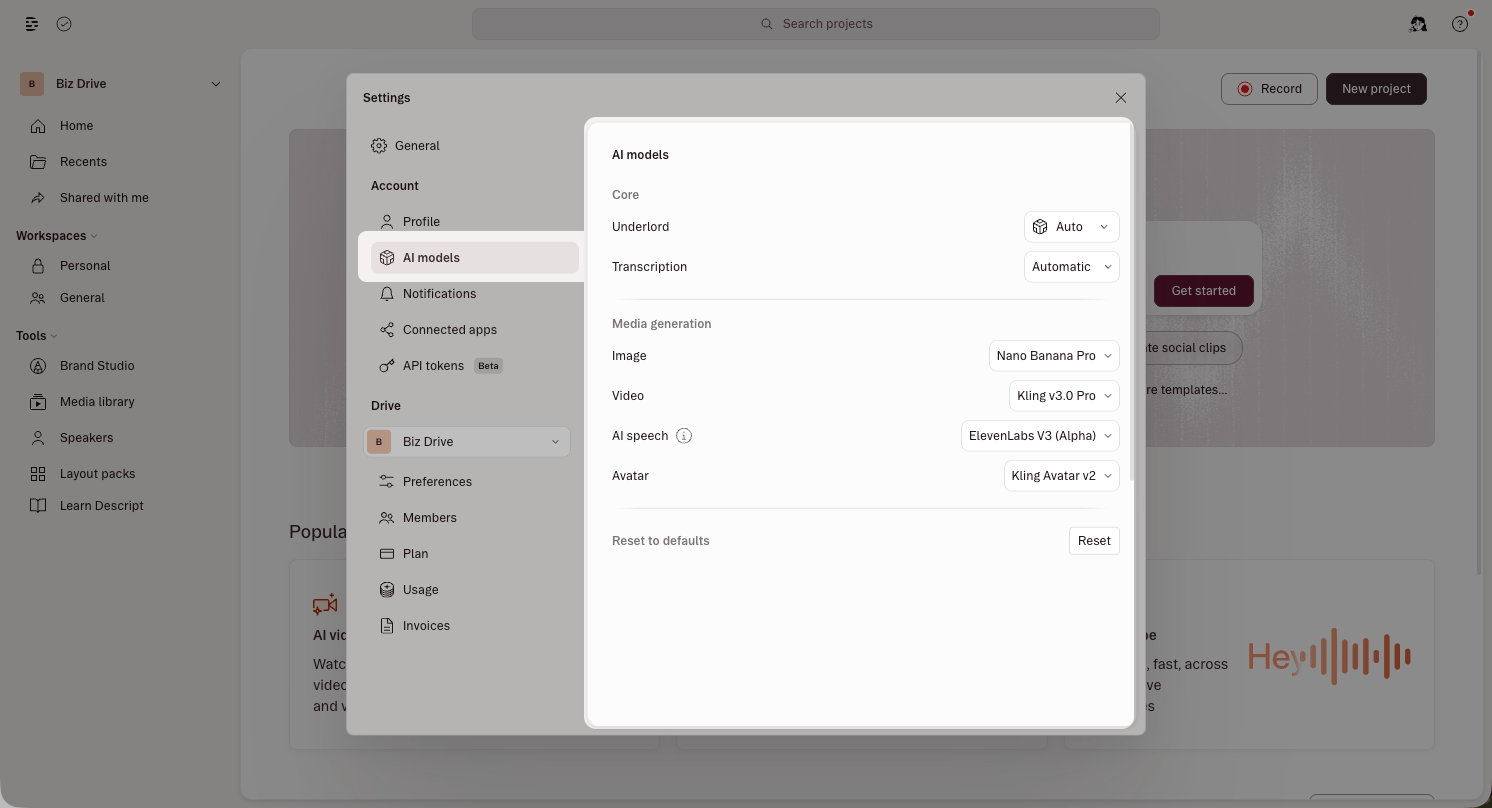
Set the default AI model for [Underlord](/getting-started/underlord-beta-your-ai-co-editor-in-descript), [transcription](/script-editing/automatic-transcription), and [generative media](/generative-media/generate-media) (Image, Video, [AI Speech](/ai-speech/tts), [Avatars](/generative-media/overview)). You can also override the model for a specific session directly in the editor.
Different models balance quality, speed, and AI Credit usage. Availability may vary by plan. [Learn more about generative image and video models](/generative-media/models).
If you belong to multiple drives, select the correct drive from the dropdown at the top of the Drive section before making changes.
## General
| Setting | Description |
| ---------------------- | --------------------------------------------------------------------------------------------------------------- |
| **Default project** | Choose whether new projects default to video or audio-only compositions. |
| **Default AI speaker** | Set the default [speaker label](/script-editing/speakers) for new [Write mode](/ai-speech/write-mode) projects. |
| **Appearance** | Select Light, Dark, or match your system settings. |
### Transcription settings
| Setting | Description |
| -------------------------------------------------------------------- | -------------------------------------------------------------------------------------------------------------------------------------------------------------------- |
| **Default transcription language** | Set to Auto by default. Choose from [any supported language](/script-editing/supported-transcription-languages) for automatic transcription. |
| **Always ask before transcribing** | Prompts you to confirm the language before transcription begins. Useful if you work in multiple languages or don't want a file transcribed immediately after import. |
| **Automatically detect speakers** | When enabled, Descript asks for confirmation before running speaker detection. [Learn more about detecting speakers](/script-editing/speaker-detection). |
| **Automatically add frequent corrections to transcription glossary** | Automatically adds a word or phrase to your [transcription glossary](/script-editing/transcription-glossary) after you manually correct it three or more times. |
| **Notify of transcription glossary updates** | Displays a notification whenever an entry in your transcription glossary is added or changed. |
### Advanced settings
| Setting | Description |
| --------------------------------- | ------------------------------------------------------------------------------------------------------------------------------------------------------------------------------------------------------------------ |
| **Automatic volume levels** | Applies -16 dB loudness normalization by default. Override this per project. |
| **Show volume in decibels** | Display volume levels in decibels (dB) instead of percentages. |
| **Use room tone on gap clips** | Adds [room tone](/effects-animations-transitions/room-tone) to gap clips. Override this per project. |
| **Apply Smart transitions** | Automatically adds [Smart transitions](/effects-animations-transitions/smart-transitions) between scenes. |
| **Show wordless media in script** | Display waveforms for non-speech media in the script. |
| **Force software video decoding** | Disable GPU-based video decoding and use your CPU instead. Helpful if you see blank previews, editor freezing, or playback stalls. |
| **Default translation style** | Select between Auto, Match Timing, or Direct Translation styles. [Learn more about translation styles](/repurpose/overview). |
| **Always show usage info** | Toggle whether to always display [AI credit & media minute usage](/billing-payments-plans/track-and-understand-your-media-minutes-and-ai-credits) info in the app. This setting does not affect Enterprise drives. |
### Labs
Enable early-stage features to test and share feedback.
## Account
### AI models
Set the default AI model for [Underlord](/getting-started/underlord-beta-your-ai-co-editor-in-descript), [transcription](/script-editing/automatic-transcription), and [generative media](/generative-media/generate-media) (Image, Video, [AI Speech](/ai-speech/tts), [Avatars](/generative-media/overview)). You can also override the model for a specific session directly in the editor.
Different models balance quality, speed, and AI Credit usage. Availability may vary by plan. [Learn more about generative image and video models](/generative-media/models).
 ### Connected apps
| Integration | Description |
| ------------ | -------------------------------------------------------------------------------------------------------------------------- |
| **LinkedIn** | Connect your LinkedIn account to [add Descript capabilities to your LinkedIn profile](/account-and-app-settings/linkedin). |
| **Zoom** | [Connect your Zoom account](/add-and-manage-media/zoom) to import recordings directly into Descript. |
### Descript MCP
Connect Descript to external AI assistants like [Claude](/api-and-mcp/mcp-claude), ChatGPT, and Cursor. The Descript MCP tab includes connect buttons for each supported assistant, plus your unique MCP URL for use with other compatible clients.
For setup instructions, see [Use Descript with an AI assistant (MCP)](/api-and-mcp/mcp).
### API tokens
Generate and manage API tokens for connecting Descript to external tools and workflows. [Learn more about the Descript API](/api-and-mcp/api). See also: [Use Descript with an AI assistant (MCP)](/api-and-mcp/mcp-claude).
## Drive
Drive settings apply to the currently selected drive. If you belong to multiple drives, use the drive selector dropdown at the top of the Drive section to switch between them.
### Preferences
The Preferences tab controls drive identity and publish privacy settings.
| Setting | Description |
| ------------------------------------------------------------------------------------------------------------ | ----------------------------------------------------------------------------------------------------------------------------------------------------------------- |
| **Drive logo** | Upload a logo for your drive. |
| **Drive name** | Change the display name of your drive. |
| **Enable editors to invite editors to the drive** (Enterprise only) | Allow editor-role members to send drive invitations to other editors. |
| **Enable sharing to anyone with the link and publishing to third-party hosting solutions** (Enterprise only) | Controls whether members can share projects via link or publish to third-party platforms. |
| **Enable public sharing with search engine indexing** (Enterprise only) | Allow published share pages to be indexed by search engines. |
| **Default publish privacy** | Set the default privacy level for published share pages. |
| **Default new projects to personal workspace** (Enterprise only) | When enabled, new projects save to each member's personal workspace instead of the general workspace. [Learn more about workspaces](/team-management/workspaces). |
### Members
View, invite, and manage drive members. Filter by role or workspace. [Learn more about drive membership roles](/team-management/invite).
### Workspaces (Enterprise only)
Create, rename, and manage custom workspaces. Change workspace visibility (open or private), manage members, and delete workspaces. [Learn more about workspaces](/team-management/workspaces).
### Plan
View your current plan, compare plans, and manage your subscription. [Learn more about managing your subscription](/billing-payments-plans/manage).
### Usage
Track media minutes, AI credits, and other usage across your drive. [Learn more about tracking your AI credits and media minutes](/billing-payments-plans/track-and-understand-your-media-minutes-and-ai-credits).
### Invoices
View upcoming invoices, and view and download past invoices for your drive. Learn more about viewing your [invoice history.](/billing-payments-plans/invoice-history)
### Connected apps
| Integration | Description |
| ------------ | -------------------------------------------------------------------------------------------------------------------------- |
| **LinkedIn** | Connect your LinkedIn account to [add Descript capabilities to your LinkedIn profile](/account-and-app-settings/linkedin). |
| **Zoom** | [Connect your Zoom account](/add-and-manage-media/zoom) to import recordings directly into Descript. |
### Descript MCP
Connect Descript to external AI assistants like [Claude](/api-and-mcp/mcp-claude), ChatGPT, and Cursor. The Descript MCP tab includes connect buttons for each supported assistant, plus your unique MCP URL for use with other compatible clients.
For setup instructions, see [Use Descript with an AI assistant (MCP)](/api-and-mcp/mcp).
### API tokens
Generate and manage API tokens for connecting Descript to external tools and workflows. [Learn more about the Descript API](/api-and-mcp/api). See also: [Use Descript with an AI assistant (MCP)](/api-and-mcp/mcp-claude).
## Drive
Drive settings apply to the currently selected drive. If you belong to multiple drives, use the drive selector dropdown at the top of the Drive section to switch between them.
### Preferences
The Preferences tab controls drive identity and publish privacy settings.
| Setting | Description |
| ------------------------------------------------------------------------------------------------------------ | ----------------------------------------------------------------------------------------------------------------------------------------------------------------- |
| **Drive logo** | Upload a logo for your drive. |
| **Drive name** | Change the display name of your drive. |
| **Enable editors to invite editors to the drive** (Enterprise only) | Allow editor-role members to send drive invitations to other editors. |
| **Enable sharing to anyone with the link and publishing to third-party hosting solutions** (Enterprise only) | Controls whether members can share projects via link or publish to third-party platforms. |
| **Enable public sharing with search engine indexing** (Enterprise only) | Allow published share pages to be indexed by search engines. |
| **Default publish privacy** | Set the default privacy level for published share pages. |
| **Default new projects to personal workspace** (Enterprise only) | When enabled, new projects save to each member's personal workspace instead of the general workspace. [Learn more about workspaces](/team-management/workspaces). |
### Members
View, invite, and manage drive members. Filter by role or workspace. [Learn more about drive membership roles](/team-management/invite).
### Workspaces (Enterprise only)
Create, rename, and manage custom workspaces. Change workspace visibility (open or private), manage members, and delete workspaces. [Learn more about workspaces](/team-management/workspaces).
### Plan
View your current plan, compare plans, and manage your subscription. [Learn more about managing your subscription](/billing-payments-plans/manage).
### Usage
Track media minutes, AI credits, and other usage across your drive. [Learn more about tracking your AI credits and media minutes](/billing-payments-plans/track-and-understand-your-media-minutes-and-ai-credits).
### Invoices
View upcoming invoices, and view and download past invoices for your drive. Learn more about viewing your [invoice history.](/billing-payments-plans/invoice-history)